Finishing and Shipping
4 Ship is the end of the pipeline: a read-only audit of what is actually in your scene, and an ordered checklist of the things worth doing before you bake, build or hand the scene to someone else. Nothing in this stage generates buildings, which is why it is the one stage with no primary button.
Ship ▸ Health — what is actually in the scene
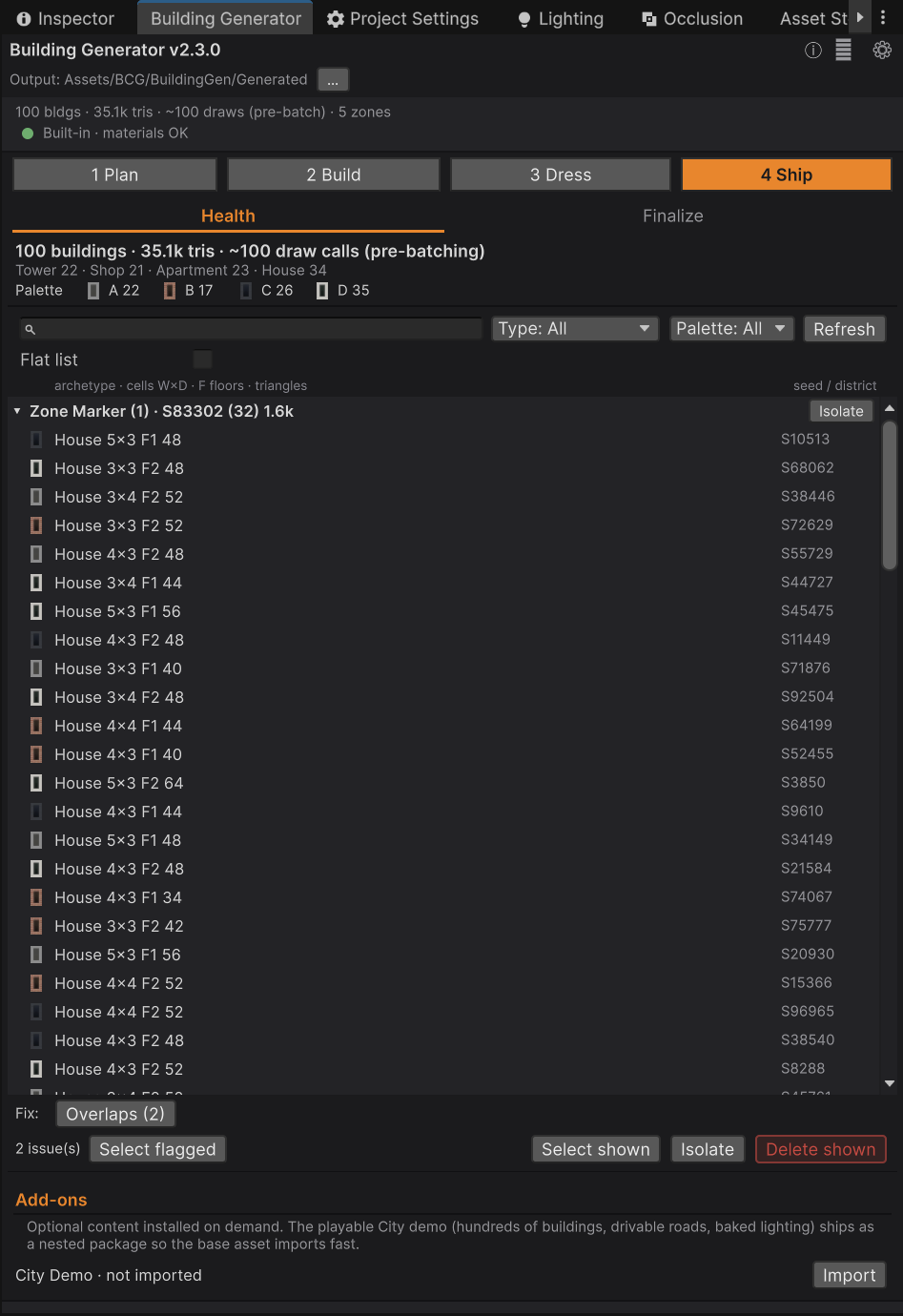
The dashboard lists every generated building in the open scene, grouped by district. The inventory is scanned once and cached, rebuilt only when the scene hierarchy actually changes or when you press Refresh — never on every repaint, because a large city is expensive to walk.
Reading the header
N buildings · X tris · ~N draw calls (pre-batching)— the totals. The draw-call figure is one per building before static batching or the SRP Batcher, so treat it as the ceiling, not the measurement.- Archetype line — how many Towers, Shops, Apartments and Houses.
- Palette line — the four palette swatches with a count each. A quick way to spot that your "mixed" city is 80% variant A.
Finding things
| Control | What it does |
|---|---|
| Search field | Matches a building's GameObject name or its seed |
| Type filter | All / Tower / Shop / Apartment / House |
| Palette filter | All / A / B / C / D |
| Flat toggle | Off (default) groups by district; on gives one flat list |
| Sort (flat only) | By triangles, floors, name or footprint |
| Refresh | Rescan the scene |
With any filter active, a showing X of N line appears above the list.
In the grouped view, each district folds out with its building count, combined triangles, a (!)
if anything inside has an issue, and an Isolate button that selects and frames that district in
the Scene view. Loose buildings — from Single and Variation Row — collect in a (loose) bucket
at the end.
Single-click a row to select and ping the building; double-click to frame it.
Health flags
Every building is checked for the following. A warning icon with a tooltip lists whichever apply:
| Flag | What it means |
|---|---|
| Missing mesh | No MeshFilter, or its mesh reference is empty |
| Missing / magenta material | No renderer, an empty material or shader slot, or Unity's error shader |
| Pipeline mismatch | The facade shader does not match the active render pipeline — the pink-under-URP trap |
| Not marked static | The Batching Static flag was cleared, so the building loses static batching |
| Overlapping | Its footprint clips another building's, by the same test the placement guard uses |
| Foundation skirt lost its mesh or material | The skirt child is still there but its content is gone. A removed skirt component is treated as deliberate and never flagged |
| Missing foundation skirt | A fresh ground probe says one is needed but there is none. Only checked while Snap To Ground is on |
The fix row
When anything is flagged, a Fix: row appears above the bulk actions with one-click repairs. Each shows a live count and acts on every flagged building in the scene, not just the filtered list.
| Button | What it repairs |
|---|---|
| Static | Re-applies the generator's static flags. Flags the object already carries — including Contribute GI — are kept |
| Materials | Re-points buildings with a missing or wrong-pipeline material at the correct facade material, rebuilding the shared materials first if they themselves mismatch. Buildings using a deliberately custom shader are never touched |
| Overlaps | Moves each overlapping building to the nearest free spot, using the same search generation uses. Unflagged buildings never move |
| Skirts | Re-probes the ground under each flagged building, replaces a damaged skirt or attaches a missing one, and re-derives the base height exactly as Snap To Ground would — so a building buried in a hillside pops its ground floor clear |
| Roads | Rebuilds broken road networks from their stored layout and deletes ownerless broken road objects |
All of these are Undo-able as a single step. The Materials fix has one exception: the scene changes undo, but the material asset rebuild does not.
Bulk actions
N issue(s)/ Select flagged — select every building with at least one health flag.- Select shown — select everything currently listed, respecting filters.
- Isolate — select the shown buildings and frame them in the Scene view.
- Delete shown — after confirmation, delete every listed building and any container left empty. Undo-able.
Add-ons
At the bottom of this pane, the Add-ons panel installs optional content that ships compressed so the base package imports quickly. Currently that is the City Demo — a large playable scene with hundreds of buildings, drivable roads and baked lighting. Press Import and it unpacks into the Demo folder.
Ship ▸ Finalize — the pre-ship checklist
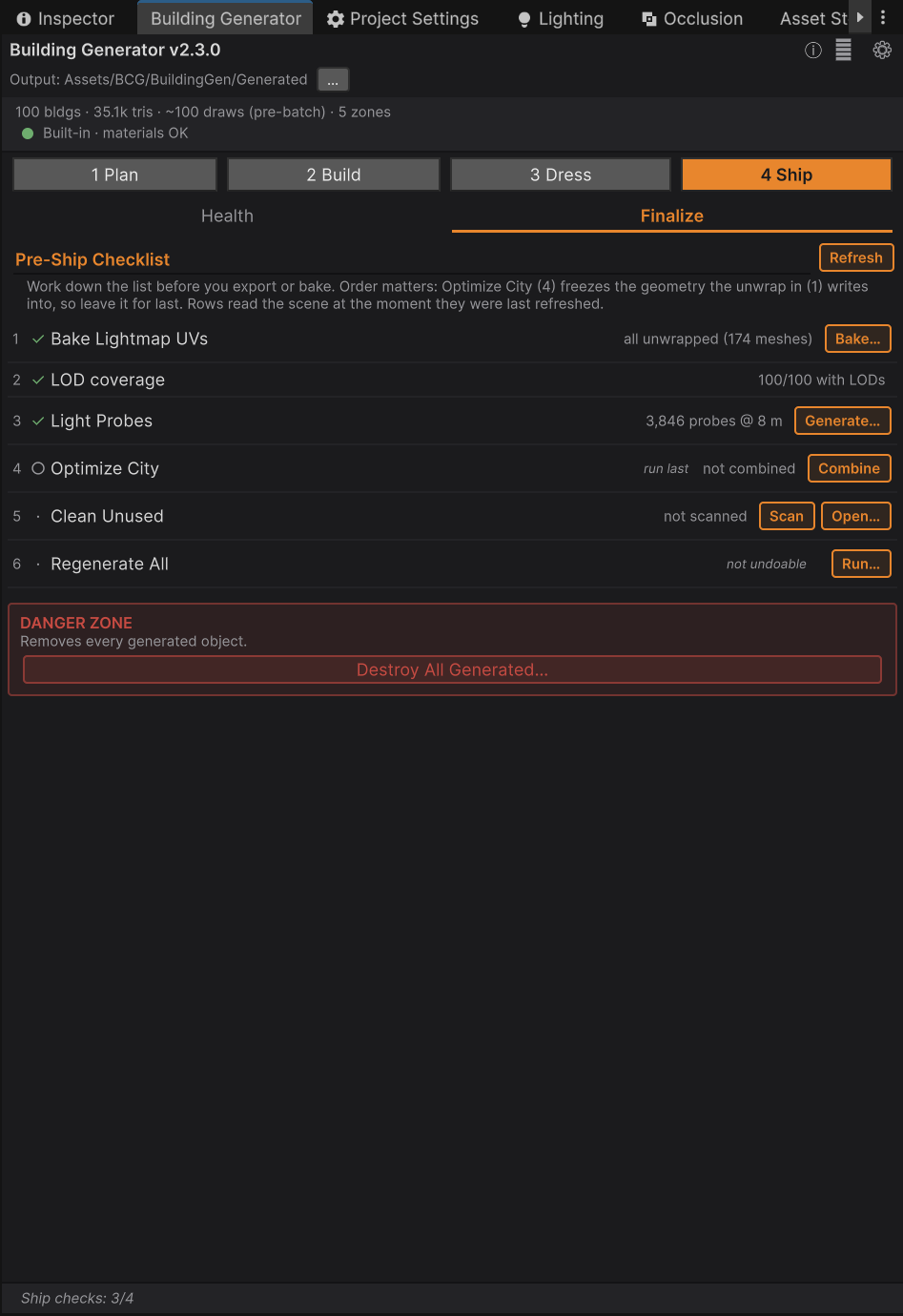
Six rows, in the order they should be done. Rows 1–4 are states your city can be in and show a
tick or an empty circle; the action bar mirrors the tally as Ship checks: k/4. Rows 5 and 6 are
things you do, so they never claim a tick.
| # | Row | Buttons | What the count tells you |
|---|---|---|---|
| 1 | Bake Lightmap UVs | Bake… | How many unique meshes still need an unwrap |
| 2 | LOD coverage | — | How many generated buildings carry an LODGroup. Informational — a city built without LODs is perfectly valid |
| 3 | Light Probes | Generate… | The generated probe group over the city, if any |
| 4 | Optimize City | Combine, De-Combine | Whether the city is currently combined. Marked run last |
| 5 | Clean Unused | Scan, Open… | Reads not scanned until you press Scan |
| 6 | Regenerate All | Run… | An action, not a state. Marked not undoable |
Order matters, and the pane says so. Optimize City (4) freezes the geometry that the unwrap in (1) writes into, so leave combining until last. Similarly, generate all your buildings before combining, because the placement guard cannot see disabled source buildings.
Counts are re-read when the pane becomes visible, when you press Refresh, and after every row action — never on a timer, because row 1 has to walk every render mesh under every generated root.
Every button on this pane greys out while a fill is running.
Regenerate All
Rebuilds every generated prefab in place. Mesh and prefab assets are overwritten at their existing paths, so GUIDs — and therefore every scene reference — survive.
Every content option is preserved as authored, read back from the asset itself rather than from your current toggles: rooftop props from the building's marker, LODs from the presence of an LODGroup, lightmap intent from the mesh's UV set. A lightmapped LOD prefab is rebuilt with fresh UVs on every LOD; a library made without lightmap UVs is rebuilt without the expensive unwrap and keeps Contribute GI off.
Use it after updating the package, to pick up geometry or size improvements without losing a single scene placement. It asks for confirmation first, and it cannot be undone.
Clean Unused
Destroy All removes buildings from the scene; Clean Unused reclaims the asset files they leave behind. Over time, regenerating and deleting buildings leaves mesh and prefab assets that no scene references any more.
- Press Scan for the orphan count and reclaimable size, or Open… to go straight to the window. You will be asked to save any modified scenes first, so the scan sees their current state.
- The tool scans every scene in your project — open and closed — and lists the generated meshes and prefabs nothing references, with the total disk space you can reclaim. This is why it only ever runs on demand and never on a timer.
- Review the list (everything is ticked by default; untick anything you want to keep) and press Delete Selected.
It is safe by design. Any mesh or prefab used by a building placed in any scene, including the demo, is kept. Facade and ground materials are never touched, and neither are the street-furniture prefabs. A prefab that exists only in your Project window and was never placed in a scene counts as unused — untick it if you want it.
Deletion is permanent and not undoable, which is why there is a preview and a confirmation.
Destroy All Generated
In its own danger zone at the bottom of the pane. After confirmation, it deletes every generated building and road in the open scene, plus any container objects left empty. It can be reverted with Undo.
For anything more surgical — deleting one district, or only the flagged buildings — use the health dashboard's filters and Delete shown instead.
A suggested ship sequence
- Finish generating. All buildings, all roads, all districts.
- Ship ▸ Health — clear every flag. Fix static flags, materials, overlaps and skirts.
- Dress ▸ Mood — set your final day/night look and press Apply Materials.
- Dress ▸ Furniture — generate street furniture if you want it.
- Bake Lightmap UVs (row 1) on whatever should receive baked light.
- Generate Light Probes (row 3), then bake your lighting.
- Optimize City (row 4) — last, once nothing else will be generated.
- Clean Unused (row 5) to reclaim disk.
- Save the scene. Especially if you generated anything with Save As Prefab Assets off.
Common questions
The dashboard says my buildings are not static. Something cleared the flag — often a prefab revert or a hand edit. Press Static in the fix row.
Delete shown deleted more than I expected. It acts on everything listed, which respects your
filters but not your selection. Narrow the filters first, then check the showing X of N line.
Can I undo Clean Unused? No. Asset deletion is permanent; that is why it previews first.
Regenerate All did not turn on LODs for my old buildings. By design — it preserves what each asset was authored with. To add LODs, regenerate those buildings from the pane with the toggle on, or refill the district.
Where to go next
- Optimising — what combining does and does not buy you.
- Materials and Lighting — the baking steps in detail.
- Troubleshooting — if a flag will not clear.