HUD and Mobile Controls
This document covers the runtime head-up display (HUD) and the on-screen mobile touch controls that ship with Realistic Helicopter Controller Pro (RHCP). It explains every instrument widget and what telemetry it reads, the shared style and units configuration, how visibility groups let cameras show or hide instrument clusters, the safe-area handling for notched phones, the virtual-gamepad touch controls (collective, cyclic, pedals), and the demo settings panel that ties the runtime API together. Everything here is uGUI plus TextMeshPro on the runtime side, and the touch controls feed the same New Input System pipeline a real gamepad uses, so nothing is forked for mobile.
HUD Overview
The HUD is a single uGUI Canvas driven by one RHCP_HUDManager component. The manager owns the whole display: at OnEnable it discovers every RHCP_HUDWidget in its children (including inactive ones, so it can re-show them later), binds each to the target helicopter, applies the current visibility mask, and then fans out exactly one update per frame from a single LateUpdate. Individual widgets never run their own Update() — they receive a DriveTick(dt) call from the manager. This keeps update order deterministic and avoids the cost of many separate Update callbacks.
Every widget follows a GC-free contract. Continuous instruments read the bound helicopter's telemetry each tick, quantize the value (usually round it to an integer), cache the last displayed value, and only rewrite text or move geometry when that quantized value actually changes. Geometry-only instruments (tapes, the artificial horizon) move a RectTransform each tick with no allocation. The result is a HUD you can leave running every frame on mobile without generating per-frame garbage.
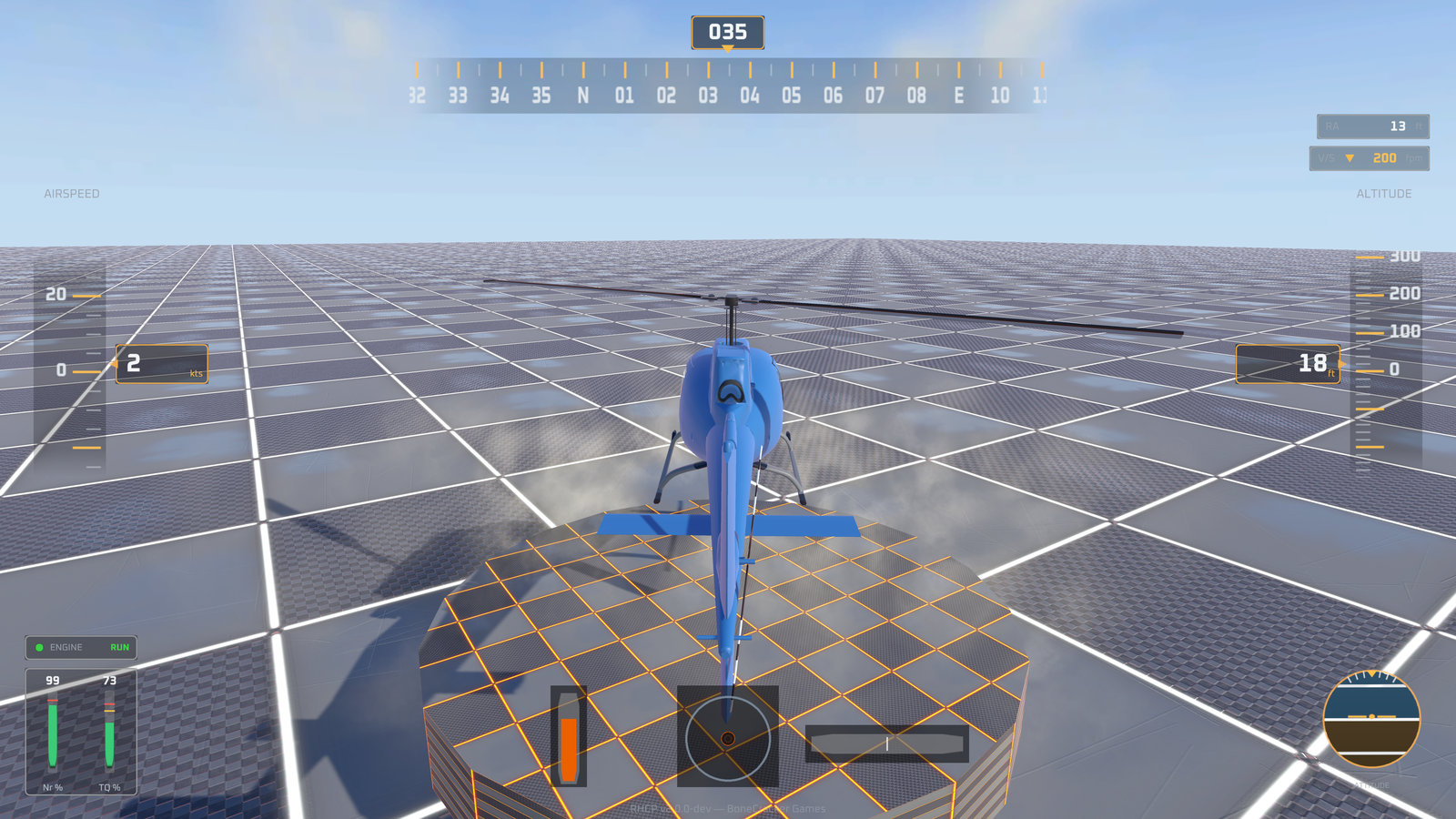
The manager exposes a small runtime API. Target is the helicopter currently displayed and SetTarget(RHCP_Helicopter) rebinds every widget to a new airframe (use this for vehicle switching; passing null clears the HUD). Rescan() re-discovers child widgets after you change the canvas hierarchy at runtime. Units is the live display unit system and VisibleGroups / SetVisibleGroups(...) control which instrument clusters are shown. For deeper scripting, see the XML documentation comments on RHCP_HUDManager (surfaced by your IDE's IntelliSense).
The Widgets
RHCP ships nine HUD widgets, each a subclass of RHCP_HUDWidget. Every widget reads its data exclusively from the hub's published telemetry properties on RHCP_Helicopter — a widget never raycasts, reads the Rigidbody directly, or computes physics itself. The table below lists every widget, the telemetry it consumes, and what it shows.
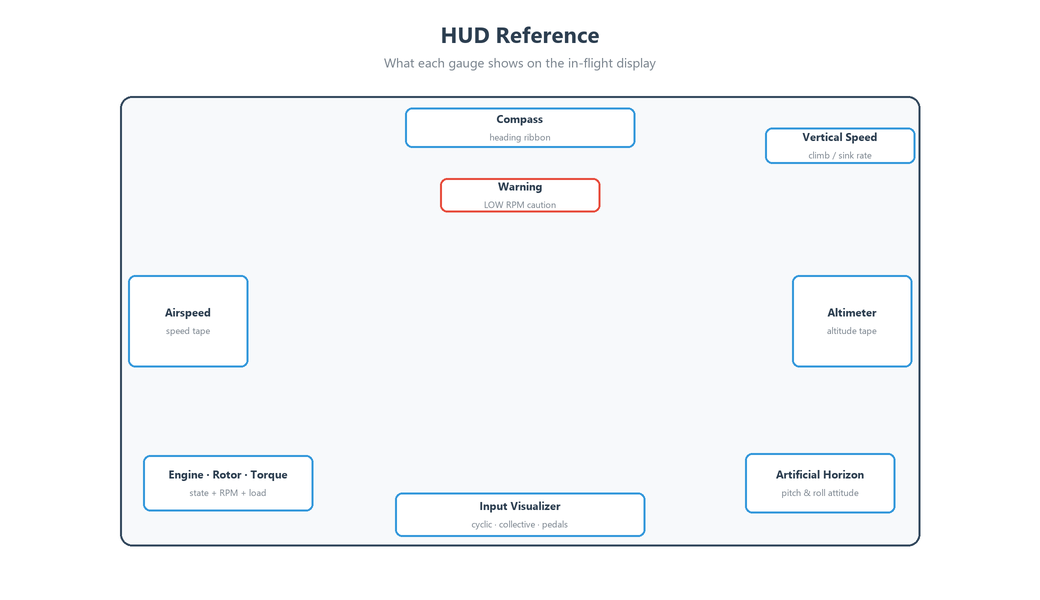
| Widget (type) | Reads from RHCP_Helicopter |
Displays |
|---|---|---|
Altimeter (RHCP_AltimeterWidget) |
AltitudeAGL, AltitudeMSL |
Primary above-ground-level (AGL) altitude readout plus a secondary mean-sea-level (MSL) readout, with an optional scrolling tape. AGL is height above terrain; MSL is height above the scene's zero. |
Airspeed (RHCP_AirspeedWidget) |
Airspeed |
Forward/true speed magnitude in the configured unit, with an optional scrolling tape. This is honest velocity, not an inflated arcade number. |
Vertical Speed (RHCP_VerticalSpeedWidget) |
VerticalSpeed |
Climb/descent rate. Renders either as a center-zero twin-fill bar or as a signed/absolute chip with an up/down trend arrow and trend colouring. |
Rotor RPM (RHCP_RotorRpmWidget) |
RotorRPMNormalized |
Main-rotor RPM as a percentage of governed RPM (Nr%), shown on a radial or bar gauge with green/amber/red bands and an optional numeric readout. |
Torque (RHCP_TorqueWidget) |
TorquePercent |
Engine/rotor torque as a 0–100% gauge — the pilot's primary power instrument — with caution/critical colour bands. |
Artificial Horizon (RHCP_ArtificialHorizonWidget) |
PitchAngle, RollAngle |
Attitude indicator: a horizon card translated by pitch and rotated by roll behind a circular mask, with a fixed aircraft symbol overlay. |
Compass (RHCP_CompassWidget) |
Heading |
Heading tape (cardinal letters and ticks) scrolled behind a center lubber line, with a digital 3-digit heading readout. |
Engine State (RHCP_EngineStateWidget) |
OnEngineStateChanged event (+ EngineState), EngineRpm01Command |
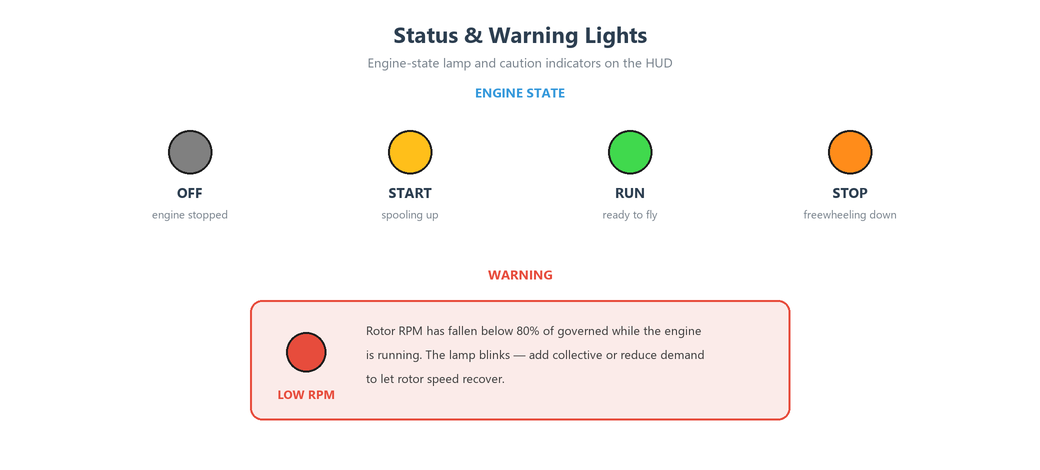
A lamp plus label that recolours per engine state (label text OFF/START/RUN/STOP for Off/Starting/Running/Shutdown), with a spool-progress ring shown only while starting. |
Warning (RHCP_WarningWidget) |
RotorRPMNormalized, EngineState |
A caution lamp that blinks when a warning is active. The shipped warning is low rotor RPM while the engine is running. |
Continuous versus event-driven widgets
Most widgets are continuous: they override Tick(dt) and poll telemetry every frame. The Engine State and Warning widgets are different. RHCP_EngineStateWidget is event-driven — it subscribes to the hub's OnEngineStateChanged event in OnBind and only does per-frame work (the spool ring) while the engine is Starting. RHCP_WarningWidget polls a derived condition each tick (low rotor RPM) and toggles its lamp on and off to blink.
Each widget also exposes its own tuning fields in the Inspector so you can adapt it to your art without code. Examples include the altimeter's tape scaling and an option to scroll the tape by MSL instead of AGL; the vertical-speed widget's full-scale value, level deadband, and trend colours; the gauge widgets' fill range, full-scale percent, and colour-band thresholds; the artificial horizon's pixels-per-pitch-degree and maximum card travel; the compass's pixels-per-360°; and the warning widget's low-RPM threshold and blink rate. None of these change physics — they only affect how a value is presented.
Per-widget update divisor
Every widget inherits an updateDivisor field (minimum 1). With 1 the widget ticks every manager frame. Setting it to a higher value thins how often the widget reads its telemetry — for example, a divisor of 3 ticks every third frame. Change-detection still gates whether anything is actually written, so the divisor is purely a way to reduce read cost for cheap or slow-moving instruments on constrained hardware. Leave it at 1 for smooth instruments such as the artificial horizon and compass tape.
Units and Theme
The HUD's look and unit conventions are centralized in one RHCP_UIConfig ScriptableObject (Assets/.../UI/RHCP_UIConfig.asset in the demo). All canvas prefabs reference a single instance, so restyling the whole UI — or switching the default units — is a one-asset edit. The config has four groups of fields, summarized below.
| Group | Field | Default | Purpose |
|---|---|---|---|
| Units | defaultUnits |
Aviation |
Seeds the HUD manager's live unit system at Awake. Aviation = knots / feet / feet-per-minute; Metric = km/h / metres / metres-per-second. |
| Theme | primaryText |
white | Primary readout/text colour. |
| Theme | accent |
orange (1, 0.5, 0) |
Brand accent (BCG orange) for highlights — never used for warnings. |
| Theme | warningAmber |
(1, 0.75, 0.1) |
Caution colour. |
| Theme | warningRed |
(0.95, 0.2, 0.15) |
Critical colour. |
| Theme | panelBackground |
dark translucent (0.039, 0.055, 0.071, 0.7) |
Panel backing colour. |
| Mobile fade / scale | idleAlpha |
0.45 |
Alpha that idle touch-control groups fade to. |
| Mobile fade / scale | fadeDelay |
3 (seconds) |
Seconds of no touch before a control group fades to idle. |
| Mobile fade / scale | stickyMinAlpha |
0.6 |
Floor alpha for the sticky collective (its position must stay readable). |
| Sprites | carbonFiberWeave, beveledMetallicRim, glassSpecularOverlay, mechanicalScrew, circularRing, panelBacking |
— | The procedural sprite set referenced by the HUD prefab art. |
How units flow at runtime
The actual unit system the widgets read is RHCP_HUDManager.Units, not the config field directly. At Awake the manager seeds Units from RHCP_UIConfig.DefaultUnits; from then on, anything that wants to change units at runtime (such as the demo settings panel) writes to manager.Units. This is deliberate: writing to a ScriptableObject during Play Mode persists and would corrupt your shipped defaults, so the runtime override lives on the manager instead. Conversions and labels are handled by the pure static helper RHCP_UnitConvert (for example, Speed, Altitude, VerticalSpeed, and their *Label counterparts), which widgets call each tick with the manager's effective unit system. To change the default units permanently, edit defaultUnits on the config asset; to change them for a play session, set manager.Units.
Visibility Groups and Toggling the HUD
Widgets are organized into visibility groups so a camera (or your own code) can show only the relevant instruments. The groups are defined by the [Flags] enum RHCP_HUDVisibilityGroup: None (0), Flight (1), Engine (2), Warnings (4), Navigation (8), and All (every group combined). Flight covers the primary flight instruments (altimeter, airspeed, vertical-speed indicator (VSI), artificial horizon), Engine covers the powertrain instruments (rotor RPM, torque, engine state), Warnings covers the caution lamps, and Navigation covers the compass/heading. Each widget's group field assigns it to exactly one group; because the type is a flags enum, a camera can request any combination (for example, a cockpit view that wants only Warnings | Engine).
The manager holds the current mask in VisibleGroups and applies it with SetVisibleGroups(mask), which enables or disables each widget's GameObject so hidden instruments cost nothing. The camera system can override the mask per camera — the chase camera typically shows All, while a cockpit camera may show a reduced set because the 3D cockpit instruments are visible in the scene. See Cameras for how each camera publishes its mask.
To toggle the entire HUD on and off, call SetVisibleGroups(RHCP_HUDVisibilityGroup.None) to hide everything and SetVisibleGroups(RHCP_HUDVisibilityGroup.All) to restore it. The demo scene wires a HUD toggle to the ToggleHUD input action (H on keyboard, D-Pad Left on a gamepad) through its demo controller, which flips the mask and then lets the active camera reassert its own group selection. This is the recommended pattern: drive visibility through the manager's mask rather than disabling the canvas GameObject directly, so the per-camera selection stays intact.
Safe Area (Mobile Notches)
Phones with notches, punch-hole cameras, or rounded corners report a reduced "safe area" rectangle that excludes those cutouts. The RHCP_SafeArea component reads Screen.safeArea and applies it to a full-stretch child RectTransform's anchors, so any HUD content or touch controls parented under that child are inset to the safe region and never clipped by a notch or hidden under a system gesture bar. In the HUD prefab this component sits on a full-stretch child directly under the canvas root, and all content parents to it.
The component is allocation-free and cheap. It caches the last applied safe area and screen dimensions, and only recomputes anchors when Screen.safeArea, Screen.width, or Screen.height actually changes — so it costs almost nothing per frame while still reacting to device rotation or a resolution change. There is nothing to configure: drop it on the content-root RectTransform (it requires a RectTransform and is single-instance), and parent your widgets and touch controls beneath it.
Because the safe area is driven by Screen.safeArea, you can preview its behaviour in the editor using the Device Simulator window, which feeds simulated notch geometry. On desktop and full-screen displays the safe area equals the full screen, so the component is a no-op there and is safe to leave enabled in every build.
Mobile Touch Controls
RHCP's on-screen controls are a thin presentation layer over a virtual gamepad. Each touch control emits into a gamepad control path using Unity's OnScreenControl base class, so touch input arrives at the flight model through the exact same New Input System bindings a physical gamepad uses — there is no separate mobile input path to maintain. The three flight controls map to gamepad sticks as follows.
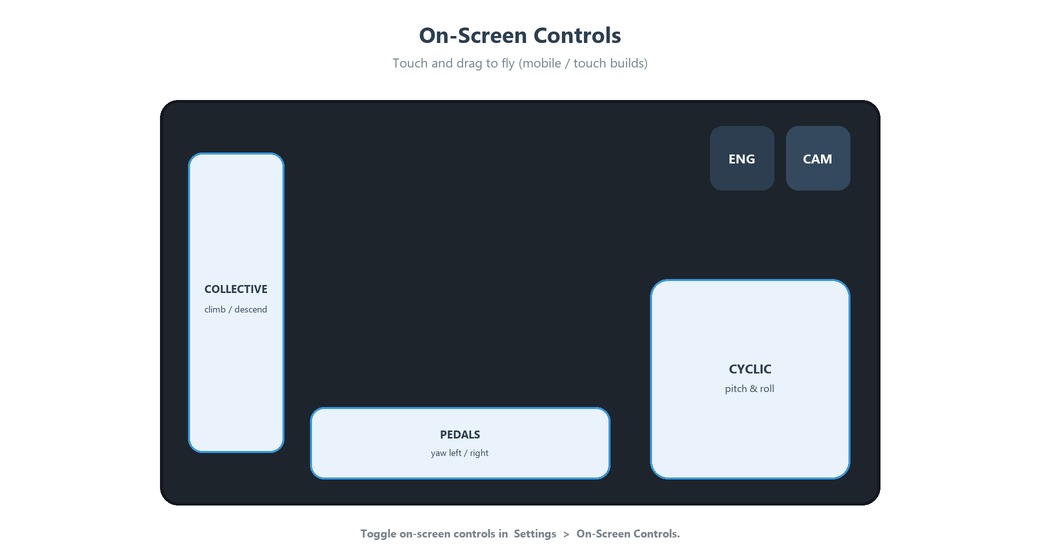
| Control (type) | Default control path | Behaviour |
|---|---|---|
Collective (RHCP_OnScreenCollective) |
<Gamepad>/leftStick/y |
A sticky vertical lever. Collective is your vertical thrust/lift control; like a real lever it does not spring back — the handle holds where you leave it and keeps asserting that value every frame while live. By default it uses relative drag: dragging anywhere in the zone nudges the lever from its current position (a stray tap can't slam the collective, and you can re-grip anywhere). Switch touchMode to Absolute for a jump-to-touch scrollbar feel. |
Cyclic (RHCP_OnScreenCyclic) |
<Gamepad>/rightStick |
A 2D auto-centering stick. Cyclic tilts the rotor disc for pitch and roll; the stick spring-returns to center on release. Supports a dynamic origin — the base appears where your thumb first lands inside the zone. |
Pedals (RHCP_OnScreenPedals) |
<Gamepad>/leftStick/x |
An analog 1D horizontal control for yaw (anti-torque). It is proportional, not a pair of digital buttons, and spring-returns to center on release. |
Each control's path is a serialized controlPath field, so you can re-target which virtual gamepad axis it feeds without code. The collective exposes travel (full-deflection distance), a touchMode (relative drag vs. absolute), a relativeGain drag multiplier (below 1 = finer control), and a holdValue toggle that resends the latched value every frame. The cyclic exposes movementRange, a dynamicOrigin toggle, and a returnRate spring rate. The pedals expose travel and returnRate. These are ergonomic/feel parameters only; the binding contract lives in the input asset. For how those gamepad bindings map onto the flight actions, see Controls and Input.
Activation, fade, and scale
The whole touch-control canvas is managed by RHCP_MobileControls. Whether it appears is a build-level choice you make explicitly, not an automatic platform guess: turn on Tools ▸ BoneCracker Games ▸ RHCP ▸ Enable Mobile Controls — a checkmarked toggle that is off by default — for the builds that should ship the on-screen sticks (typically your mobile / touch build). Because it is off by default, desktop and WebGL builds ship clean with no thumb controls and a normal, hideable mouse cursor.
Platform auto-detection is deliberately avoided here: on a desktop WebGL browser Touchscreen.current is non-null even with no touch hardware, and SystemInfo.deviceType / Application.isMobilePlatform are both unreliable under WebGL — so any automatic guess would wrongly show the thumb controls (and suppress cursor capture) on desktop web. The toggle is backed by a scripting define (RHCP_MOBILE_CONTROLS), so flipping it triggers a recompile like any define change, and the choice is baked into every platform's build.
On the component itself, touchDevicesOnly (default on) keeps the controls gated behind that global toggle; set it off to always show them regardless of the toggle, or enable forceShow to force visibility for editor/desktop testing.
Idle fade keeps the controls unobtrusive. After fadeDelay seconds with no touch, the configured fadeGroups ease toward idleAlpha; touching anything snaps them back to full opacity. The sticky-collective group is special — it is driven separately and never fades below stickyMinAlpha, because its latched position is state the pilot must keep reading. All three values come from RHCP_UIConfig (with built-in fallbacks of 0.45, 3 seconds, and 0.6 if no config is assigned).
Scale offers three presets — Small (default 0.85×), Medium (default 1.0×), and Large (default 1.2×) — applied to the controls root via SetScale(RHCP_ControlScale) and persisted in PlayerPrefs under the key RHCP_ControlScale. The preset is reloaded on OnEnable, so a player's chosen control size survives across sessions. The actual multipliers (smallScale/mediumScale/largeScale) are editable fields, so you can retune the presets for your art.
The Demo Settings Panel
RHCP_SettingsPanel is a demo-scene convenience that exercises and proves the runtime API surface — it is a demonstration of how to drive RHCP from a menu, not a shipped options framework you must use. It opens on the OpenSettings action (Esc on keyboard, Start on a gamepad) and toggles a content root. Critically, every row writes runtime state on scene components plus PlayerPrefs and never mutates the RHCP_FlightConfig or RHCP_UIConfig assets, following the same hard rule as the units override: Play-Mode writes to a ScriptableObject persist and would corrupt your shipped defaults. Saved preferences are re-applied on Start.
When the panel opens it acquires two input locks on the RHCP_InputManager: a Flight lock that freezes the helicopter's controls (it holds position with neutral input), and a Camera lock that frees the OS cursor for menu interaction and stops the camera orbiting behind the panel. Both locks are released when the panel closes. This is the recommended pattern for any pause/menu screen — acquire the locks you need so flight and camera input stop cleanly while the menu is up.
The panel's rows and what each one changes at runtime:
| Row | Writes to | Persisted key | Effect |
|---|---|---|---|
| Invert cyclic pitch (toggle) | RHCP_InputManager.SetInvertPitch(bool) |
RHCP_InvertPitch |
Inverts the cyclic pitch axis (mouse/stick Y). |
| Cyclic sensitivity (slider, 0.5–2.0) | RHCP_InputManager.SetCyclicSensitivity(float) |
RHCP_CyclicSensitivity |
Scales cyclic input; shown as 50%–200% on the optional value label. |
| Camera view (toggle) | RHCP_CameraManager.SetMode(...) |
not persisted | On = Cockpit, off = Chase. Reflects the rig's current mode on open. |
| Quality level (slider) | QualitySettings.SetQualityLevel(...) |
RHCP_QualityLevel |
Selects a Unity quality level; the label shows its name and optional dots indicate the level. |
| Control scale (slider, 0/1/2) | RHCP_MobileControls.SetScale(...) |
RHCP_ControlScale |
Small/Medium/Large on-screen control size (only meaningful on touch builds). |
| Units (toggle) | RHCP_HUDManager.Units |
RHCP_Units |
On = Metric, off = Aviation — switches every HUD readout's units live. |
| Close (button) | — | — | Closes the panel and releases the input locks. |
All UI callbacks are wired in code, and saved values are pushed back into both the managers and the UI controls on Start using SetValueWithoutNotify/SetIsOnWithoutNotify so re-applying prefs does not re-fire the change callbacks. Use this script as a reference implementation when you build your own pause menu or options screen against the RHCP runtime API.
Customizing the HUD
The HUD prefab is plain uGUI plus TextMeshPro, so customization uses normal Unity workflows. To restyle globally, edit the shared RHCP_UIConfig asset — its theme colours, default units, mobile fade/scale values, and procedural sprite slots flow into every canvas that references it. To replace the first-pass procedural art, swap the sprites referenced by the HUD prefab (and the config's sprite slots) for your own; nothing in the widget code hard-codes a texture. To reposition or resize instruments, move their RectTransforms in the prefab as usual — the widgets are anchor-agnostic.
To add or remove an instrument, add or delete a widget GameObject under the canvas and call RHCP_HUDManager.Rescan() if you change the hierarchy at runtime (the manager auto-discovers children at OnEnable). To author a new instrument, subclass RHCP_HUDWidget, assign it a group, and override Tick(dt) for a continuous gauge or OnBind/OnUnbind for an event-driven one; read the hub's published telemetry properties and follow the change-detection pattern (cache the last quantized value, write only on change) to keep it allocation-free. The manager will pick it up automatically.
Because units are resolved through Manager.Units and RHCP_UnitConvert, any widget you write inherits the same live unit-switching behaviour for free — call the converter with Units from the base class and emit the matching label. Keep physics out of widgets: read only the hub's telemetry, never the Rigidbody, so your HUD stays a pure presentation layer and remains correct under vehicle switching via SetTarget.
Tips
Build the HUD against the manager's API, not against individual widgets. Use SetTarget to follow the active helicopter when you switch vehicles, drive the entire HUD's visibility through SetVisibleGroups (rather than disabling the canvas GameObject) so per-camera group selection survives, and switch units by writing manager.Units instead of touching the config asset. These three calls cover almost everything a game needs from the HUD at runtime.
For mobile, parent all HUD content and touch controls under a RHCP_SafeArea RectTransform and test with the Device Simulator so notches and gesture bars never clip an instrument or a thumb control. Turn the controls on for the touch build with Tools ▸ BoneCracker Games ▸ RHCP ▸ Enable Mobile Controls and leave touchDevicesOnly enabled so your desktop and WebGL builds stay clean, and use forceShow only while iterating in the editor. If a control needs to feed a different axis, change its controlPath rather than editing code, and confirm the matching binding exists in the input asset.
A few details worth remembering for correctness and performance. TextMeshPro fonts must be baked Static, not Dynamic — Dynamic atlases can render invisible under this project's disabled-domain-reload Play Mode. Keep the GC-free contract intact when you extend widgets (cache and compare before writing) so the HUD generates no per-frame garbage. And remember that the demo settings panel never writes to ScriptableObject assets at runtime — mirror that rule in your own menus by writing runtime overrides (manager.Units, the input manager setters) and PlayerPrefs, never the shipped config defaults. If something is not displaying, see Troubleshooting.