Controls and Input
This document explains how you fly an RHCP helicopter: the four core control axes a helicopter pilot uses, the complete default key/button bindings for keyboard & mouse, gamepad, and touch, and the systems that sit behind them — the Input Actions asset, mouse-cursor capture, the input-locking system menus use, and the sensitivity/invert options. Everything here is verified against the shipped RHCP_InputActions.inputactions asset and the Runtime/Input/ source so the names, paths, and values match the asset exactly. If you only want to fly, read Control Concepts and Default Bindings; the rest is for when you wire your own UI, AI, or rebinding.
Control Concepts
A helicopter is flown with three flight axes plus the engine, and RHCP maps each to one input action. Understanding what each axis physically does makes the bindings below self-explanatory, because the action names (Collective, Pedals, Cyclic, EngineToggle) are the aviation terms. RHCP normalizes every device down to the same small set of signed values, so the same flight model code runs whether you fly with a keyboard, a gamepad, or on-screen touch sticks.
The four controls are:
- Collective — vertical thrust (lift). Raising the collective increases the pitch on all rotor blades at once, generating more lift and climbing; lowering it descends. In RHCP this is the
Collectiveaction, a signed axis where+1is full up and-1is full down (0is the neutral, hovering-trim center). - Cyclic — tilts the main rotor disc to produce pitch and roll, which is how a helicopter moves horizontally. Push the cyclic forward and the disc tilts forward, pulling the aircraft forward; push left/right to bank and turn. This is the
Cyclicaction, aVector2wherexis roll (+= right) andyis pitch (+= nose down). - Pedals (anti-torque / yaw) — the spinning main rotor tries to spin the fuselage the opposite way (torque reaction); the tail rotor counters it, and the pedals trim that balance to point the nose left or right. This is the
Pedalsaction, a signed axis where+yaws the nose right. - Engine — RHCP models a real engine spool-up/governor/shutdown cycle, so the rotor only produces usable lift once the engine is running and the rotor RPM is up. The
EngineTogglebutton starts or stops that engine state machine.
Two more concepts appear in flight tuning and in the Flight Tuning doc but are not separate inputs: ground effect is the extra lift you get when hovering close to the ground (a cushion of air under the disc), and translational lift (ETL) is the efficiency gain the rotor gets once you have some forward speed. They are produced automatically by the flight model from your collective and cyclic inputs.
Camera control is a fourth input group. It is a separate action map (Camera) so it can stay live independently of flight — you can look around or switch view even while flight input is locked. See Cameras for what each camera mode does; this doc covers only the input side (Look, FreeLook, CameraSwitch, Zoom).
Default Bindings
The tables below list every action and its default binding, read directly from RHCP_InputActions.inputactions. The asset has three action maps — Flight, Camera, and Demo — and the Demo map's actions are convenience controls used only by the demo scene, not by the runtime flight code. All of these are remappable; see Rebinding.
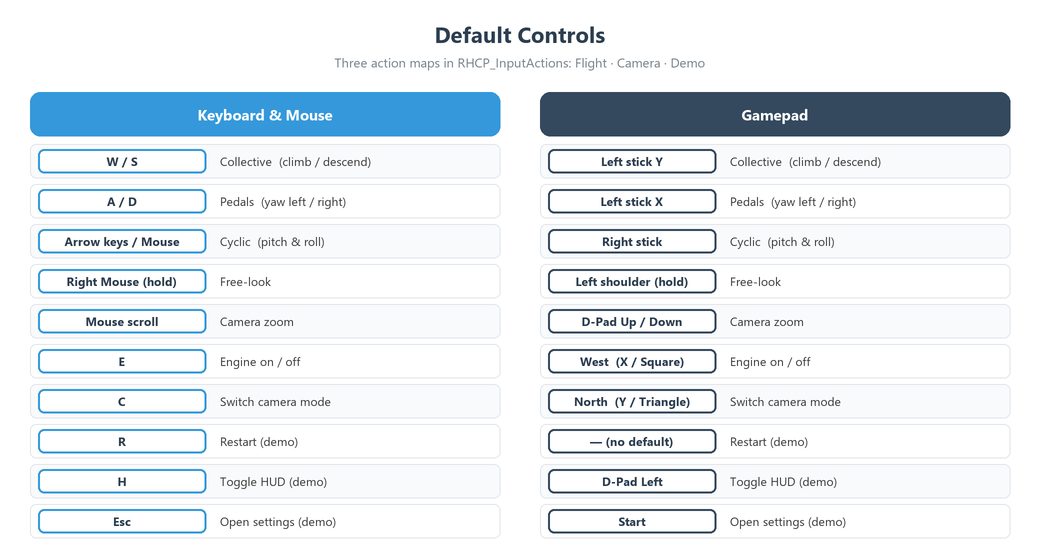
Keyboard and Mouse
| Action | Map | Binding | What it does |
|---|---|---|---|
Collective |
Flight | W (up) / S (down) |
Climb / descend (1D axis composite, -1…+1) |
Pedals |
Flight | A (left) / D (right) |
Yaw nose left / right (1D axis composite) |
Cyclic |
Flight | Mouse movement, plus arrow keys ↑/↓/←/→ |
Pitch & roll. Mouse delta drives a virtual stick (see Cursor Capture); arrow keys are a mouse-free fallback |
EngineToggle |
Flight | E |
Start / shut down the engine |
Look |
Camera | Hold Right Mouse Button + move mouse |
Free-look / orbit around the aircraft |
FreeLook |
Camera | Right Mouse Button (hold) |
Modifier that switches the mouse from cyclic to camera look |
CameraSwitch |
Camera | C |
Cycle camera mode (Chase → Cockpit → Orbit) |
Zoom |
Camera | Mouse Scroll Wheel (Y) |
Zoom / dolly the camera in and out |
RestartDemo |
Demo | R |
Respawn the helicopter at its spawn point |
ToggleHUD |
Demo | H |
Show / hide the HUD |
OpenSettings |
Demo | Esc |
Open the demo settings / pause panel |
The mouse Cyclic binding (the CyclicDelta source) pre-scales the raw mouse delta by a built-in ScaleVector2 factor of 0.05 per axis, and the scroll Zoom binding scales by 0.02, before your sensitivity settings are applied (the Look mouse-delta binding has no static scale — its magnitude is shaped entirely by lookSensitivity). Holding the right mouse button is what tells RHCP "this mouse motion is for the camera, not the cyclic" — while it is held the cyclic is frozen at its last value (see The Input Actions Asset).
Gamepad
| Action | Map | Binding | What it does |
|---|---|---|---|
Collective |
Flight | Left Stick Y |
Climb / descend (center = neutral) |
Pedals |
Flight | Left Stick X |
Yaw nose left / right |
Cyclic |
Flight | Right Stick |
Pitch & roll |
EngineToggle |
Flight | West button (X / Square) |
Start / shut down the engine |
Look |
Camera | Hold Left Shoulder (LB) + Right Stick |
Free-look / orbit |
FreeLook |
Camera | Left Shoulder (LB) (hold) |
Modifier: switches the right stick from cyclic to camera orbit |
CameraSwitch |
Camera | North button (Y / Triangle) |
Cycle camera mode |
ZoomAxis |
Camera | D-Pad Y (up/down) |
Zoom / dolly the camera in and out |
OpenSettings |
Demo | Start |
Open the demo settings / pause panel |
ToggleHUD |
Demo | D-Pad Left |
Show / hide the HUD |
The gamepad right stick is bound to both Cyclic and (with LB held) the camera Look orbit. RHCP resolves the overlap by freezing the cyclic while LB is held, so the stick orbits the camera without also lurching the helicopter. Gamepad zoom uses a separate action (ZoomAxis) from the mouse scroll Zoom because a held D-Pad direction is integrated as a rate over time (so dolly speed stays the same regardless of frame rate), whereas the scroll wheel delivers discrete deltas.
Note:
RestartDemois bound on the keyboard (R) but has no default gamepad binding in the shipped asset, andD-Pad Upis intentionally left free (zoom uses D-Pad Y). If you want a gamepad restart button, add a binding in theDemomap (see Rebinding).
Touch
RHCP's mobile controls do not use a separate touch binding scheme. Instead, the on-screen controls (under Runtime/Mobile/) create a virtual gamepad device and feed the same gamepad control paths the table above already binds, so there is no touch-specific input code — one code path serves all three input methods. See HUD and Mobile for the on-screen layout, sizing, and how to enable it.
| On-screen control | Feeds gamepad path | Resulting action(s) |
|---|---|---|
| Collective control | Left Stick Y |
Collective |
| Pedal control | Left Stick X |
Pedals |
| Cyclic stick | Right Stick |
Cyclic |
| Engine button | West button |
EngineToggle |
| Camera button | North button |
CameraSwitch |
Because the on-screen controls write virtual-gamepad paths, anything you rebind on the Gamepad scheme also changes how the touch controls map. Camera free-look is not bound by default on mobile (the chase camera is the default mobile view); add a swipe-look region only if your project needs it.
The Input Actions Asset
All input is defined in one asset, RHCP_InputActions.inputactions, located at Assets/Realistic Helicopter Controller Pro/Runtime/Input/. It contains the three action maps described above — Flight, Camera, and Demo — and each map can be enabled or disabled independently, which is what lets RHCP freeze flight while keeping the camera live, or run the demo-only actions only in the demo scene. The maps and their actions are exactly:
Flight   : Collective, Pedals, Cyclic, CyclicDelta, EngineToggle
Camera   : Look, FreeLook, CameraSwitch, Zoom, ZoomAxis
Demo     : RestartDemo, ToggleHUD, OpenSettings
CyclicDelta is the raw mouse-delta source for the cyclic; the provider integrates it into a virtual stick rather than reading the mouse directly elsewhere. Zoom (mouse scroll) and ZoomAxis (gamepad D-Pad) are two separate actions that both feed one zoom value, for the frame-rate reason noted above. Both are optional — if they are missing from a modified copy of the asset, the camera simply has no zoom and the rest of input still works.
RHCP loads its own asset; it does not use Unity's project-wide Input System "default actions." The RHCP_InputManager component on each helicopter holds a reference to the asset in its actionsAsset field, and the Setup Wizard assigns the shipped default automatically. At startup, RHCP_InputProvider_InputSystem resolves each action by name once and caches the references, so there are no per-frame string lookups while flying. If the actionsAsset reference is missing, or required Flight/Camera actions cannot be found in a hand-edited copy, the provider logs a single clear error naming the Setup Wizard and then treats all input as neutral — the helicopter stays physical and the engine stays off, with no per-frame log spam.
The flight model never reads devices directly. The provider produces a normalized RHCP_InputState snapshot (collective, pedals, cyclic, look, zoom, plus latched button edges), the manager publishes it onto the helicopter hub each physics step, and every other system — cameras, HUD, the cockpit stick visual — reads that snapshot. Input is sampled every frame in Update and consumed once per FixedUpdate, so a button press between physics steps is registered exactly once (never missed at high frame rates, never double-fired at low ones). For the programmer-facing details of RHCP_InputState, IRHCP_InputProvider, and RHCP_InputManager, see the XML documentation comments on those types (surfaced by your IDE's IntelliSense).
Mouse Cursor Capture
Because mouse motion drives the cyclic (and, with the right button held, the camera), RHCP locks and hides the OS mouse cursor for the local player while the camera is live. Without this, the system pointer would wander off the game view and your mouse movement would stop reaching the helicopter. When the cursor is captured it is centered and invisible, and all mouse motion becomes cyclic or camera input.
The capture is keyed to the Camera input channel, not the Flight channel. That is deliberate: the cursor stays captured even when flight input is locked (for example, a paused cinematic that still lets you orbit), and it is released only when the camera itself is locked — which is what a full menu does. The cursor auto-releases in these situations, then re-captures when conditions allow:
| Situation | Cursor behavior |
|---|---|
| Helicopter spawns, camera live, app focused | Captured (locked + hidden) |
| The Camera channel is locked (a full menu such as the demo Settings panel) | Released (free + visible) |
| App loses focus (alt-tab) or is unfocused | Released; re-captured when focus returns |
Editor Esc releases the cursor (Play Mode) |
Released; RHCP does not fight it — it re-captures only when you click back into the game view |
| Menu closed / focus regained | Re-captured automatically |
| Helicopter despawns or you exit Play Mode | Released — the cursor is never left captured and invisible |
You can turn capture off entirely with the lockCursorDuringFlight field on the RHCP_InputConfig asset. It defaults to on; set it off for gamepad-only or touch builds where you never want the OS cursor hidden. Capture also applies only to the helicopter flagged as the local player (isPlayer on RHCP_InputManager) — AI and remote helicopters never touch the cursor.
Input Locking
When a menu opens, flight must stop without losing the helicopter's state and without one system clobbering another's "input enabled" flag. RHCP solves this with a counted lock system on RHCP_InputManager, organized by channel: Flight, Camera, and Demo. A channel is suppressed while any live lock holds it, and it resumes only when the last one is released — this is a count, not a last-writer-wins flag, so two systems can lock the same channel safely.
The API is token-based. You call AcquireLock(owner, channel) and get back a disposable RHCP_InputLockToken; disposing the token (or calling ReleaseLock(token)) releases one count. While the Flight channel is locked, the collective, pedals, and cyclic all read neutral (0), the cyclic accumulator resets, and the EngineToggle edge is suppressed — so a menu cannot accidentally start the engine. Locking the Camera channel additionally frees the OS cursor, which is exactly what a full menu wants. The owner you pass is carried for diagnostics so the editor tooling can show which object is holding a lock.
The system is robust against leaks. If a lock owner is destroyed without releasing its token (for example, a UI panel that is deleted), the manager sweeps the dead reference each frame and reclaims the count, so a despawned menu can never leave the helicopter permanently frozen. In the shipped demo, the Settings panel acquires both a Flight and a Camera lock while open (the Camera lock is what frees the cursor for the menu); the crash/respawn flow takes a different route — RHCP_Damage disables a configured list of behaviours (its disableWhileCrashed list, which can include the input manager) during the death window rather than acquiring a Flight lock. You use the same AcquireLock/ReleaseLock pair for your own menus. Note that free-look needs no lock — it is resolved structurally by the FreeLook modifier described in The Input Actions Asset.
Sensitivity and Invert
Control feel — inversion and sensitivity — lives in a single ScriptableObject, RHCP_InputConfig, separate from flight handling (rates and assists, which live in RHCP_FlightConfig; see Flight Tuning). The boundary is simple: anything a player would call a "controls option" is here, anything a designer would call "handling" is in the flight config. A default config ships and the Setup Wizard assigns it; if a helicopter has no config, the provider falls back to these same defaults. Create your own via Assets ▸ Create ▸ BoneCracker Games ▸ RHCP ▸ Input Config.
The full field set, with the exact defaults from RHCP_InputConfig.cs:
| Field | Type | Default | Range | Effect |
|---|---|---|---|---|
invertCyclicPitch |
bool | false |
— | Inverts the cyclic pitch axis (nose up/down) |
invertCyclicRoll |
bool | false |
— | Inverts the cyclic roll axis (bank left/right) |
invertLookY |
bool | false |
— | Inverts the vertical free-look axis |
mouseCyclicSensitivity |
float | 1.0 |
0.1–5 |
Mouse-delta → cyclic gain; higher = cyclic moves faster per mouse motion |
lookSensitivity |
float | 1.0 |
0.1–5 |
Free-look delta gain |
cyclicRecenterRate |
float | 5.0 |
0–10 |
How fast the mouse virtual-stick re-centers (1/s). High = arcade "raw rate" feel; low = deliberate sim-style held cyclic |
gamepadCyclicExpo |
float | 0.3 |
0–1 |
Response curve on gamepad cyclic — softens the stick center, keeps full deflection |
deadzoneOverride |
float | -1 |
— | Optional per-user deadzone widening; -1 = use the binding's built-in deadzone |
lockCursorDuringFlight |
bool | true |
— | Cursor capture toggle (see Cursor Capture) |
A key design point: inversion and sensitivity are never baked into the bindings. They are applied at runtime by the provider, after the binding's static processors and before the cyclic is accumulated and clamped. This keeps one source of truth and means a future rebinding UI never has to round-trip processor state.
For end users, the demo Settings panel (opened with Esc) exposes the common feel options at runtime — invert and sensitivity — and writes them as runtime overrides rather than modifying the shared config asset. This matters: writing to a ScriptableObject in Play Mode would persist and corrupt the shipped defaults, so the panel instead calls SetInvertPitch and SetCyclicSensitivity on RHCP_InputManager, which the provider reads in preference to the asset until you call ClearControlOverrides. See HUD and Mobile for the Settings panel's full row list.
Rebinding Notes
Because all bindings live in the one RHCP_InputActions.inputactions asset, you can edit them in Unity's Input Actions editor (double-click the asset) to change keys, add gamepad bindings, or support additional devices — the runtime resolves actions by name, so any binding you add to the Collective action (for example) is picked up automatically. The fact that the touch controls reuse the gamepad paths means a gamepad rebinding also re-maps the on-screen controls; keep that in mind if you remap the sticks.
For in-game, player-facing rebinding, use Unity's Input System runtime rebinding (PerformInteractiveRebinding) against the same asset, and persist overrides with SaveBindingOverridesAsJson. Because RHCP keeps inversion and sensitivity out of the bindings, your rebinding UI only ever has to deal with the bindings themselves, not processor state. Composite parts (the up/down halves of a 1D-axis composite, for instance) need a part-aware rebind flow; that is standard Input System work, not RHCP-specific.
If you need to drive a helicopter from a system that is not the New Input System — legacy Input Manager, Rewired, an AI controller, or a network replication layer — you do not modify RHCP's shipped input code. Instead you implement the IRHCP_InputProvider interface in your own assembly and assign it with RHCP_InputManager.SetProvider(...). Your provider produces RHCP_InputState snapshots and nothing else; only RHCP's own provider references UnityEngine.InputSystem, so a custom provider has zero coupling to it. The contract is documented in the XML doc comments on IRHCP_InputProvider.
Troubleshooting
Most input problems come down to the project's input setting, a missing asset reference, or the cursor-capture behavior surprising you. The table below covers the common ones; see also Troubleshooting and the Setup Wizard / Project Doctor, which detect several of these automatically.
| Symptom | Likely cause | Fix |
|---|---|---|
| Nothing responds; one error mentioning "Input disabled" in the console | Project's Active Input Handling is set to legacy-only, or the actionsAsset reference is missing on RHCP_InputManager |
RHCP requires the New Input System (Active Input Handling = "Input System Package" or "Both"). Run the Project Doctor, or use the Setup Wizard to assign the actions asset |
| Mouse moves the helicopter but I can't see the cursor | Cursor capture is working as designed (mouse = cyclic) | Press Esc to open Settings (releases the cursor), or set lockCursorDuringFlight to false on the RHCP_InputConfig for a gamepad/touch build |
| Cursor stays visible and mouse doesn't fly | App is unfocused, the Camera channel is locked (a menu is open), or lockCursorDuringFlight is off |
Click back into the game view to re-capture; close any menu; check the config toggle |
| Helicopter holds attitude when I expect cyclic to respond | You are holding the free-look modifier (right mouse / left shoulder) — cyclic is frozen during look | Release the modifier; cyclic resumes with no lurch |
| Flight is dead but the camera still moves | The Flight channel is locked by a menu (e.g. the Settings panel acquired a lock), or the input manager was disabled during a crash (RHCP_Damage disables it while crashed) |
Close the menu / wait for respawn; if it is stuck, check for an undisposed RHCP_InputLockToken |
| Engine never starts | Engine not toggled, or EngineToggle is being suppressed by a Flight lock |
Press E (keyboard) / West button (gamepad); make sure no menu is holding a Flight lock |
| Gamepad unplugged mid-flight left a stuck axis | Device hot-swap | The Input System rebinds actions automatically when you re-plug the pad, so input resumes; if an axis stays stuck while the pad is out, open a menu (which locks Flight and resets the provider state via ResetState) or re-plug the controller |
If the demo-only controls (R, H) do nothing, that is expected outside the demo scene — the Demo action map is enabled only by the demo components and is not part of the runtime flight loop. To use those convenience actions in your own scene, enable the Demo map and read the latched restartPressed / toggleHudPressed flags from RHCP_InputManager.CurrentState, as the demo controller does.