UI Audio & Music
The garage ships fully sound-designed: a looping garage theme that fades in when the garage opens and out when it closes, plus eight event-driven UI sound effects. The clips were generated with ElevenLabs under a commercial license and ship ready to use - keep them, replace them, or mute everything, all without touching code.
Where It Lives
Everything is one component: RCCPT_UIAudio on the canvas prefab's Audio node (a direct child of RCCPT_TunerCanvas, with its two AudioSource children MusicSource and SFXSource underneath it). It finds and binds itself to the garage session at runtime - the session being the open-to-close lifecycle described in Using the Garage - so nothing else has to be wired to it, and no other component holds a serialized reference to it.
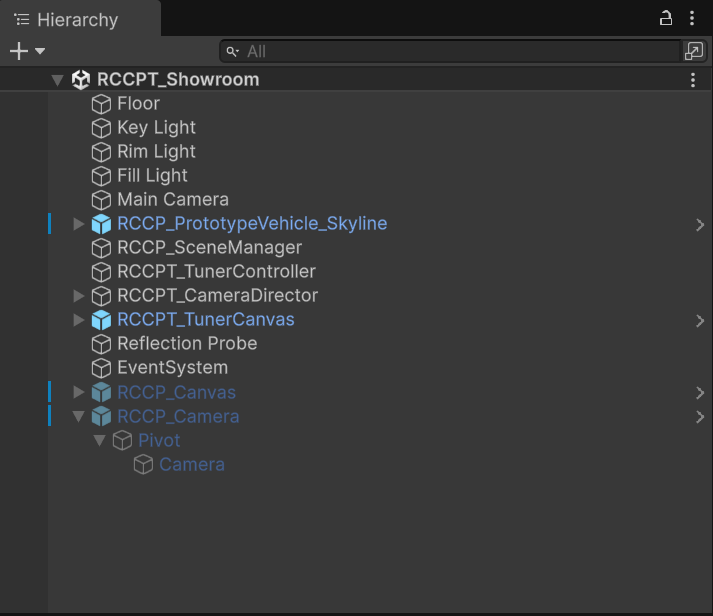
There are two places you can edit it, and they mean different things:
Where you select the Audio node |
What it changes |
|---|---|
Assets/RCCP Tuner/Prefabs/RCCPT_TunerCanvas.prefab (double-click for Prefab Mode) |
Every scene that uses the shipped canvas |
| The canvas instance already in your open scene | That scene only - the edit is saved as a scene override |
Three other scripts do mention the type by name, so a project-wide search finds more than one hit:
RCCPT_UIAudioRelay(the runtime pointer relays, which this component adds to controls itself),RCCPT_TunerProbe(the demo test harness, which null-checks and logs "audio assertion skipped" when the component is absent), and the editor-side canvas builder (which creates the node). None of them requires the component to exist, which is why deleting it is still safe - see Muting Everything.
What Plays When
| Sound | Plays when |
|---|---|
| Garage Theme | Loops while the garage is open (fades in on open, out on close - unscaled time, so slow-motion scenes are unaffected) |
| Hover | The pointer enters any button or item card (cooldown-guarded so sweeping the pointer never machine-guns) |
| Click | Any button is clicked - except the category rail, which whooshes instead. This covers the buttons the panels grew later too: the tuning panel's RESET button, and the paint mode (COLORS / CUSTOM / FINISH) and decal location selector buttons |
| Tab | The category changes |
| Equip | An owned / free item equips instantly |
| Purchase | An item is staged into the cart |
| Checkout | Checkout completes - the money moment |
| Denied | Checkout is rejected (insufficient funds / invalid cart) |
| Back | The garage closes |
Silent by design - none of these is a missing clip:
| What stays quiet | Why |
|---|---|
| Removing an item from the cart | The row's remove button already plays the generic click, so a second sound would double up |
The AlreadyOwned and EconomyDisabled checkout results |
Matches the on-screen toast, which also stays quiet for those two |
| Item cards, on the generic click | Their click feedback is semantic instead - Equip for an owned or free item, Purchase for one staged into the cart |
| Every slider, all the time | Nothing in the component hooks sliders, so the tuning sliders and the custom paint picker's hue / saturation / value sliders make no sound while you drag them |
The slider silence is worth calling out because tuning is the most hands-on panel in the garage: a drag has no single moment to chime on, and a per-step tick during a drag machine-guns. If you want a sound there, add your own listener to the slider's onValueChanged and call Play (see Playing the Sounds from Your Own Code).
Component Settings
| Setting | Default | Description |
|---|---|---|
| Music Volume | 0.55 | Garage theme volume |
| Sfx Volume | 1 | UI SFX volume - the shipped clips already carry a graded loudness hierarchy (hover is intentionally the quietest) |
| Music Fade In | 1.2 | Theme fade-in seconds on garage open (unscaled) |
| Music Fade Out | 0.5 | Theme fade-out seconds on close (unscaled) |
| Hover Min Interval | 0.06 | Minimum unscaled seconds between two hover ticks (pointer-sweep guard) |
The two AudioSources (music + SFX) are children of the Audio node, pre-wired 2D. If the slots are ever empty, the component creates its own sources at runtime.
Replacing Sounds
Select the Audio node (see Where It Lives for prefab versus scene) and assign your own AudioClip into any slot - Garage Theme, Hover Clip, Click Clip, Back Clip, Tab Clip, Equip Clip, Purchase Clip, Denied Clip, Checkout Clip. An empty slot means that sound is simply silent - clearing a slot is the per-sound mute.
The shipped clips live in Assets/RCCP Tuner/Audio/ (RCCPT_Music_GarageTheme.wav plus eight RCCPT_UI_*.wav files) if you want to reference their style or loudness levels.
Muting Everything
Three ways, from the most reversible to the most permanent:
| Option | Effect |
|---|---|
Set Music Volume and Sfx Volume to 0 |
Silent, everything still wired - flip the numbers back any time |
Disable the Audio node (untick its checkbox in the Inspector) |
Silent, and no relays get attached to your buttons |
Delete the Audio node |
Permanently silent - only do this in the prefab if you are sure, since the upgrade menu item is what puts it back |
The garage itself does not care which you pick: no other component holds a reference to RCCPT_UIAudio, so a missing or muted Audio node just means nothing plays.
Your Own Buttons Are Covered Automatically
If you extend the canvas with your own buttons (Theming & Editing the UI), they get hover/click sounds for free: the audio component sweeps the canvas at runtime and attaches small pointer relays (RCCPT_UIAudioRelay) to every button and item card - pooled clones included. A disabled or locked button stays silent, because the relay asks the Button whether it is interactable before it plays anything.
⚠ A dimmed "can't afford" card still ticks, and still stages. That interactable check only covers uGUI
Buttoncontrols. An item card is not a Button - it handles pointer events itself - so there is no interactable flag for the relay to read and the hover tick always plays. The dimmed card is deliberately still clickable as well: staging an item you cannot yet afford is allowed, and the cart'sMISSINGline tells you how short you are (Reading a Card). Dimmed means "you cannot buy this yet", not "this control is dead".Technical note (why relays, not onClick listeners): the garage panels re-bind their buttons on every open with
RemoveAllListeners(), which would silently wipe any onClick-based audio wiring. The relays listen to raw pointer events instead, so they survive re-binding. If you build custom panels that manage their own buttons, you do not need to do anything - the sweep covers them.
Playing the Sounds from Your Own Code
The SFX are available to your game code - for example, reusing the checkout jingle for an out-of-garage reward:
using BoneCrackerGames.RCCP.Tuner;

RCCPT_UIAudio audio = FindAnyObjectByType<RCCPT_UIAudio>();

if (audio != null)
    audio.Play(RCCPT_UISound.Checkout);

// RCCPT_UISound: Hover, Click, Back, Tab, Equip, Purchase, Denied, Checkout
The null check matters: FindAnyObjectByType returns nothing in a scene that has no Tuner canvas, which is exactly the out-of-garage case above. Closing the garage only deactivates the canvas's content root, and the Audio node is a sibling of it rather than a child, so the component stays active and findable between garage visits - as long as you leave the canvas object itself active in the scene.
A missing clip is skipped rather than erroring - if the slot for that sound is empty, Play simply returns and nothing is heard.
Canvases Built Before UI Audio Existed
If you built and customized your Tuner canvas with an earlier version of the asset (no Audio node in your prefab), run Tools > BoneCracker Games > RCCP Tuner > Tools > Upgrade Tuner Canvas (UI Audio) once. It patches the prefab in place and additively - your existing hierarchy, customizations, and scene overrides survive - and it is idempotent, so running it again does nothing. Fresh canvases already include audio; the menu logs that and exits without touching the prefab.
⚠ Nothing warns you that the upgrade is needed. The controller inspector's Setup Health block checks a lot of things (Editor Tools) but a missing
Audionode is not one of them, and a canvas without it is otherwise perfectly healthy - it is simply silent. This menu item is the only way to find out, so run it once after updating and read the console line it prints. The full menu is listed in Editor Tools.
Next Steps
- The full code surface: Scripting API.
- Every menu item and custom inspector in one place: Editor Tools.