How the System Works
This document explains what happens under the hood of Realistic Truck Simulator: how a job moves from "started" to "completed", how the systems talk to each other through events, and why script execution order matters. You don't need to read this to use RTS — but if you plan to extend the asset, integrate it into your own game, or debug unexpected behavior, this is the map of the machine.
Everything here is driven by a handful of scripts in Assets/RTS/Scripts/: RTS_JobManager, RTS_SceneManager, RTS_PlayerEventsListener, RTS_Truck, RTS_Trailer, and RTS_GuideSystem.
The Job Lifecycle
A job is a ScriptableObject (a Unity asset that stores data, not behavior) describing one delivery: which trailer type it needs, which load type and amount, which delivery zone it ends at, and a reward. The RTS_JobManager singleton (a class with exactly one instance in the scene, accessible from anywhere) owns the whole lifecycle. Only one job can be active at a time — it is stored in RTS_JobManager.currentJob.
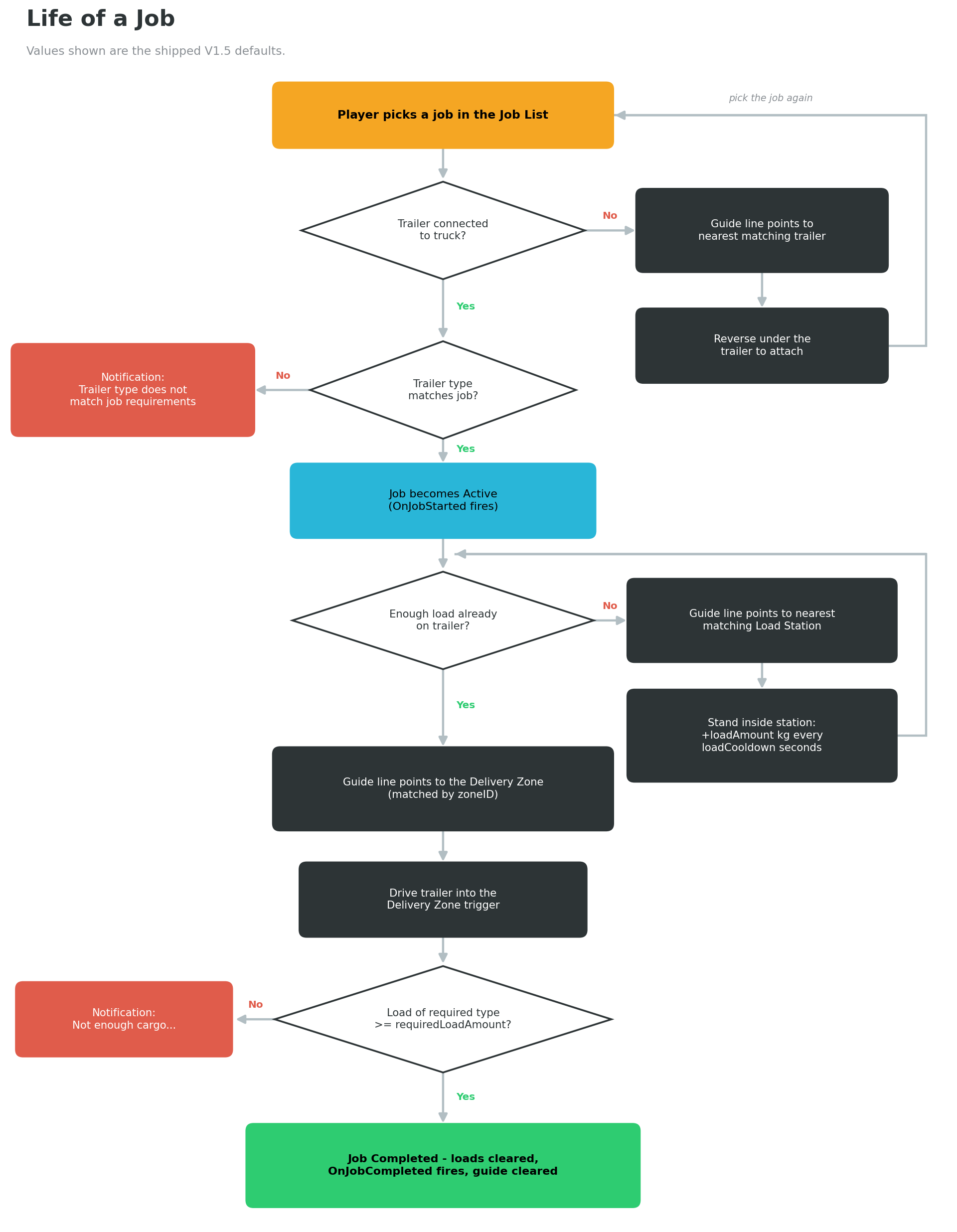
What StartJob checks
When the player presses a job card's start button (or you call RTS_API.StartJob(job) from code), RTS_JobManager.StartJob() runs this gauntlet, in order:
- Already in a job? If
currentJobis not null, you see the notification "Can't start a new job, you already have one" and nothing happens. - Is there a player truck? If
RTS_API.GetPlayer()returns null, the method silently aborts. A player truck must be registered first (see Essentials). - Is a trailer connected? If not, the no-trailer path below runs — and the job does not start.
- Does the trailer type match? If the connected trailer's
trailerTypediffers from the job'srequiredTrailerType, you see "Trailer type does not match job requirements" (plus a console warning) and the job does not start.
Only after all four checks pass does the job actually begin.
The no-trailer path
If no trailer is connected, the job manager doesn't just refuse — it helps. It asks RTS_SceneManager.FindClosestTrailer(job.requiredTrailerType) for the nearest trailer of the required type (inactive trailers are included in the search):
- A matching trailer exists: you see "{type} trailer is located on your map" and the guide system draws a path to that trailer. Drive there, connect it, and start the job again.
- No matching trailer anywhere: you see "Trailer must be connected to your truck to start the job" plus a console warning.
Either way, StartJob returns without starting the job. This is why the demo scene scatters trailer spawn points around the map — there is always something to guide the player to.
The job goes Active
Once validation passes, the manager does four things in one go:
- Sets
currentJob = jobandjob.state = RTS_Job.JobState.Active. - Fires the
OnJobStartedevent throughRTS_Events.Event_OnJobStarted(job). - Shows the notification
<b>{jobName}</b> started!followed byDeliver the {loadType} to the {zone}. - Picks the guide target based on a load-sufficiency branch: it calls
RTS_API.IsTrailerLoadEnoughForJobComplete(trailer, job). If the trailer already carries enough of the required load, the guide points straight at the delivery zone (found by matchingjob.deliveryZoneNameagainst each zone'szoneID). Otherwise it points at the closest load station serving the required load type.
The job list panel also hides itself when OnJobStarted fires, clearing the screen for driving.
Loading up
At the load station (a trigger zone — an invisible collider volume that detects the trailer entering without physically blocking it), cargo is added in cycles while the trailer sits inside. The station only serves the player's trailer, only during an active job ("You're not permitted to load this trailer unless you take the job" otherwise), and only if the trailer type is compatible with the station's load type. Each cycle adds up to the station's loadAmount (default 5000 kg) every loadCooldown seconds (default 1.6), showing Loaded <b>{kg} kg</b> of <b>{loadType}</b>. Loading stops when the job's requiredLoadAmount is reached ("Trailer is loaded") or the trailer's maxLoad is hit ("Trailer is full"). See Locations for the full station rules.
Every load added fires OnTrailerDataChanged, and RTS_PlayerEventsListener reacts: the moment IsTrailerLoadEnoughForJobComplete becomes true, you see "Trailer load is enough to complete the job" and the guide retargets from the load station to the delivery zone. If the load is still short, the guide keeps pointing at the closest matching load station.
Delivery and TryCompleteJob
Driving into the delivery zone's trigger calls RTS_API.TryCompleteJob() (a wrong zone — one whose zoneID doesn't match the job — instead shows "This delivery zone is not compatible for your cargo"). RTS_JobManager.TryCompleteJob() validates:
- A job is active (
InJob()is true,currentJob.state == Active). - A player truck exists and has a connected trailer.
trailer.GetCurrentLoadWeight(currentJob.requiredLoadType)is at leastcurrentJob.requiredLoadAmount. Note this counts only the required load type — 3000 kg of Crates does not satisfy a 2000 kg Fuel job.
If the cargo is short you see "Not enough cargo of the required load type to complete the job" and can drive back for more. If everything checks out, CompleteJob() runs.
What CompleteJob does
CompleteJob() finalizes in this order: clears all loads from the connected trailer (ClearAllLoads()), sets state = Completed, fires OnJobCompleted, shows <b>{jobName}</b> completed, clears the guide target, and finally sets currentJob = null — freeing the player to take the next job. TerminateJob() (the red button on the job status panel, or RTS_API.TerminateJob()) does the same teardown but sets state = Terminated and shows <b>{jobName}</b> terminated.
One deliberate gap: the job's reward field is stored on RTS_Job but no built-in money system consumes it. Subscribe to OnJobCompleted and read job.reward to wire it into your own economy — see Scripting API.
The Event Bus
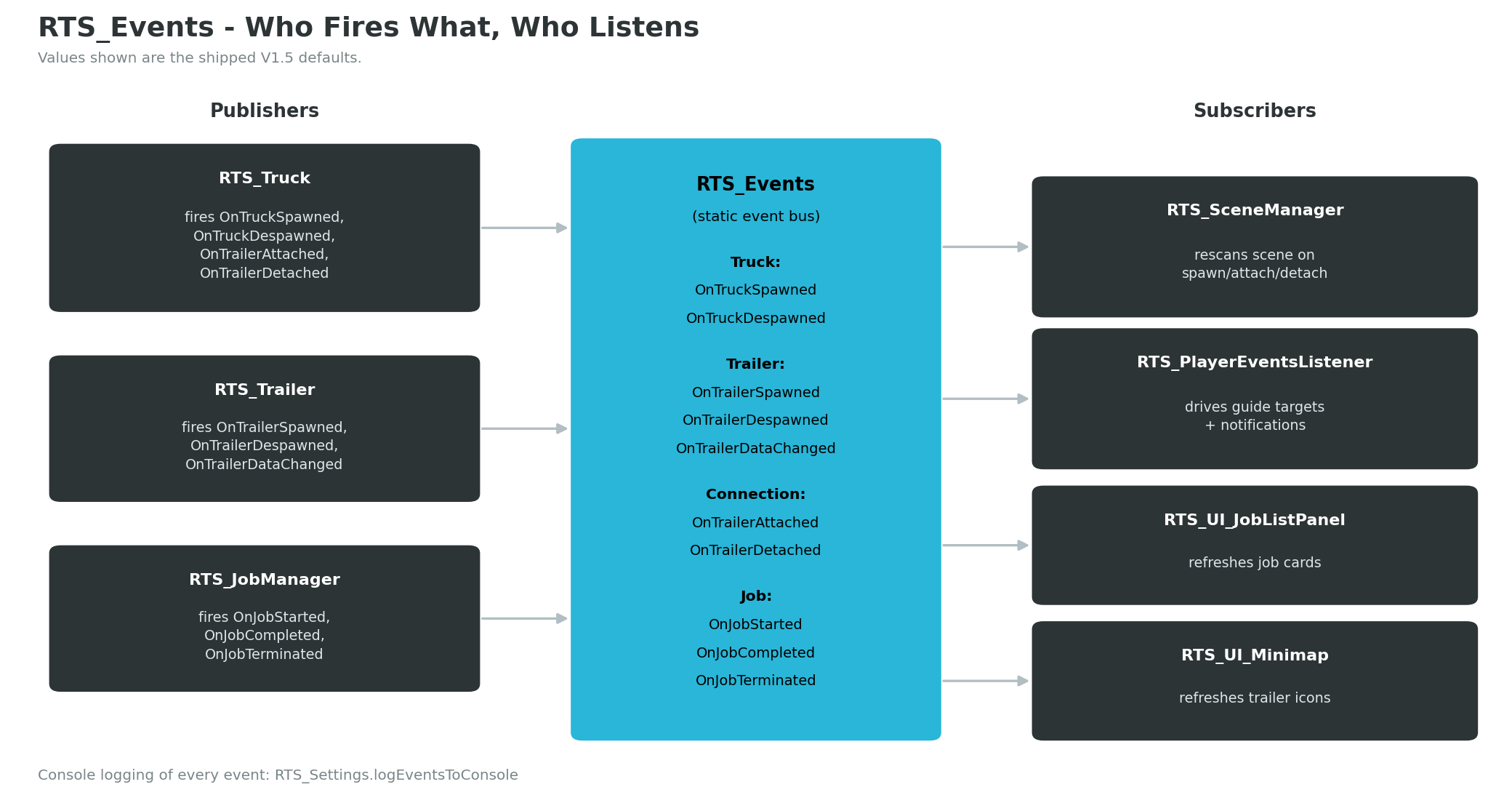
RTS systems never call each other's UI or gameplay methods directly. Instead they broadcast through RTS_Events, a static event bus — a central "notice board" where any script can announce something happened and any other script can listen. There are exactly 10 events in four delegate shapes:
| Event | Signature | Fired by | When |
|---|---|---|---|
OnTruckSpawned |
TruckEvent(RTS_Truck) |
RTS_Truck |
The truck GameObject is enabled (OnEnable) |
OnTruckDespawned |
TruckEvent(RTS_Truck) |
RTS_Truck |
The truck GameObject is disabled (OnDisable) |
OnTrailerSpawned |
TrailerEvent(RTS_Trailer) |
RTS_Trailer |
The trailer GameObject is enabled |
OnTrailerDespawned |
TrailerEvent(RTS_Trailer) |
RTS_Trailer |
The trailer GameObject is disabled |
OnTrailerDataChanged |
TrailerEvent(RTS_Trailer) |
RTS_Trailer |
AddLoad, RemoveLoad, or ClearAllLoads runs |
OnTrailerAttached |
ConnectionEvent(RTS_Truck, RTS_Trailer) |
RTS_Truck |
Polling detects a new trailer connection |
OnTrailerDetached |
ConnectionEvent(RTS_Truck, RTS_Trailer) |
RTS_Truck |
Polling detects the connection was lost |
OnJobStarted |
JobEvent(RTS_Job) |
RTS_JobManager |
StartJob passes all checks |
OnJobCompleted |
JobEvent(RTS_Job) |
RTS_JobManager |
CompleteJob runs |
OnJobTerminated |
JobEvent(RTS_Job) |
RTS_JobManager |
TerminateJob runs |
Who listens
| Listener | Subscribed events | Reaction |
|---|---|---|
RTS_SceneManager |
TruckSpawned, TrailerSpawned, TrailerAttached, TrailerDetached | Rescans the scene lists (ScanScene); on attach during a job also reopens the job list and shows "{type} trailer connected to your truck" / "Pick a job to deliver the goods" |
RTS_PlayerEventsListener |
JobStarted, JobCompleted, JobTerminated, TrailerAttached, TrailerDetached, TrailerDataChanged | Drives the guide system: retargets on load changes, clears the path on detach and on job end |
RTS_UI_JobListPanel |
TruckSpawned, TruckDespawned, TrailerAttached, TrailerDetached, JobStarted, JobTerminated | Rebuilds the job cards; hides the panel when a job starts |
RTS_UI_Minimap |
JobStarted, TrailerAttached, TrailerDetached, TrailerSpawned, TrailerDespawned | Refreshes minimap icons (trailer icons show only while no trailer is attached) |
(RTS_UI_Manager is the exception — it refreshes its info panels by polling in LateUpdate instead of subscribing.)
The Event_OnXXX wrapper convention
Events are never invoked directly. Each has a static wrapper — RTS_Events.Event_OnJobStarted(job), Event_OnTrailerAttached(truck, trailer), and so on — which fires the delegate and handles optional console logging. If you add your own events, follow the same pattern; if you fire existing events from your own code, always go through the wrapper.
Subscribing from your own script is two lines plus cleanup:
private void OnEnable() {
    RTS_Events.OnJobCompleted += MyJobCompletedHandler;
}

private void OnDisable() {
    RTS_Events.OnJobCompleted -= MyJobCompletedHandler;   // Always unsubscribe!
}

private void MyJobCompletedHandler(RTS_Job job) {
    Debug.Log($"Delivered {job.jobName} — pay the player {job.reward}");
}
Debugging tip: log every event
The RTS_Settings asset (Tools → BoneCracker Games → Realistic Truck Simulator → Settings) has a logEventsToConsole flag, enabled by default in the shipped asset. While it's on, every event prints to the Console with the [RTS EVENT] prefix. When something "doesn't fire", filter the Console for [RTS EVENT] first — you'll immediately see whether the event happened and your listener is the problem, or the event never fired at all. See Settings Reference.
How Attach / Detach Detection Works
RCCP (the vehicle physics package RTS is built on) provides no callback when a trailer connects or disconnects. So RTS_Truck detects it by polling — checking a value every frame instead of waiting to be told. In its Update(), the truck reads CarController.ConnectedTrailer from RCCP, converts it to the corresponding RTS_Trailer component, and compares it to the value from last frame:
- Connection changed from trailer A to null → fires
Event_OnTrailerDetached(this, A). - Connection changed from null to trailer B → fires
Event_OnTrailerAttached(this, B). - A direct swap fires detach for the old trailer, then attach for the new one, in that order.
This means attach/detach events arrive at most one frame after the physical connection happens, and everything downstream — scene rescans, guide retargeting, UI refresh, minimap icons — flows from these two events. If you connect trailers through your own code, you don't need to notify anyone: the polling picks it up automatically.
Scene Scanning and Distance Culling
RTS_SceneManager keeps the master lists of everything drivable and towable. On Awake it runs ScanScene(), which finds every RTS_Truck and RTS_Trailer in the scene (including inactive ones), fills allTrucks / allTrailers and the active-only lists, and rebuilds truckToTrailerMap — a lookup from each truck to the trailer it is currently pulling. It rescans automatically whenever OnTruckSpawned, OnTrailerSpawned, OnTrailerAttached, or OnTrailerDetached fires, so the lists never go stale.
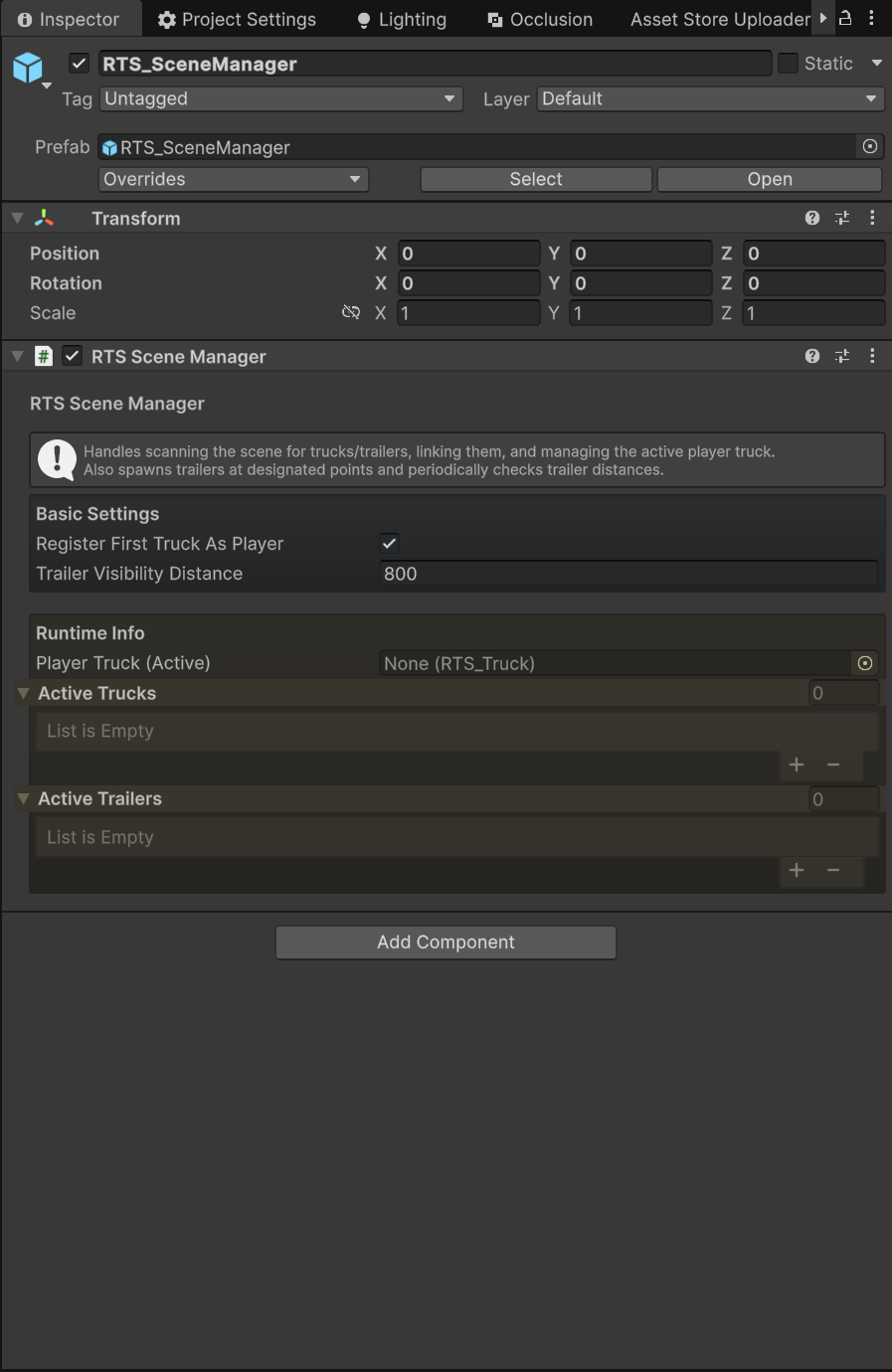
Two settings matter here:
registerFirstTruckAsPlayer(defaultfalse) — when enabled, the first truck the scan finds is automatically registered as the player truck.trailerVisibilityDistance(default800m, minimum 1) — the culling radius for trailers.
The culling runs in a coroutine (a Unity method that can pause and resume across frames), TrailerDistanceChecker(), which wakes every 1 second, measures each trailer's distance to the player truck, and deactivates any trailer beyond trailerVisibilityDistance — reactivating it when the player comes back within range. This keeps far-away trailer physics from costing performance in a large city. Note the elegant knock-on effect: deactivating a trailer runs its OnDisable, which fires OnTrailerDespawned, so the minimap removes its icon for free through the normal event flow (the scene manager's lists refresh on the next spawn/attach/detach rescan).
The Guide System
RTS_GuideSystem draws the cyan ribbon that leads the player to the current objective. It is NavMesh-based: a NavMesh is the invisible "walkable surface" map Unity bakes over your level geometry for pathfinding (RTS uses it for route drawing only — nothing actually drives itself).
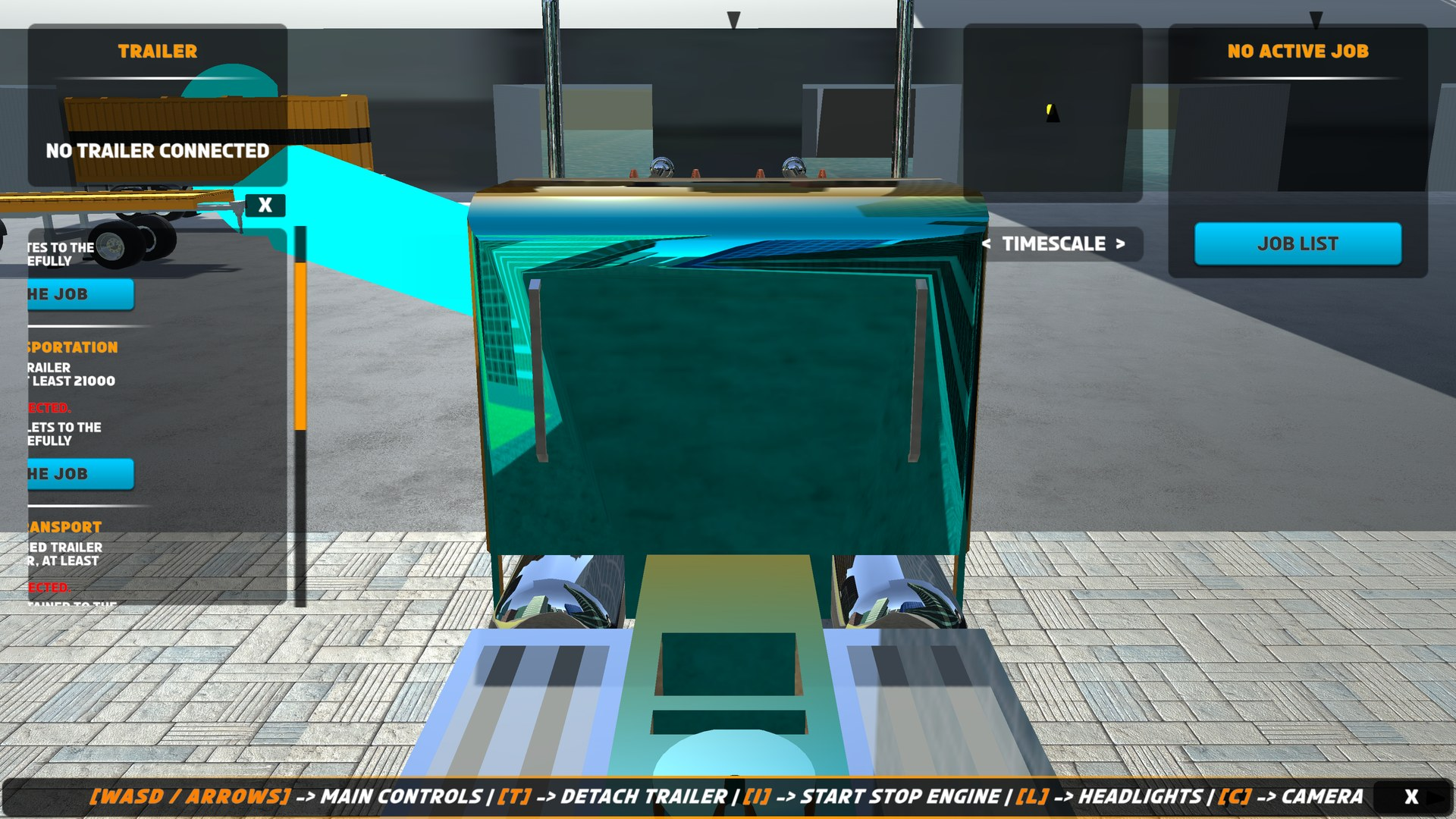
Each frame, if a target is set and a player truck exists, the system:
- Checks whether the truck or the target moved more than 1 m since the last calculation — if neither did, it skips recalculation entirely (this threshold is a private constant).
- Snaps the truck and target positions onto the NavMesh with
NavMesh.SamplePosition, searching within a 100 m radius (also a private constant), so the path still works when the truck is off-mesh (on grass, in a depot yard). - Calculates the route with
NavMesh.CalculatePath, raises every corner byheightOffsetso the line doesn't clip into the road, and subdivides the corners everysegmentLengthmeters for a smooth curve. - Prepends the truck's actual position and appends the target's actual position when they sit off the NavMesh, so the ribbon visually starts at your bumper and ends at the objective.
If no valid path exists, the line simply clears rather than drawing garbage.
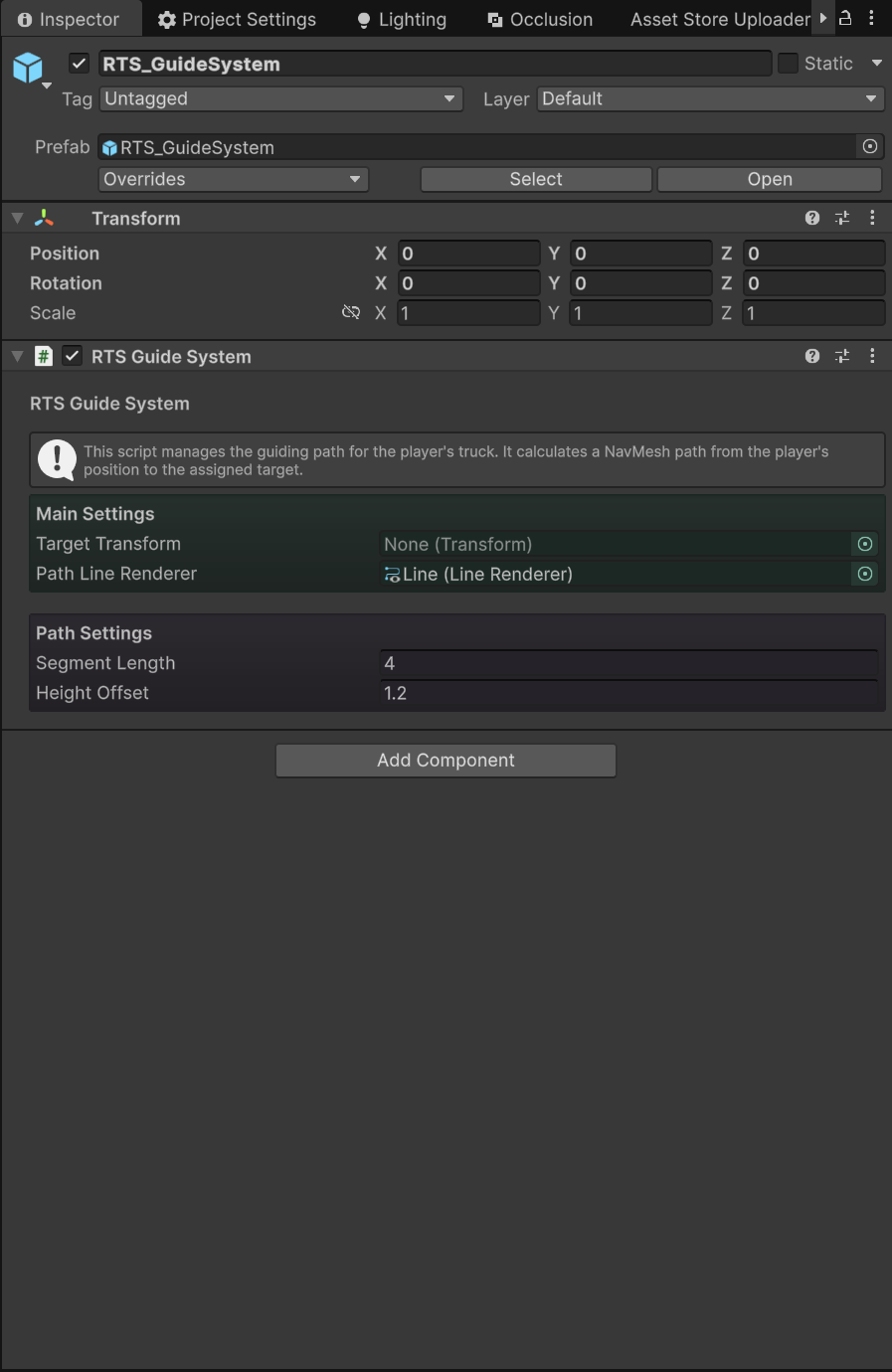
The two tunables on the component:
| Field | Default | Range | Effect |
|---|---|---|---|
segmentLength |
4 |
Min 0.1 | Distance between subdivision points — smaller = smoother (and more) line points |
heightOffset |
1.5 |
— | How far above the ground the ribbon floats |
You normally never call the guide directly. The job manager and RTS_PlayerEventsListener steer it via RTS_API.SetNavigationTargetForGuide(Transform) — pass null to clear the path. If no guide system exists in the scene, that call logs the error [RTS_GuideSystem] couldn't find in the scene!.
Script Execution Order
Unity does not guarantee which script's Update or OnEnable runs first — unless you tell it. RTS depends on a strict ordering, applied automatically by RTS_ScriptExecutionOrderManager (an editor script that configures the order on every domain reload, so you never set it by hand):
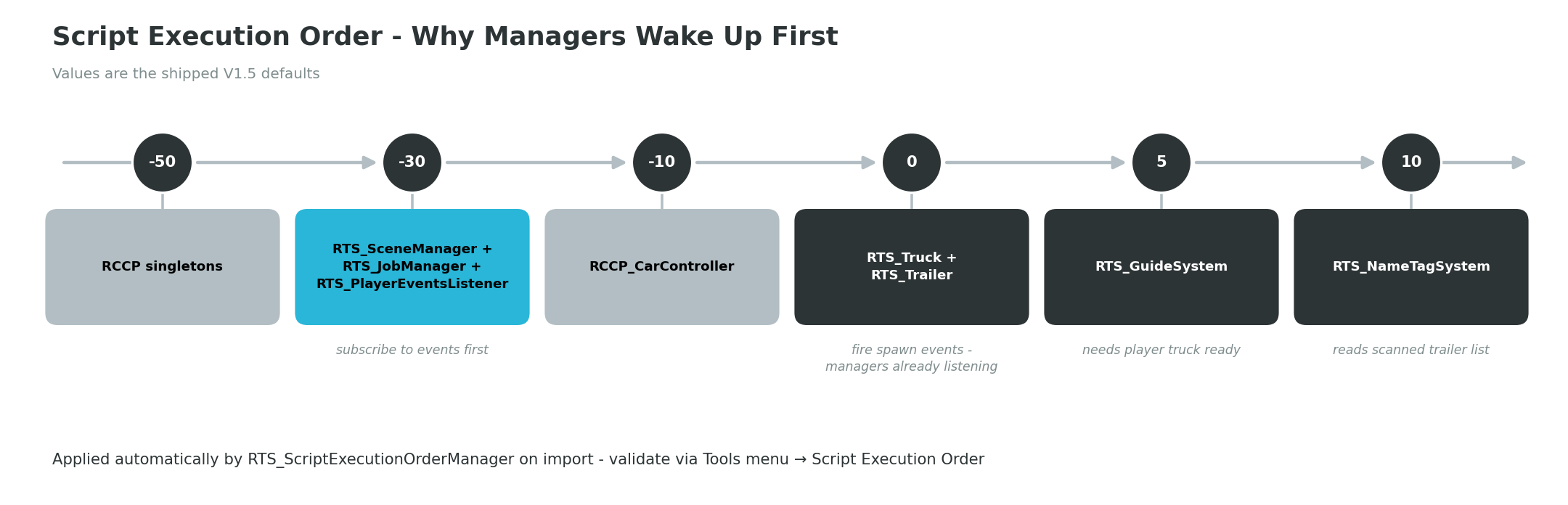
| Order | Scripts | Why here |
|---|---|---|
| -50 | RCCP singletons (managed by RCCP) | Vehicle infrastructure first |
| -30 | RTS_SceneManager, RTS_JobManager, RTS_PlayerEventsListener |
Managers subscribe to events before anyone can fire them |
| -10 | RCCP_CarController |
Vehicle controllers initialize before their RTS wrappers |
| 0 | RTS_Truck, RTS_Trailer |
Fire spawn events in OnEnable — the managers at -30 are already listening |
| 5 | RTS_GuideSystem |
Needs the player truck reference to exist |
| 10 | RTS_NameTagSystem |
Reads activeTrailers — must run after ScanScene has populated it |
The critical link is -30 vs 0: because the managers run first, their OnEnable subscriptions are in place before any truck or trailer fires OnTruckSpawned / OnTrailerSpawned. If the order were reversed, the very first spawn events of a scene would vanish into an empty notice board and the scene lists would start out incomplete.
If you suspect the order got mangled (for example after importing another asset that touches execution order), use Tools → BoneCracker Games → Realistic Truck Simulator → Script Execution Order → Validate, Reset, or Show Current. And if you add your own manager, register it in RTS_ScriptExecutionOrderManager.ExecutionOrders relative to this table.
Next Steps
- Jobs and Loads — create your own job assets and load prefabs that feed this lifecycle.
- Locations — set up the load stations, delivery zones, and trailer spawn points the guide leads to.
- Scripting API — the full
RTS_APIandRTS_Eventsreference for hooking your own systems (economy, progression, sound) into the events described here. - Troubleshooting — if an event doesn't fire or a job won't complete, the checks in this document are exactly what to verify first.