Settings Reference
This document is the complete reference for every setting in Realistic Truck Simulator: first the global RTS_Settings asset that all RTS systems read from, then the key tunable fields on each individual component. Use it as a lookup table whenever you wonder "what does this field do, and what is it set to out of the box?" All values below are sourced directly from the shipped asset and the [Tooltip] attributes in the scripts.
Part 1: The RTS_Settings Asset
RTS_Settings is a ScriptableObject — a Unity asset that stores data on disk instead of living on a GameObject in a scene. There is exactly one of it in the project, and every RTS system reads its configuration from this single asset, so a change here affects all scenes at once.
Where It Lives and How to Open It
The asset is stored at Assets/RTS/Resources/RTS_Settings.asset. It must stay inside a Resources folder, because the code loads it by name at runtime.
You can open it two ways:
- Select Tools → BoneCracker Games → Realistic Truck Simulator → Settings. This selects the asset and shows it in the Inspector.
- Navigate to
Assets/RTS/Resources/in the Project window and clickRTS_Settings.asset.
In code, you never load the asset yourself — you go through the static provider class:
// Lazy-loads Resources/RTS_Settings on first access, then caches it.
RTS_Settings settings = RTS_SettingsProvider.Settings;

if (settings.logEventsToConsole)
    Debug.Log("Event logging is on.");
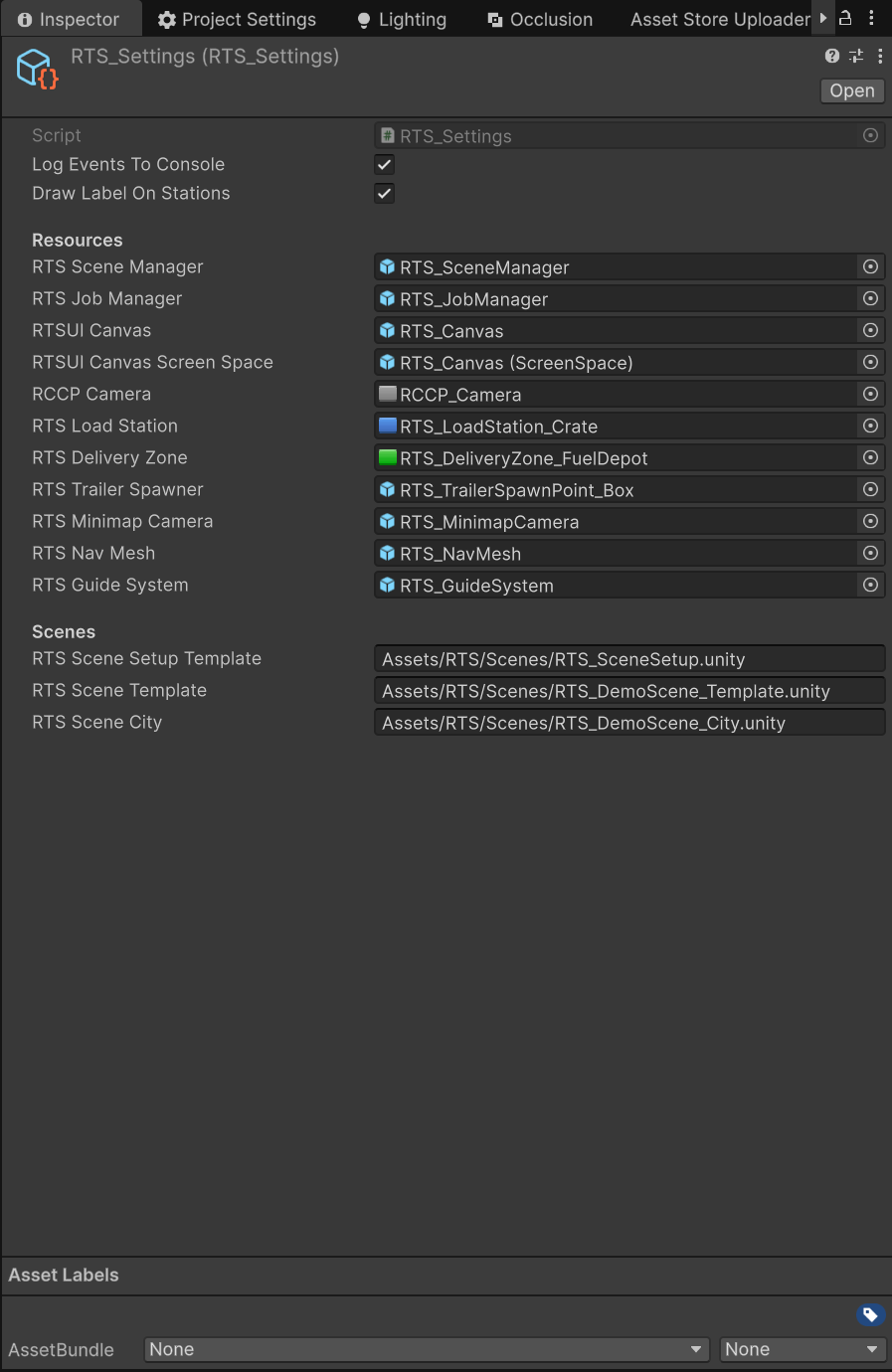
The asset has three groups of fields: two top-level flags, a Resources header full of prefab references, and a Scenes header with three scene path strings. Each group is documented below with its shipped value (the value the asset ships with on the Asset Store) and the tooltip text you see when hovering the field in the Inspector.
Top-Level Flags
| Setting | Type | Shipped Value | Description |
|---|---|---|---|
logEventsToConsole |
bool |
True |
Log RTS events (spawn, attach, job) to the console. |
drawLabelOnStations |
bool |
True |
Draw floating labels above load stations and delivery zones. |
What logEventsToConsole actually does: every event on the RTS_Events event bus (truck spawn/despawn, trailer spawn/despawn/data change, trailer attach/detach, job started/completed/terminated) fires through a wrapper method, and when this flag is on, each firing writes a line prefixed with [RTS EVENT] to the Console. This is extremely useful while you are wiring up your own listeners — you can watch the exact order events fire in. Turn it off for release builds to keep the console clean.
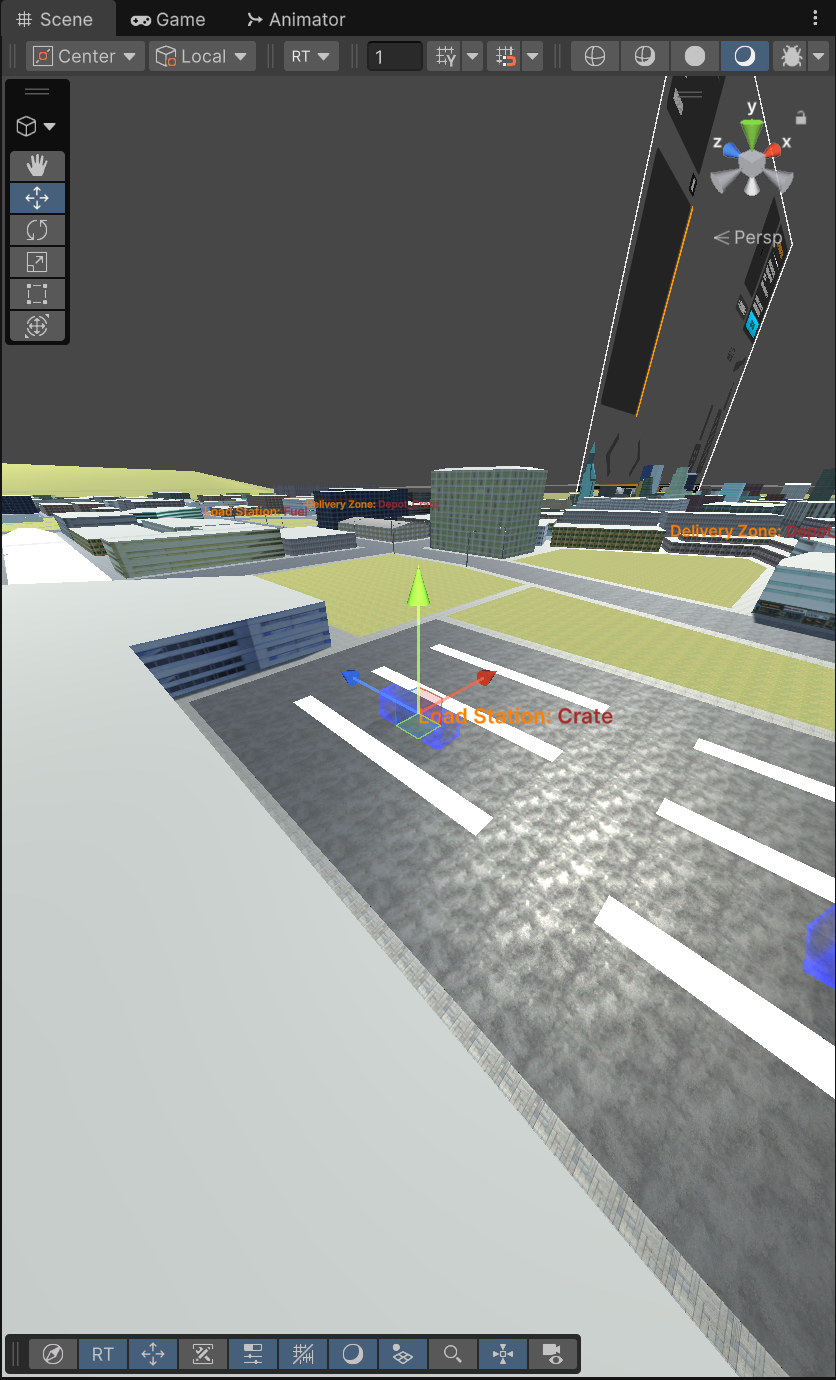
What drawLabelOnStations actually does: load stations and delivery zones draw a colored gizmo (a visual helper shape shown only in the editor) plus a floating text label in the Scene view — for example Load Station: Crate. This flag gates the label. It only affects the editor Scene view, never the built game.
Resources (Prefab References)
A prefab is a saved, reusable GameObject asset. The fields under the Resources header point at the prefabs that RTS's editor menu items instantiate when you build a scene. In other words: when you use the Tools → BoneCracker Games → Realistic Truck Simulator → Create → Scene → … menu, the object that appears in your scene is whatever prefab is assigned here. If you swap a reference for your own customized prefab, the Create menu creates your version from then on.
| Setting | Type | Shipped Value | Description |
|---|---|---|---|
RTSSceneManager |
GameObject |
RTS_SceneManager |
Prefab for the RTS Scene Manager. |
RTSJobManager |
GameObject |
RTS_JobManager |
Prefab for the RTS Job Manager. |
RTSUICanvas |
GameObject |
RTS_Canvas |
Prefab for the RTS UI Canvas. |
RTSUICanvasScreenSpace |
GameObject |
RTS_Canvas (ScreenSpace) |
Prefab for the screen-space RTS UI Canvas. |
RCCPCamera |
GameObject |
RCCP_Camera |
Prefab for the RCCP Camera. |
RTSLoadStation |
GameObject |
RTS_LoadStation_Crate |
Prefab for a load station zone. |
RTSDeliveryZone |
GameObject |
RTS_DeliveryZone_FuelDepot |
Prefab for a delivery zone. |
RTSTrailerSpawner |
GameObject |
RTS_TrailerSpawnPoint_Box |
Prefab for a trailer spawn point. |
RTSMinimapCamera |
GameObject |
RTS_MinimapCamera |
Prefab for the minimap camera. |
RTSNavMesh |
GameObject |
RTS_NavMesh |
Prefab for the NavMesh surface used by the guide system. |
RTSGuideSystem |
GameObject |
RTS_GuideSystem |
Prefab for the guide system that draws navigation paths. |
Which menu item uses which reference:
| Menu item (under Create → Scene) | Settings field it instantiates | Duplicate check? |
|---|---|---|
| Create RCCP Camera | RCCPCamera |
Yes — dialog "Scene has RCCP Camera already!" |
| Create RTS Job Manager | RTSJobManager |
Yes |
| Create RTS Load Station | RTSLoadStation |
No — you can place many |
| Create RTS Delivery Zone | RTSDeliveryZone |
No — you can place many |
| Create RTS Trailer Spawner | RTSTrailerSpawner |
No — you can place many |
| Create RTS Minimap System | RTSMinimapCamera |
Yes |
| Create RTS NavMesh | RTSNavMesh |
Yes (checks for a NavMeshSurface) |
| Create RTS Guide System | RTSGuideSystem |
Yes |
| Create RTS UI Canvas | RTSUICanvas |
Yes (checks for RTS_UI_Manager) |
| Create RTS UI Canvas (ScreenSpace) | RTSUICanvasScreenSpace |
Yes (checks for RTS_UI_OffsetIndicatorManager) |
One exception: Create RTS Scene Manager does not instantiate the RTSSceneManager prefab reference — it accesses RTS_SceneManager.Instance, which auto-creates the manager GameObject if the scene does not have one yet.
Notice the shipped defaults are specific variants: a new load station is a Crate station (RTS_LoadStation_Crate), a new delivery zone is the fuel depot variant (RTS_DeliveryZone_FuelDepot), and a new trailer spawner spawns a Box trailer (RTS_TrailerSpawnPoint_Box). After creating one, you normally change its type field in the Inspector — see Locations and Creating Trailers.
Scenes (Path Strings)
| Setting | Type | Shipped Value | Description |
|---|---|---|---|
RTSSceneSetupTemplate |
string |
Assets/RTS/Scenes/RTS_SceneSetup.unity |
Scene name or path of the RTS scene setup template. |
RTSSceneTemplate |
string |
Assets/RTS/Scenes/RTS_DemoScene_Template.unity |
Scene name or path of the RTS demo template. |
RTSSceneCity |
string |
Assets/RTS/Scenes/RTS_DemoScene_City.unity |
Scene name or path of the RTS city demo scene. |
These strings are used in two places:
- Scene setup. The Scene Setup → Create and Configure All The Systems menu item opens the scene at
RTSSceneSetupTemplateadditively, moves all of its root objects into your active scene, and closes the template again. This is the one-click way to add every RTS system to a new scene — see Scene Setup. - Welcome Window. The buttons on the Welcome Window that open the City demo, the Template demo, and the Setup Template all read these paths.
If you move or rename the RTS scene files, update these strings to match, or both features above will fail to find their scenes.
Part 2: Key Tunables on Components
Everything in Part 1 is global. The settings in this part live on individual components — scripts attached to GameObjects or prefabs — so each instance can have its own values. The tables below list the fields a designer actually tunes, with the default written in each script, the allowed range (from the field's [Min] attribute, which stops the Inspector from accepting lower values), and the tooltip text verbatim.
Script defaults are what a freshly added component starts with. Shipped prefabs sometimes override them — the trailer prefabs are the clearest example, noted below.
RTS_Trailer
Attached to every trailer. Controls its identity, weight, and how cargo is laid out in a grid under loadRoot. See Creating Trailers for the full setup workflow.
| Setting | Type | Default | Range | Description |
|---|---|---|---|---|
trailerType |
TrailerType enum |
Flatbed |
Flatbed / Tanker / Box / LowLoader | Type of this trailer (Flatbed, Tanker, Box, LowLoader). |
emptyWeight |
float |
1000 |
— | The empty weight of the trailer in kilograms. |
maxLoad |
float |
5000 |
— | Maximum load the trailer can carry. |
trailerID |
string |
(empty) | — | Optional description or ID. |
loadRoot |
Transform |
(none) | — | Transform used as the root point for load placement. |
loadColumns |
int |
3 |
Min 1 | Number of columns (side-to-side) in the load grid. |
loadRows |
int |
5 |
Min 1 | Number of rows (front-to-back) in the load grid. |
loadSpacingX |
float |
1.2 |
Min 0 | Horizontal spacing (X axis) between load items. |
loadSpacingZ |
float |
1.5 |
Min 0 | Forward spacing (Z axis) between load items. |
The three shipped trailer prefabs in Assets/RTS/Resources/Trailers/ override those defaults:
| Prefab | trailerType |
emptyWeight |
maxLoad |
Grid (columns × rows) | Spacing (X / Z) |
|---|---|---|---|---|---|
RTS_Trailer_Box |
Box | 8500 | 22500 | 3 × 5 | 0.6 / 1.2 |
RTS_Trailer_Flatbed |
Flatbed | 8500 | 22500 | 1 × 2 | 0 / 4.5 |
RTS_Trailer_Tanker |
Tanker | 8500 | 22500 | 3 × 5 | 1.2 / 1.2 |
Loading past maxLoad is clamped — the trailer never carries more than its capacity.
RTS_LoadStation
A trigger zone that loads cargo onto the player's trailer in timed cycles. See Locations.
| Setting | Type | Default | Range | Description |
|---|---|---|---|---|
loadType |
LoadType enum |
Crate |
None / Pallet / Fuel / Vehicle / Crate / Container | Which load type this station provides (e.g., Crate, Fuel). |
loadAmount |
float |
5000 |
Min 0 | Amount of cargo (kg) added per load cycle. |
loadCooldown |
float |
1.6 |
Min 0.1 | Seconds between load cycles. |
Together these two numbers set the loading speed: with the defaults, a parked trailer gains 5000 kg every 1.6 seconds. The station stops loading when the active job's requiredLoadAmount is reached or the trailer hits its maxLoad, whichever comes first.
RTS_TrailerSpawnPoint
Marks a position where a trailer prefab appears when the scene starts.
| Setting | Type | Default | Range | Description |
|---|---|---|---|---|
trailerPrefab |
RTS_Trailer |
(none) | — | Prefab to instantiate at this spawn point. |
timeToSpawn |
float |
0 |
Min 0 | Delay in seconds before the trailer spawns. |
The trailer spawns at scene start (after the delay) at the spawn point's position raised 1.5 m, so it settles onto the ground instead of clipping into it.
RTS_SceneManager
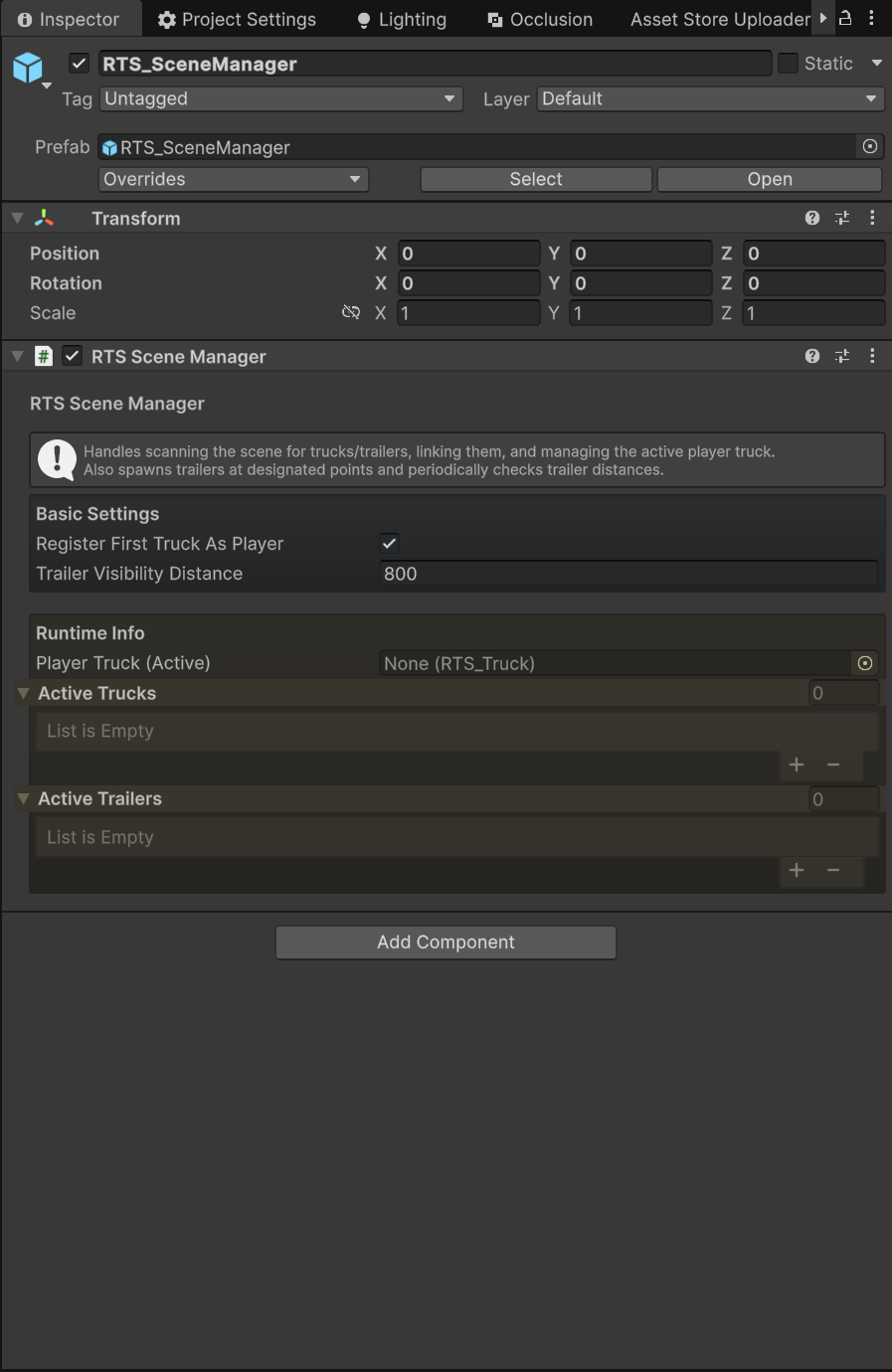
The scene-level manager that tracks all trucks and trailers. Most of its Inspector fields are read-only runtime lists; only two are tunables.
| Setting | Type | Default | Range | Description |
|---|---|---|---|---|
registerFirstTruckAsPlayer |
bool |
false |
true / false | Auto-assign the first truck found as the player truck. |
trailerVisibilityDistance |
float |
800 |
Min 1 | Trailers beyond this distance are deactivated for performance. |
The visibility check runs once per second, deactivating any trailer farther than trailerVisibilityDistance from the player and reactivating it when the player comes back in range. Lower it on large scenes with many trailers if you need more performance headroom.
RTS_GuideSystem
Draws the navigation path line that leads the player to trailers, load stations, and delivery zones.
| Setting | Type | Default | Range | Description |
|---|---|---|---|---|
segmentLength |
float |
4 |
Min 0.1 | Path subdivision length. Smaller = smoother. |
heightOffset |
float |
1.5 |
— | Vertical offset so the path line doesn't clip the ground. |
Smaller segmentLength values make the line follow curves more smoothly at the cost of more line points. The system recalculates the path whenever the truck or the target moves more than 1 m.
RTS_NameTagSystem
Shows floating world-space labels over delivery zones, load stations, and unattached trailers.
| Setting | Type | Default | Range | Description |
|---|---|---|---|---|
maxViewDistance |
float |
50 |
Min 1 | Max distance at which name tags are visible. |
Tags start fading out at 50% of maxViewDistance and disappear entirely beyond it. A trailer's tag also hides while that trailer is attached to a truck.
RTS_UI_Notification
The floating on-screen message panel ("Trailer is full", "Trailer is loaded", and so on).
| Setting | Type | Default | Range | Description |
|---|---|---|---|---|
displayDuration |
float |
2.5 |
Min 0.1 | How long the notification stays visible. |
RTS_UI_OffsetIndicatorManager
Draws edge-of-screen arrows pointing toward off-screen zones, stations, and trailers.
| Setting | Type | Default | Range | Description |
|---|---|---|---|---|
edgeBuffer |
float |
50 |
Min 0 | Screen-edge buffer distance in pixels. |
showIndicatorDistance |
float |
100 |
Min 0 | Distance threshold for showing off-screen indicators. |
deliveryZoneColor |
Color |
Green | — | Arrow color for delivery zone indicators. |
loadStationColor |
Color |
Blue | — | Arrow color for load station indicators. |
trailerColor |
Color |
White | — | Arrow color for trailer indicators. |
Any off-screen target gets an arrow, and on-screen targets farther than showIndicatorDistance meters also get one (pinned to the top edge of the screen). Arrows are kept edgeBuffer pixels away from the screen edges. Any target that is none of the three known kinds falls back to a magenta arrow.
RTS_MinimapCameraFollower
Keeps the top-down minimap camera over the player truck.
| Setting | Type | Default | Range | Description |
|---|---|---|---|---|
offset |
Vector3 |
(0, 100, 0) |
— | Offset from the truck position for camera placement. |
matchTruckRotation |
bool |
false |
true / false | If true, the minimap camera rotates with the truck. |
The Y value of offset is effectively the minimap zoom: a higher camera sees more of the map. With matchTruckRotation off, the minimap stays north-up; turn it on for a rotating, driving-game-style minimap.
RTS_Job (ScriptableObject)
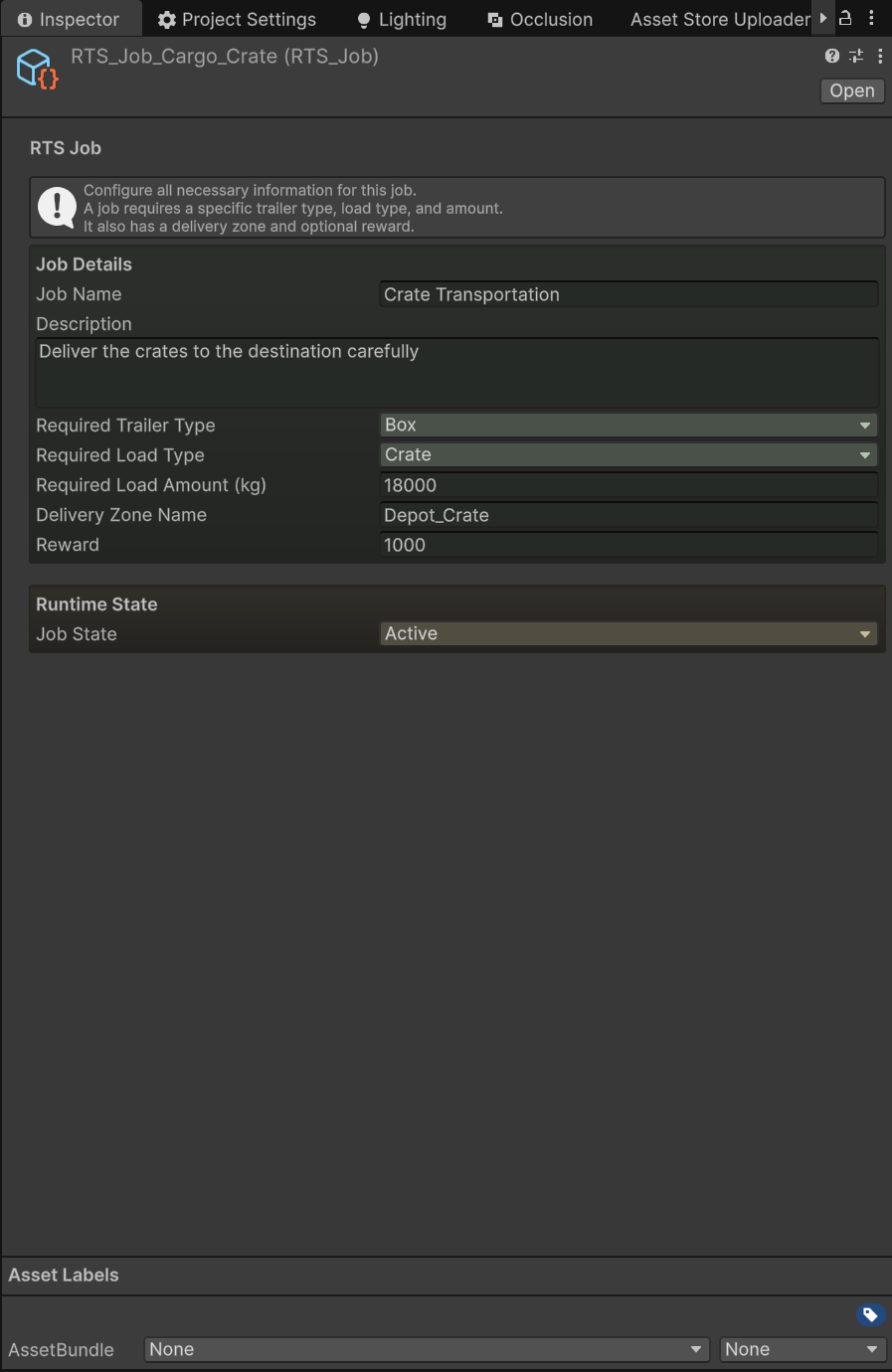
Jobs are ScriptableObject assets stored in Assets/RTS/Resources/Jobs/. These fields define what the player must deliver, where, and for how much — see Jobs and Loads.
| Setting | Type | Default | Range | Description |
|---|---|---|---|---|
jobName |
string |
New Delivery Job |
— | Display name of this job. |
description |
string |
Deliver specific cargo to the destination |
— | Description or objective of this job. |
requiredTrailerType |
TrailerType enum |
Box |
Flatbed / Tanker / Box / LowLoader | Trailer type required to accept this job. |
requiredLoadType |
LoadType enum |
Crate |
None / Pallet / Fuel / Vehicle / Crate / Container | Load type required for this delivery. |
requiredLoadAmount |
float |
2000 |
Min 0 | Minimum cargo weight (kg) required for delivery. |
deliveryZoneName |
string |
Depot_01 |
— | Name of the target delivery zone in the scene. |
reward |
int |
1000 |
Min 0 | Money earned upon successful delivery. |
state |
JobState enum |
Active |
Active / Completed / Terminated | Current runtime state of this job. |
Two fields deserve special attention. deliveryZoneName must exactly match the zoneID on an RTS_DeliveryZone in the scene, or the job can never be completed — this mismatch is the most common job-setup mistake (see Common Mistakes). And reward is stored on the job but no shipped system spends or displays money — it is an intentional integration point for your own economy code via the OnJobCompleted event (see Scripting API).
For reference, the five shipped jobs use requiredLoadAmount values between 10000 kg (Vehicle Transportation) and 22500 kg (Fuel Transportation), all with a reward of 1000.
See Also
- Scene Setup — the Create menu and "Create and Configure All The Systems" in practice.
- Creating Trailers — trailer weight and load-grid tuning walkthrough.
- Jobs and Loads — creating job assets and load prefabs.
- Locations — load stations, delivery zones, and trailer spawn points.
- UI System — notifications, indicators, and the minimap.
- Scripting API — reading settings and reacting to events from code.
- Troubleshooting — what to check when a setting seems to have no effect.