Troubleshooting & FAQ
This guide collects the most common problems reported with Realistic Truck Simulator (RTS) V1.5, organized as symptom → causes → solutions. Use it when something in the job flow, guide line, loading, UI, or trailer handling does not behave the way you expect. If you are still setting up your first scene, read Common Mistakes first — it prevents most of the issues listed here before they happen.
Job System Issues
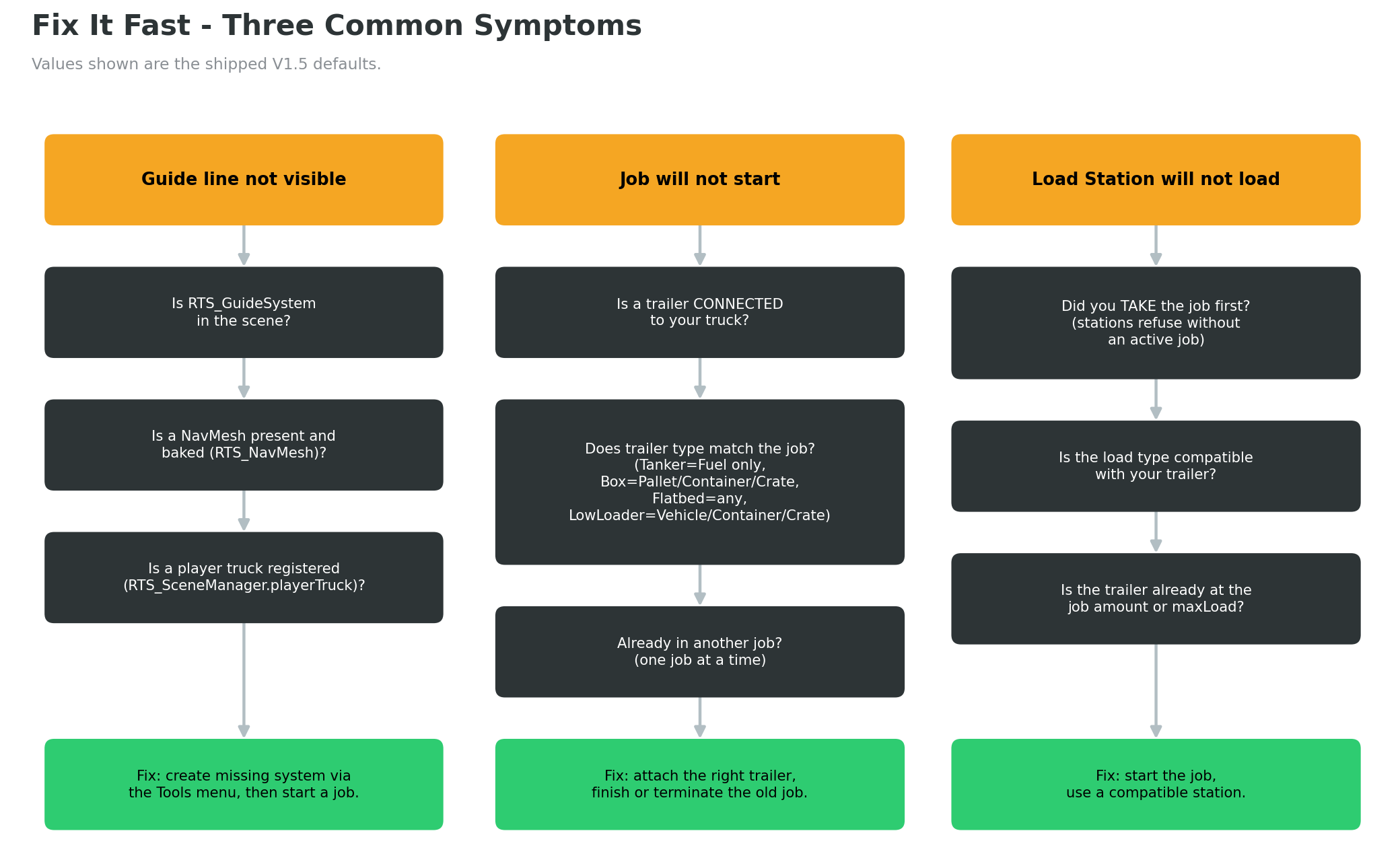
Job will not start
Symptoms:
- You press a job card's start button and see a notification, but the job never becomes active.
- Or nothing happens at all — no notification, no console message.
Causes and Solutions:
-
You already have an active job. RTS allows only one active job at a time (
RTS_JobManager.currentJob). The notification reads: "Can't start a new job, you already have one". - Finish or terminate the current job first. The job status button in the HUD terminates the active job, or callRTS_API.TerminateJob()from code. -
No trailer is connected to your truck.
RTS_JobManager.StartJob()checksGetConnectedTrailer()before anything else. Two sub-cases: - A trailer of the required type exists somewhere in the scene: you see "{type} trailer is located on your map" and the guide line leads you to it. This is not a failure — drive there, reverse onto the trailer to attach it (default key: T detaches), then start the job again. - No matching trailer exists in the scene at all: you see "Trailer must be connected to your truck to start the job" plus a console warning. Add a trailer of the job'srequiredTrailerTypeto the scene — see Creating Trailers. -
The connected trailer is the wrong type. The job's
requiredTrailerTypemust equal the trailer'strailerTypeexactly. The notification reads: "Trailer type does not match job requirements", with a matching console warning. - Detach (T) and connect a trailer of the correct type, or edit the job asset's Required Trailer Type.
If absolutely nothing happens (no notification, no log): there is no registered player truck.
StartJob()returns silently whenRTS_API.GetPlayer()isnull. Enable Register First Truck As Player onRTS_SceneManager, or callRTS_API.RegisterPlayerVehicle()— see Scripting API.
Job will not complete
Symptoms:
- You drive into the delivery zone with a loaded trailer and the job stays active.
- Notification: "Not enough cargo of the required load type to complete the job" or "This delivery zone is not compatible for your cargo".
Causes and Solutions:
- Not enough cargo of the required load type. This is the exact rule
RTS_JobManager.TryCompleteJob()applies:
```csharp float loadOfRequiredType = trailer.GetCurrentLoadWeight(currentJob.requiredLoadType);
if (loadOfRequiredType < currentJob.requiredLoadAmount) { // "Not enough cargo of the required load type to complete the job" return; } ```
Only cargo whose LoadType matches the job's requiredLoadType counts. A trailer carrying 20,000 kg of Pallet cargo completes zero percent of a Crate job. Check the job asset's Required Load Amount (in kg) against what the trailer actually carries — the trailer's name tag shows the live load weight.
-
Wrong delivery zone. Each
RTS_DeliveryZonehas azoneIDstring that must match the job'sdeliveryZoneNameexactly (the shipped city jobs use IDs likeDepot_CrateandDepot_Vehicle). Entering any other zone shows "This delivery zone is not compatible for your cargo". - Follow the guide line — after loading, it points at the correct zone. If you built the zone yourself, comparezoneIDanddeliveryZoneNamecharacter by character. See Locations. -
The zone's collider is not a trigger. Delivery zones only work through a trigger collider — a collider with Is Trigger enabled so objects pass through it and fire enter events instead of colliding. If Is Trigger is off, your truck bounces off an invisible wall and
TryCompleteJob()never runs. -
No
RTS_JobManagerin the scene. The console shows the error "RTS_JobManager could not be found in the scene to complete the job!". Create one via Tools → BoneCracker Games → Realistic Truck Simulator → Create → Scene → Create RTS Job Manager. -
Silent returns.
TryCompleteJob()also exits without any message when there is no active job, no player truck, or no connected trailer — if you detached the trailer inside the zone, that is why nothing fires.
Job list is empty
Symptoms:
- The job list panel opens but shows no job cards.
Causes and Solutions:
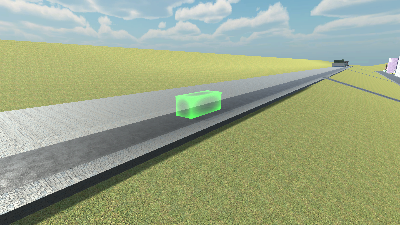
- No jobs assigned to the Job Manager.
RTS_JobManager.availableJobsis a hand-assigned serialized list — RTS does not auto-load jobs fromAssets/RTS/Resources/Jobsat runtime. Select theRTS_JobManagerobject and drag your job assets (a job is a ScriptableObject — a data asset saved in the project rather than a scene object) into Available Jobs in the Inspector. See Jobs & Loads.
Guide Line Issues
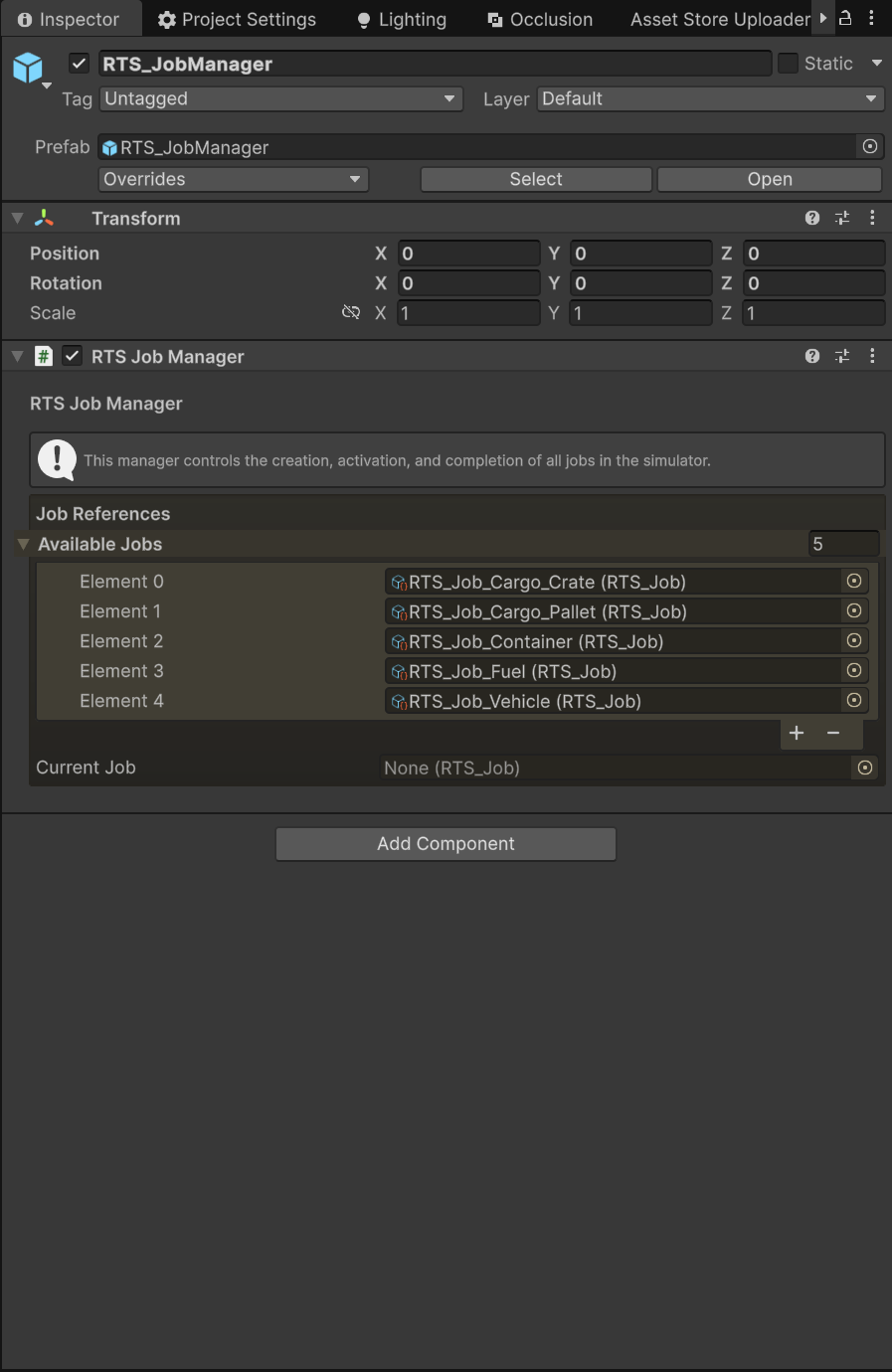
Guide line is not visible
Symptoms:
- A job or trailer target is set, but no path line appears in the world.
- Console may show the error "[RTS_GuideSystem] couldn't find in the scene!".
Causes and Solutions:
-
No
RTS_GuideSystemin the scene. Calls toRTS_API.SetNavigationTargetForGuide()log the error above. Create one via Tools → BoneCracker Games → Realistic Truck Simulator → Create → Scene → Create RTS Guide System. -
No NavMesh in the scene. The guide system draws its path with
NavMesh.CalculatePath()on Unity's NavMesh — a baked walkable-surface map used for pathfinding. Both the truck and the target must sample onto the NavMesh within a 100 m radius; if either fails, the path is cleared. Create the shipped NavMesh object via Tools → BoneCracker Games → Realistic Truck Simulator → Create → Scene → Create RTS NavMesh and bake it for your level. See Scene Setup. -
No player truck registered.
RTS_GuideSystem.Update()clears the path wheneverRTS_SceneManager.playerTruckis null. Register your truck as described in the job-start section above. -
No LineRenderer assigned. The Path Line Renderer field on
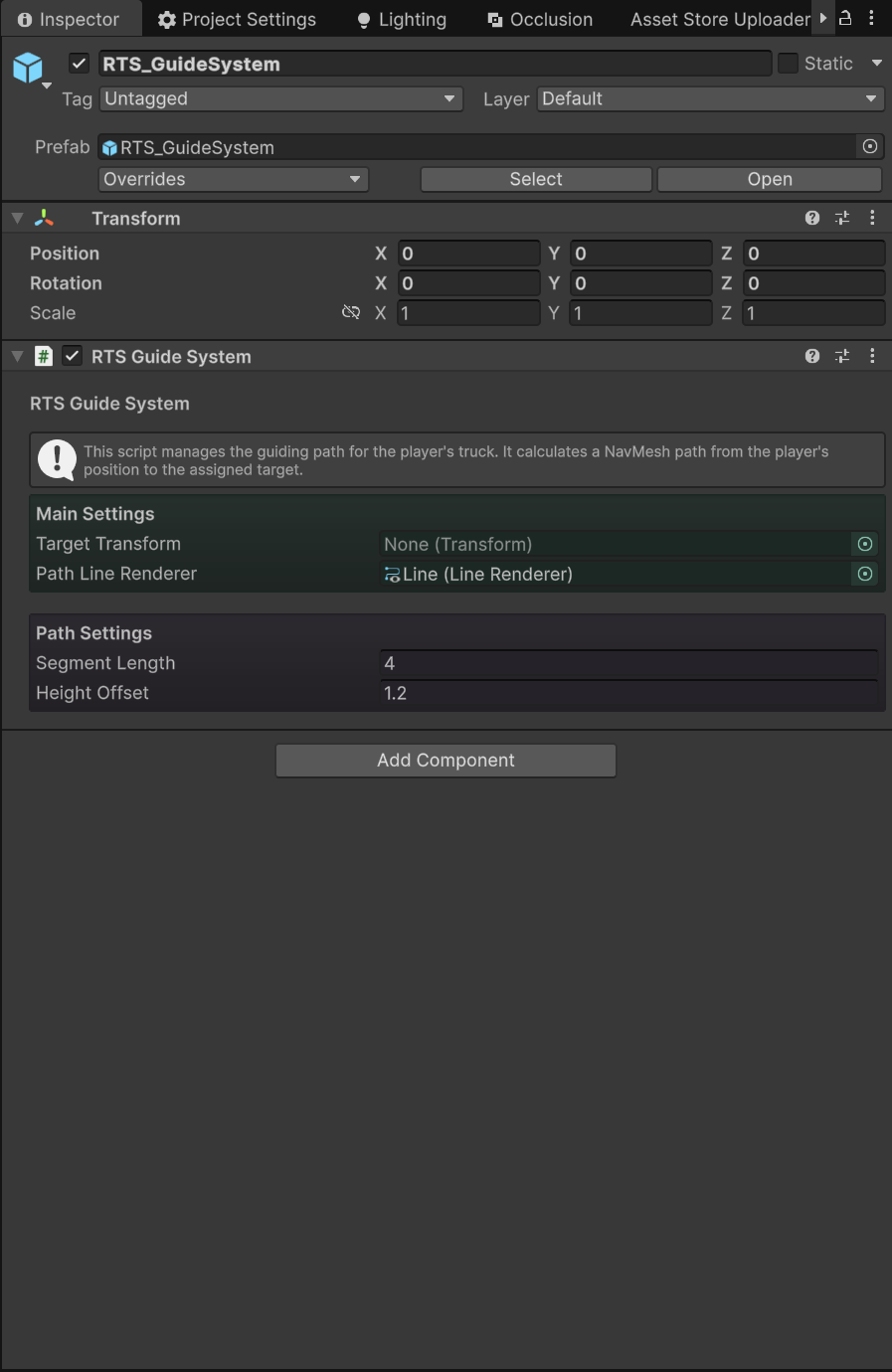
RTS_GuideSystemmust reference a LineRenderer; if it is empty the component draws nothing (it returns before any path work). The shippedRTS_GuideSystemprefab (a prefab is a pre-built GameObject saved as an asset) comes wired correctly — prefer instantiating it over building your own.
Guide line clips into the ground
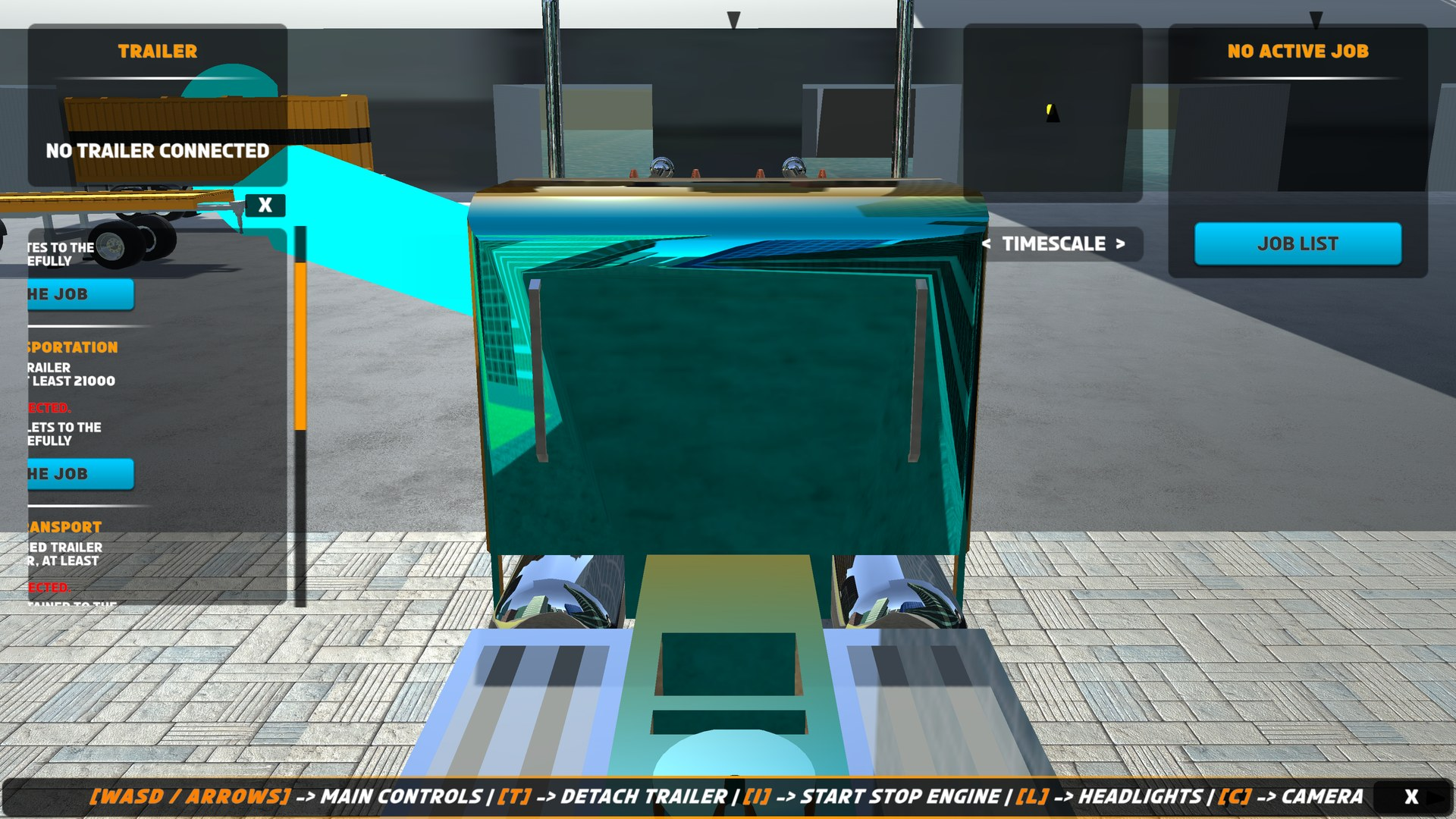
Raise Height Offset on RTS_GuideSystem (default 1.5). Every path corner is lifted vertically by this amount so the line floats above the road; terrain with tall bumps may need a higher value.
Guide line looks jagged or angular
Lower Segment Length (default 4, minimum 0.1). This is the distance between subdivision points inserted along each NavMesh path segment — smaller values produce more intermediate points and smoother curves, at slightly higher cost.
Loading Issues
Load station will not load my trailer
Symptoms:
- You park inside a load station volume and no cargo is added.
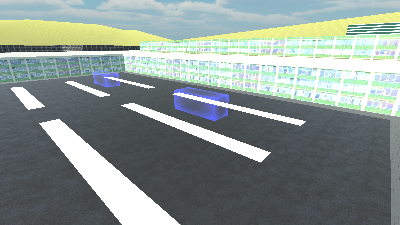
- A notification explains why — the station runs four gate checks every load cycle (default cycle: Load Cooldown
1.6s), in this exact order:
| # | Gate | Notification shown |
|---|---|---|
| 1 | No active job | "You're not permitted to load this trailer unless you take the job" |
| 2 | Trailer type incompatible with the station's load type | "Trailer type <b></b> is not compatible with this <b> load station</b>" |
| 3 | Next load cycle would exceed the job's Required Load Amount | "Trailer is loaded" |
| 4 | Trailer already at its Max Load | "Trailer is full" |
If all four gates pass, cargo is added and you see "Loaded <b> kg</b> of <b></b>". (The <b> tags are rich-text bold markers rendered by the notification UI.)
Solutions per gate:
- Start the job first. Stations refuse to load outside an active job — this is intentional, so free-loading cannot bypass the job flow.
- Check the compatibility matrix. Tanker carries Fuel only; Flatbed carries any load type; Box carries Pallet, Container, and Crate; LowLoader carries Vehicle, Container, and Crate. The rules live in
RTS_API.IsLoadTypeCompatibleWithThisTrailer(). - "Trailer is loaded" means the job requirement is (nearly) met. The station stops when
current weight + loadAmountwould exceed the job'srequiredLoadAmount. Important tuning rule: make the job's Required Load Amount an exact multiple of the station's Load Amount (default5000kg per cycle). If it is not — say the job needs 18,000 kg and the station adds 5,000 per cycle — loading stops at 15,000 kg and the job can never be completed at that station. - "Trailer is full" — the trailer hit its own
maxLoad. Use a bigger trailer or lower the job requirement.
Two silent preconditions also apply: the station only ever loads the player's trailer (other trailers are ignored entirely), and the trailer must be inside the station's trigger collider. Multi-collider trailers are handled safely via overlap counting, so partial overlaps are fine.
UI Issues
No HUD appears in Play Mode
The entire gameplay HUD (dashboard, notifications, job list, minimap frame, trailer panel) lives on the RTS_Canvas prefab. If it is missing from the scene, you get a bare camera view. Create it via Tools → BoneCracker Games → Realistic Truck Simulator → Create → Scene → Create RTS UI Canvas (the menu refuses duplicates). The screen-space overlay canvas with the off-screen indicators is a separate item: Create RTS UI Canvas (ScreenSpace). See UI System.
Notifications are not showing
Notifications come from the RTS_UI_Notification component on the Panel_NotificationPanel object inside RTS_Canvas. If that panel (or the whole canvas) was deleted or the component removed, every system that calls ShowNotification() has nowhere to display. Restore the shipped RTS_Canvas prefab, or re-add RTS_UI_Notification with its Content and Notification Text references assigned. Messages display for Display Duration 2.5 seconds by default.
Minimap icons are missing, or visible in the main camera
Minimap icons are spawned 50 m above their targets on the layer named RTS_MinimapIcons (layer 12 in the shipped project), and that layer is excluded from the RCCP camera's culling mask so only the minimap camera renders them. If the layer does not exist in your project, the console warns: 'Layer "RTS_MinimapIcons" not found. Make sure the layer name is correct.' — and the exclusion is skipped, so icons leak into the main game view.
- Add the layer manually in Project Settings → Tags and Layers, spelled exactly
RTS_MinimapIcons, or let RTS do it: the installation check offers the layer via the "Found Missing Layers For Realistic Truck Simulator" dialog with an Add button. - Trailer icons disappearing when you attach a trailer is intended — trailer icons are only shown while the player has no trailer connected.
Name tags are missing
World-space name tags for zones, stations, and trailers come from RTS_NameTagSystem. Two verbatim warnings identify the usual causes:
- "RTS_NameTagSystem is missing references to the Canvas or the nameTagPrefab!" — the component needs a world-space Canvas (it auto-grabs the Canvas on its own GameObject) and a Name Tag Prefab assigned.
- "NameTag prefab is missing a TextMeshProUGUI child!" — the assigned prefab must contain a TextMeshProUGUI text component; the shipped
RTS_UI_Nametagprefab does.
Also remember: tags are visible up to Max View Distance (50 m) — fully opaque within half that distance, fading out between 25 m and 50 m — and are hidden when the target is behind the camera. If tags exist but you never see them, you may simply be too far away.
Trailer Issues
Trailer will not attach
Attachment is handled entirely by RCCP (Realistic Car Controller Pro), not by RTS — RTS_Truck only observes RCCP_CarController.ConnectedTrailer to fire events. Check the RCCP side:
- The trailer must have a working
RCCP_TrailerController. If it is missing,RTS_Trailerlogs "{name} is missing RCCP_TrailerController! RTS_TrailerManager requires it." and disables itself. - Reverse the truck's fifth wheel squarely into the trailer's coupling; attachment happens on contact between the RCCP attacher components. Consult the RCCP documentation included under
Assets/RTS/Realistic Car Controller Pro/for coupler configuration.
Trailer disappears when I drive far away
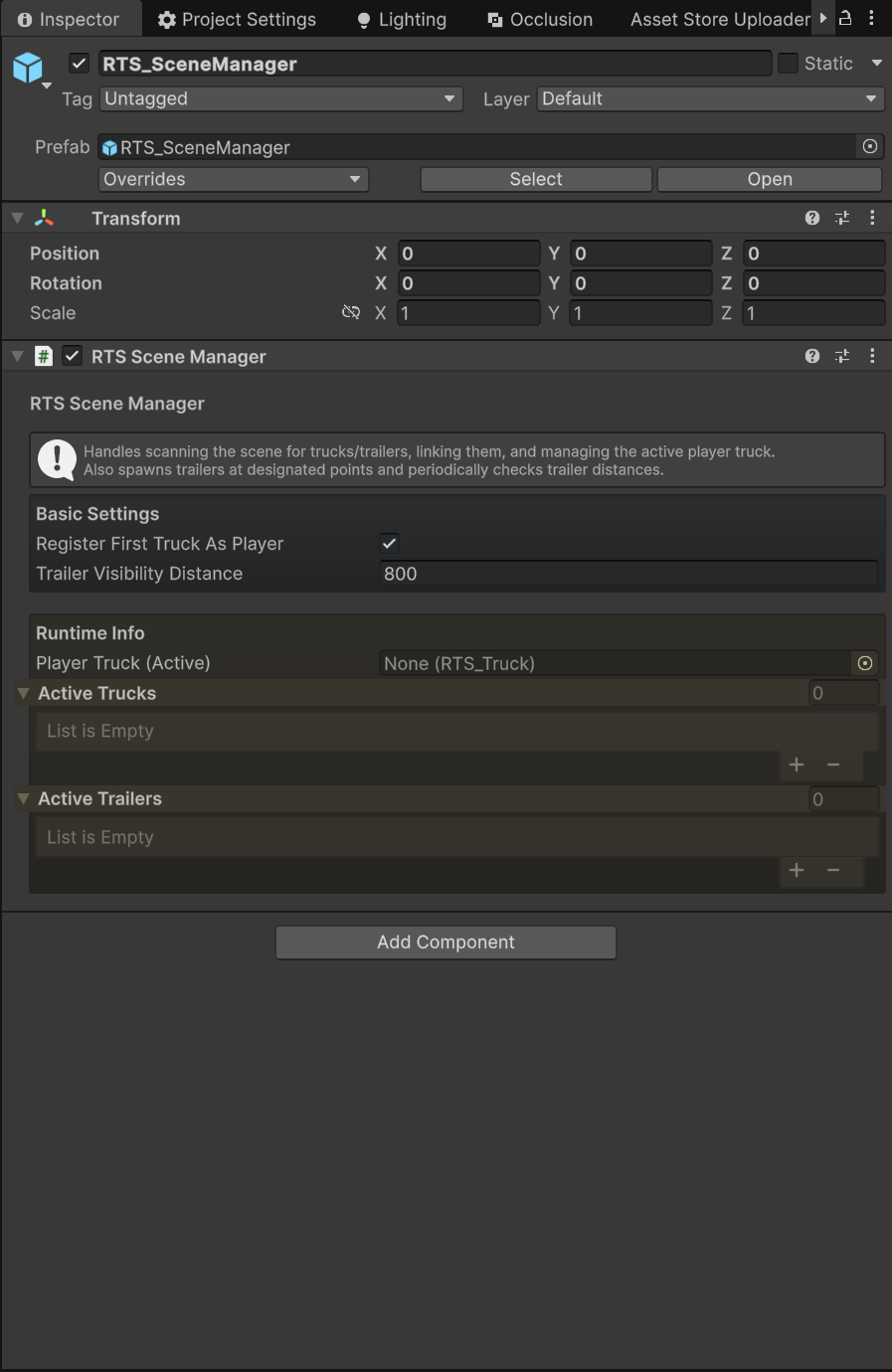
This is intended behavior, not a bug. RTS_SceneManager runs a distance check every 1 second and deactivates trailers farther than Trailer Visibility Distance (default 800 m) from the player, as a performance optimization. Trailers reactivate when you come back into range. Raise the value on the RTS_SceneManager inspector if your game design needs trailers visible from farther away.
Trailer name tag disappeared
Also intended: a trailer's name tag is hidden the moment the trailer is attached to a truck (its info moves to the HUD trailer panel instead). Detach the trailer and the tag returns.
Diagnostic Tools
Event logging — logEventsToConsole
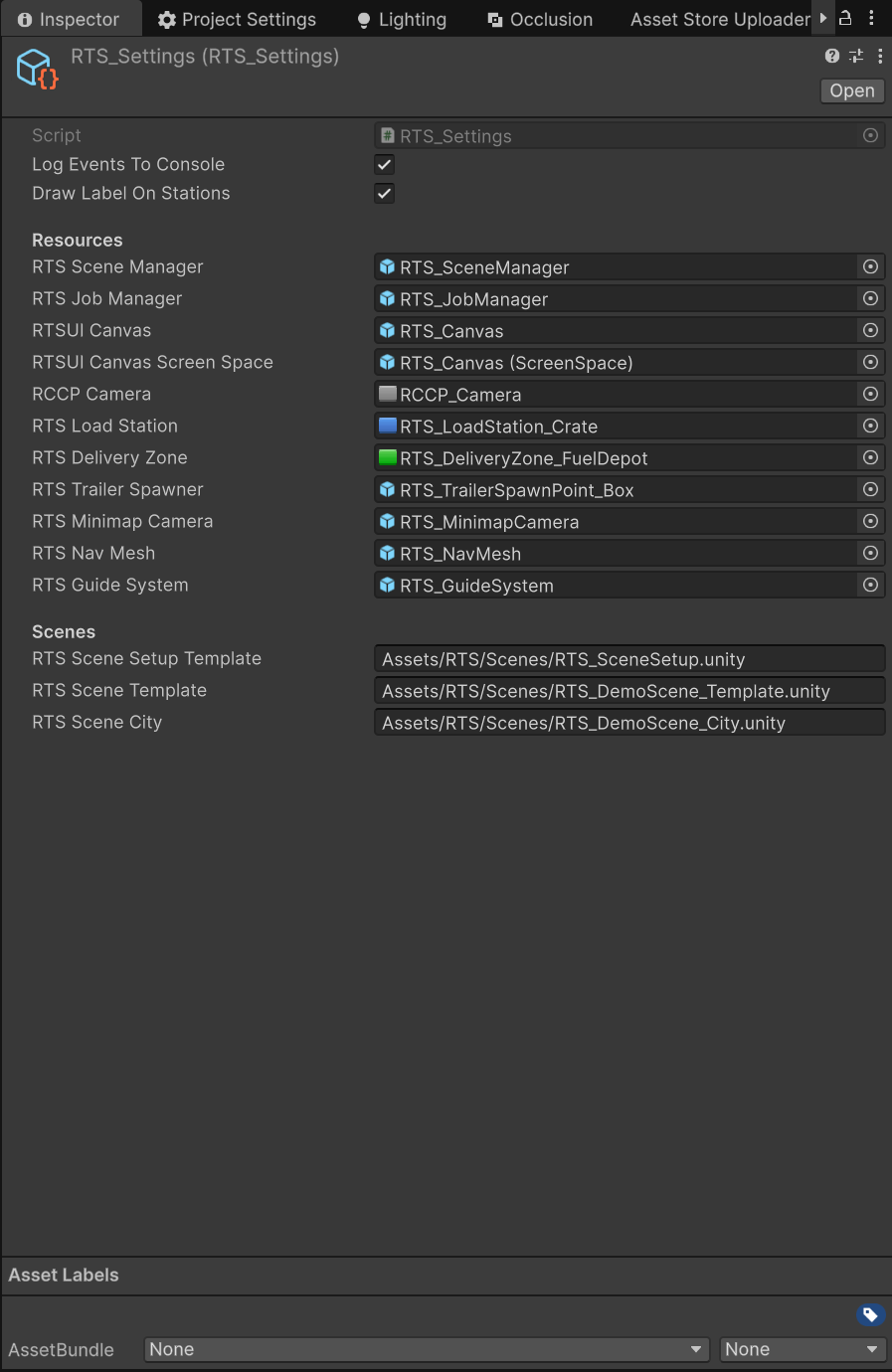
RTS_Settings (open via Tools → BoneCracker Games → Realistic Truck Simulator → Settings) has a Log Events To Console flag, enabled by default. With it on, every RTS event prints a [RTS EVENT] line to the Console — truck/trailer spawn and despawn, attach and detach, job started/completed/terminated, trailer data changes. This tells you exactly which events fire and in what order: if you expect OnTrailerAttached and never see its [RTS EVENT] line, the problem is upstream (RCCP attachment), not in your event handler. See Settings Reference.
Scene labels — drawLabelOnStations
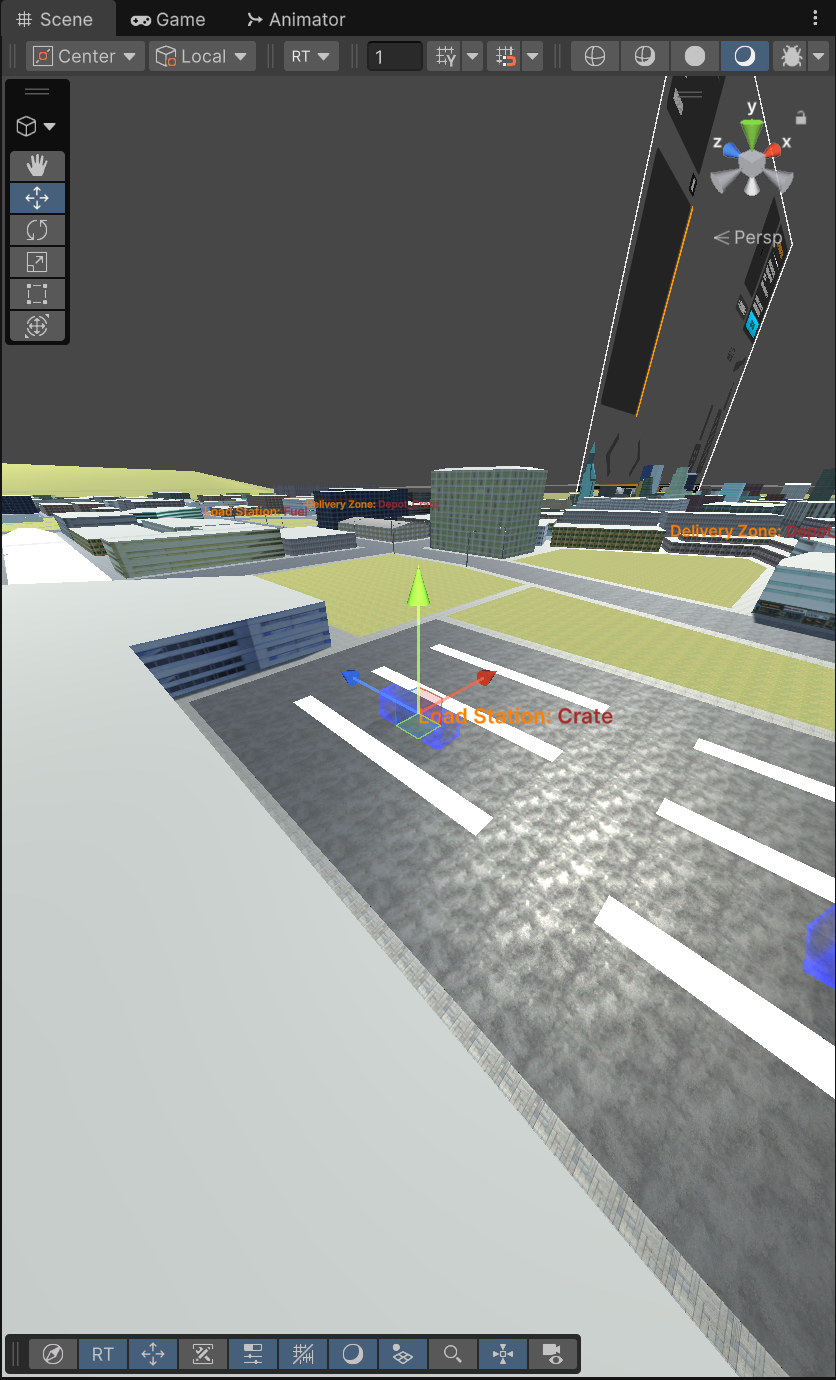
The same settings asset has Draw Label On Stations (default on), which draws orange labels such as "Load Station: Crate" above every station and zone in the Scene view. Use it to verify at a glance which load type each station provides and which zoneID each zone carries, without selecting each object.
Script Execution Order menu
RTS initialization is order-sensitive (managers at -30, vehicles at 0, guide system at 5, name tags at 10). The menu Tools → BoneCracker Games → Realistic Truck Simulator → Script Execution Order offers Validate, Reset, and Show Current — run Show Current when spawn events seem to be missed or managers appear to initialize late, and Reset if the ordering has drifted.
Console message reference
Every warning and error RTS emits, verbatim, with what it means:
| Console message | Severity | Meaning / fix |
|---|---|---|
[RTS JobManager] Trailer must be connected to your truck to start the job. |
Warning | Job start aborted: no trailer connected and no matching trailer exists in the scene. |
[RTS JobManager] Trailer type does not match job requirements. |
Warning | Connected trailer's type ≠ job's requiredTrailerType. |
[RTS JobManager] Not enough cargo of the required load type to complete the job. |
Log | TryCompleteJob() failed the load check — see the exact rule above. |
{name} is missing RCCP_TrailerController! RTS_TrailerManager requires it. |
Warning | RTS_Trailer found no RCCP trailer controller and disabled itself. Add RCCP_TrailerController. |
No trailer prefab assigned to spawn point {name}. |
Warning | An RTS_TrailerSpawnPoint has an empty Trailer Prefab field. |
Spawned trailer prefab does not contain RTS_Trailer component. |
Warning | The assigned spawn prefab lacks RTS_Trailer — add it via the trailer setup menu. |
RTS_NameTagSystem is missing references to the Canvas or the nameTagPrefab! |
Warning | Assign the Canvas / Name Tag Prefab on RTS_NameTagSystem. |
NameTag prefab is missing a TextMeshProUGUI child! |
Warning | The name tag prefab needs a TextMeshProUGUI child; use the shipped RTS_UI_Nametag. |
[RTS SceneManager] Attempted to register a null truck as player truck. |
Warning | Your code passed null to RegisterPlayerTruck / RTS_API.RegisterPlayerVehicle. |
Layer "RTS_MinimapIcons" not found. Make sure the layer name is correct. |
Warning | The minimap layer is missing from the project — add it (see UI Issues above). |
RTS_JobManager could not be found in the scene to complete the job! |
Error | A delivery zone fired but there is no Job Manager in the scene. |
[RTS_GuideSystem] couldn't find in the scene! |
Error | RTS_API.SetNavigationTargetForGuide() found no RTS_GuideSystem. |
Getting More Help
If a problem survives this guide:
- Reproduce with logging on. Enable Log Events To Console and capture the Console output (right-click a log entry → copy, or grab
Editor.log). - Gather your environment info. Unity version, RTS version (V1.5), render pipeline, target platform, and the exact steps that trigger the issue.
- Contact support at bonecrackergames.com/contact — include your Asset Store invoice number, the environment info, and the console log. A minimal reproduction scene dramatically speeds up the answer.
Frequently Asked Questions
Does RTS support mobile?
Yes. RTS uses RCCP's input pipeline, so RCCP's mobile controllers (touch buttons, joystick, steering wheel UI) work as-is — the shipped RTS_Canvas contains the full Mobile Controllers group, including a touch TrailerDetach button that is only active while RCCP_Settings.Instance.mobileControllerEnabled is on. The keyboard-controls info panel automatically hides in mobile mode, and you can switch controllers from code with RTS_API.SetMobileController(RCCP_Settings.MobileController).
Does RTS work with URP or HDRP?
The asset ships configured for the Built-in render pipeline. It can be upgraded to URP or HDRP using RCCP's render pipeline converter — see the RCCP documentation bundled under Assets/RTS/Realistic Car Controller Pro/ for the conversion steps and material upgrade notes.
Can the player have multiple jobs at once?
No, by design. RTS_JobManager.currentJob holds a single job; starting another while one is active shows "Can't start a new job, you already have one". Supporting parallel jobs would require modifying the job manager source.
How do I give the player money for completed jobs?
Every RTS_Job has a reward field (the shipped jobs use 1000), but RTS deliberately ships no economy system — it is an integration point for your game. Subscribe to the completion event:
RTS_Events.OnJobCompleted += (RTS_Job job) => {
    playerMoney += job.reward;
};
See Scripting API for the full event list.
Can I add custom trailer types beyond the four enum values?
The four types (Flatbed, Tanker, Box, LowLoader) live in the RTS_Trailer.TrailerType enum. Adding a fifth means editing that enum and extending the compatibility rules in RTS_API.IsLoadTypeCompatibleWithThisTrailer() — an intermediate-level task that modifies RTS source files, so re-apply your changes after asset updates. Note that no LowLoader trailer prefab ships (only Box, Flatbed, and Tanker), so LowLoader is already a free slot for your own trailer before touching any code.
Do I need the demo scenes in my build?
No. Only your own scenes belong in your build — the city demo (RTS_DemoScene_City) is merely a sample (and the only RTS scene enabled in the shipped Build Settings). Keep the scenes in the project for reference if you like; they add nothing to your game unless you include them. See Demo Scenes.
Where are jobs stored?
Jobs are ScriptableObject assets in Assets/RTS/Resources/Jobs. Creating the asset is not enough, though — each job must also be added to RTS_JobManager.availableJobs in the Inspector to appear in the job list. The Job Browser (Tools → BoneCracker Games → Realistic Truck Simulator → Job List) can create new job assets with its Create New Job button.
How do I reset the one-time tutorial?
RTS_TutorialGuide shows its dialog once and then writes the PlayerPrefs key RTS_Tutorial (PlayerPrefs is Unity's small key–value store persisted per user); on later runs it finds the key and destroys itself. Delete the key to see the tutorial again:
PlayerPrefs.DeleteKey("RTS_Tutorial");
Why won't the load station fill my trailer past a certain weight?
Because of gate 3 above: the station never adds a cycle that would push the trailer past the active job's Required Load Amount — extra cargo would be wasted weight. If loading stops below the requirement, your station's per-cycle Load Amount does not divide evenly into the job's requirement; adjust one of the two values.
Which keys control the truck?
The defaults from RCCP_InputActions: W/↑ throttle, S/↓ brake, A/D or ←/→ steer, Space handbrake, I engine start/stop, T trailer detach, L low beams, C camera change. Gamepad and Logitech G920 wheel bindings are included in the same input asset. See Essentials for the full table.
See Also
- Common Mistakes — setup errors to avoid before they become bugs
- Jobs & Loads — job assets, load prefabs, and the delivery flow in depth
- UI System — every HUD panel and its wiring
- Settings Reference — all
RTS_Settingsfields explained - Scripting API —
RTS_APImethods andRTS_Eventsreference - Index — the complete documentation set