Scripting API — RTS_API and RTS_Events
This reference covers the two classes you use to script Realistic Truck Simulator from your own code: RTS_API (do things) and RTS_Events (react to things). It is written for beginners — every method is listed with its real signature, a plain-English description, and copy-paste examples for the important ones. If you have never written a Unity script before, read Essentials first.
How the API Is Organized
You never need to touch the internals of RTS_SceneManager, RTS_JobManager, or any other manager. Everything public goes through two doors:
RTS_API— a facade class: a single collection of static methods (methods you call directly on the class, without creating an object first). Spawning, vehicle control, trailer queries, jobs, UI — it is all here.RTS_Events— a static event bus. An event is a notification hook: you attach one of your own methods to it, and RTS calls your method whenever that thing happens (a job completes, a trailer attaches, and so on).
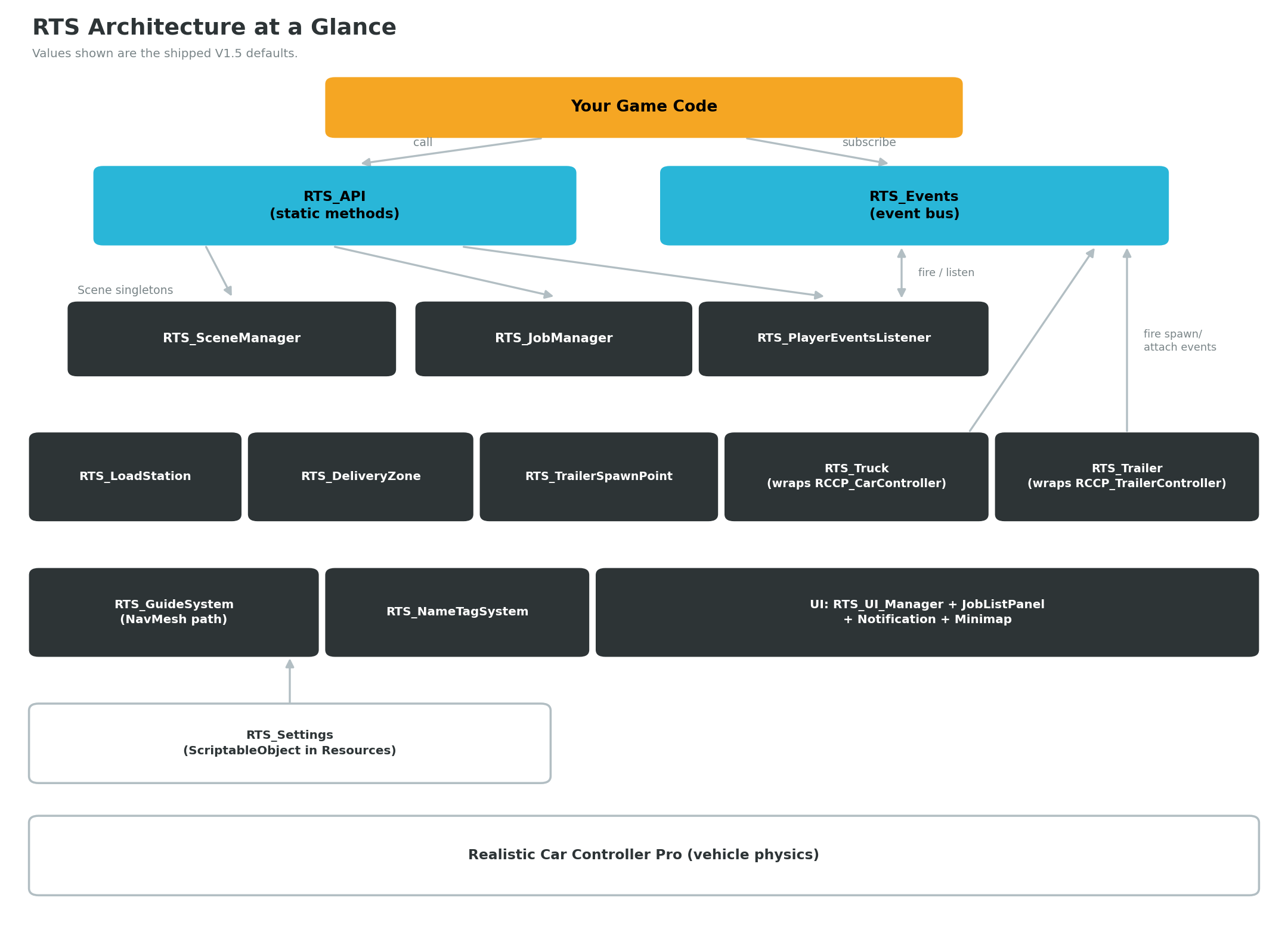
Two things make this very easy to use:
- No namespace. RTS classes are global — they are not wrapped in a C# namespace, so you do not need any
usingdirective to reach them. Any script in your project can simply callRTS_API.GetPlayer(). - Static access everywhere. You never write
new RTS_API()or drag a reference into the Inspector.RTS_API.SomeMethod()andRTS_Events.OnJobCompleted += MyMethod;work from anywhere.
One caveat to know: most RTS_API calls route through singleton managers (RTS_SceneManager, RTS_JobManager). The RTS singleton pattern finds the existing manager in the scene, or auto-creates a new GameObject named after the manager type if none exists. So calling a job method in a scene with no RTS_JobManager will quietly create an empty one — set your scene up properly first (see Scene Setup).
RTS_API — Method Reference by Task
All methods below are public static members of RTS_API. Grouped by what you are trying to do.
Spawning Trucks and Trailers
public static RTS_Truck SpawnTruck(RTS_Truck vehiclePrefab, Vector3 position, Quaternion rotation, bool registerAsPlayerVehicle, bool isControllable, bool isEngineRunning)
public static RTS_Trailer SpawnTrailer(RTS_Trailer trailerPrefab, Vector3 position, Quaternion rotation)
SpawnTruck instantiates a truck prefab (a saved GameObject template) and configures it in one call. Its parameters:
| Parameter | Type | What it does |
|---|---|---|
vehiclePrefab |
RTS_Truck |
The truck prefab to instantiate. It must have the RTS_Truck component on its root (see Creating Trucks). |
position |
Vector3 |
World position where the truck appears. |
rotation |
Quaternion |
World rotation of the spawned truck. |
registerAsPlayerVehicle |
bool |
If true, the truck is registered as the player truck in RTS_SceneManager — cameras, UI, and the job system will treat it as your vehicle. |
isControllable |
bool |
If true, the truck accepts driving input. |
isEngineRunning |
bool |
If true, the engine starts running; if false, the engine is killed on spawn. |
Returns: the newly spawned RTS_Truck instance.
SpawnTrailer is simpler: it instantiates a trailer prefab at the given position and rotation, activates it, and returns the new RTS_Trailer. No player registration is involved — trailers become the player's only when hitched to the player truck.
Example:
using UnityEngine;

public class SpawnExample : MonoBehaviour {

    public RTS_Truck truckPrefab;       //  Assign in the Inspector.
    public RTS_Trailer trailerPrefab;   //  Assign in the Inspector.

    private void Start() {

        //  Spawn a player-controlled truck with the engine running.
        RTS_Truck truck = RTS_API.SpawnTruck(truckPrefab, new Vector3(0f, 1f, 0f), Quaternion.identity, true, true, true);

        //  Spawn a trailer 15 meters behind it.
        RTS_Trailer trailer = RTS_API.SpawnTrailer(trailerPrefab, new Vector3(0f, 1f, -15f), Quaternion.identity);

        Debug.Log("Spawned " + truck.name + " and " + trailer.name);

    }

}
Player Vehicle Management
public static RTS_Truck GetPlayer()
public static void RegisterPlayerVehicle(RTS_Truck vehicle)
public static void RegisterPlayerVehicle(RTS_Truck vehicle, bool isControllable)
public static void RegisterPlayerVehicle(RTS_Truck vehicle, bool isControllable, bool engineState)
public static void DeRegisterPlayerVehicle()
public static void SetControl(RTS_Truck vehicle, bool isControllable)
public static void SetExternalControl(RTS_Truck vehicle, bool isExternal)
| Method | What it does |
|---|---|
GetPlayer() |
Returns the current player truck from RTS_SceneManager, or null if none is registered. Always null-check the result. |
RegisterPlayerVehicle(vehicle) |
Makes the given truck the player vehicle. The two longer overloads additionally set whether it is controllable, and whether its engine starts (engineState: true) or is killed (false). |
DeRegisterPlayerVehicle() |
Removes the current player registration — the truck stops being recognized as the player's active vehicle. |
SetControl(vehicle, isControllable) |
Enables or disables driving input for the given truck. |
SetExternalControl(vehicle, isExternal) |
Marks the truck as driven by an external system (AI or your own scripts) instead of direct player input. |
Example — swap the player into a different truck:
using UnityEngine;

public class SwapTruckExample : MonoBehaviour {

    public RTS_Truck otherTruck;    //  A truck already in the scene.

    public void SwitchToOtherTruck() {

        RTS_Truck current = RTS_API.GetPlayer();

        if (current != null)
            RTS_API.SetControl(current, false);     //  Freeze the old truck.

        RTS_API.RegisterPlayerVehicle(otherTruck, true, true);  //  Controllable, engine on.

    }

}
Vehicle Control
public static void SetEngine(RTS_Truck vehicle, bool engineState)
public static void SetAutomaticGear(RTS_Truck vehicle, bool state)
public static void SetAutomaticGear(RTS_Truck vehicle, RCCP_Gearbox.TransmissionType transmissionType)
public static void SetMobileController(RCCP_Settings.MobileController mobileController)
public static void SetBehavior(int behaviorIndex)
public static void ChangeCamera()
public static void Transport(Vector3 position, Quaternion rotation)
public static void Transport(RTS_Truck vehicle, Vector3 position, Quaternion rotation)
public static void Transport(RTS_Truck vehicle, Vector3 position, Quaternion rotation, bool resetVelocity)
public static void Repair(RTS_Truck vehicle)
public static void Repair()
public static void CleanSkidmarks()
public static void CleanSkidmarks(int index)
public static void StartStopRecord(RTS_Truck vehicle)
public static void StartStopReplay(RTS_Truck vehicle)
public static void StartStopReplay(RTS_Truck vehicle, RCCP_Recorder.RecordedClip recordedClip)
public static void StopRecordReplay(RTS_Truck vehicle)
| Method | What it does |
|---|---|
SetEngine |
Starts the engine (true) or kills it (false). |
SetAutomaticGear(vehicle, state) |
true sets the gearbox to RCCP_Gearbox.TransmissionType.Automatic, false to Manual. Does nothing if the truck has no gearbox component. The second overload takes the RCCP_Gearbox.TransmissionType enum directly. |
SetMobileController |
Sets the mobile input controller type (an RCCP_Settings.MobileController enum value) for all RCCP vehicles in the scene, and logs the change. |
SetBehavior |
Switches the active RCCP behavior preset by index, changing how vehicles handle. The index refers to RCCP's configured behavior list. |
ChangeCamera |
Cycles the RCCP camera to its next available camera mode. |
Transport |
Teleports a vehicle to a position and rotation. The overload without a vehicle parameter moves the player vehicle. Pass resetVelocity: true to zero the vehicle's velocity on arrival. |
Repair(vehicle) / Repair() |
Resets all damage on the given truck; the parameterless overload repairs the current player truck and safely does nothing if there is no player. |
CleanSkidmarks() / CleanSkidmarks(index) |
Removes all skidmarks in the scene, or only the skidmark set at the given index. |
StartStopRecord / StartStopReplay / StopRecordReplay |
Controls RCCP's session recorder: record the truck's driving, replay the last recording (or a specific RCCP_Recorder.RecordedClip), or stop both. These silently do nothing if the truck's RCCP setup has no Other Addons recorder component. |
Example — teleport and repair the player after a crash:
using UnityEngine;

public class RecoveryExample : MonoBehaviour {

    public Transform recoveryPoint;     //  An empty GameObject on the road.

    public void RecoverPlayer() {

        RTS_Truck player = RTS_API.GetPlayer();

        if (player == null)
            return;

        RTS_API.Transport(player, recoveryPoint.position, recoveryPoint.rotation, true);
        RTS_API.Repair(player);

    }

}
Trailer Queries
public static bool IsLoadTypeCompatibleWithThisTrailer(RTS_Trailer trailer, RTS_Trailer.LoadType loadType)
public static bool IsTrailerFull(RTS_Trailer trailer)
public static bool IsTrailerEmpty(RTS_Trailer trailer)
public static float GetTrailerLoadAsWeight(RTS_Trailer trailer, RTS_Trailer.LoadType loadType)
public static bool IsTrailerLoadEnoughForJobComplete(RTS_Trailer trailer, RTS_Job job)
public static bool IsPlayerTrailer(RTS_Trailer trailer)
| Method | What it does |
|---|---|
IsLoadTypeCompatibleWithThisTrailer |
Returns true if the trailer's trailerType may carry the given RTS_Trailer.LoadType. This is the single source of truth for the compatibility rules below. |
IsTrailerFull |
true when the trailer's current load weight has reached or passed its maxLoad. |
IsTrailerEmpty |
true when the trailer carries no load weight at all. |
GetTrailerLoadAsWeight |
Returns the total weight (kg) of one specific load type currently on the trailer. |
IsTrailerLoadEnoughForJobComplete |
true when the trailer's current total load weight is at or above job.requiredLoadAmount. |
IsPlayerTrailer |
true if this trailer is the one connected to the player's truck. |
All of these safely return false (or 0f) when passed a null trailer — no exceptions.
The compatibility rules checked by IsLoadTypeCompatibleWithThisTrailer:
| Trailer type | Accepts load types |
|---|---|
Tanker |
Fuel only |
Flatbed |
Any load type except None |
Box |
Pallet, Container, Crate |
LowLoader |
Vehicle, Container, Crate |
Example — inspect the player's trailer:
using UnityEngine;

public class TrailerInfoExample : MonoBehaviour {

    private void Update() {

        RTS_Truck player = RTS_API.GetPlayer();

        if (player == null || !player.HasTrailer())
            return;

        RTS_Trailer trailer = player.GetConnectedTrailer();

        float crateKg = RTS_API.GetTrailerLoadAsWeight(trailer, RTS_Trailer.LoadType.Crate);

        if (RTS_API.IsTrailerFull(trailer))
            Debug.Log("Trailer is full. Crates on board: " + crateKg + " kg");

    }

}
Jobs
public static bool InJob()
public static RTS_Job GetCurrentJob()
public static List<RTS_Job> GetAvailableJobs()
public static void StartJob(RTS_Job job)
public static void TryCompleteJob()
public static void CompleteJob()
public static void TerminateJob()
| Method | What it does |
|---|---|
InJob() |
true while a job is in progress. RTS allows exactly one active job at a time. |
GetCurrentJob() |
Returns the active RTS_Job, or null if none. |
GetAvailableJobs() |
Returns the job manager's list of available RTS_Job assets (a List<RTS_Job> — add using System.Collections.Generic; to your script). |
StartJob(job) |
Attempts to start the job. The job manager validates first — no connected trailer or a wrong trailer type aborts with an on-screen notification instead of starting; with no player truck at all the call silently does nothing. See Jobs and Loads for the full flow. |
TryCompleteJob() |
Asks the job manager to check completion requirements (active job, player truck, connected trailer, and enough of the required load type on board). If they pass, the job completes; if the cargo is short, the player gets a notification. Delivery zones call this automatically. |
CompleteJob() |
Immediately completes the current job: loads are cleared, the state becomes Completed, and OnJobCompleted fires. Use TryCompleteJob() unless you deliberately want to skip validation. |
TerminateJob() |
Abandons the current job; its state becomes Terminated and OnJobTerminated fires. |
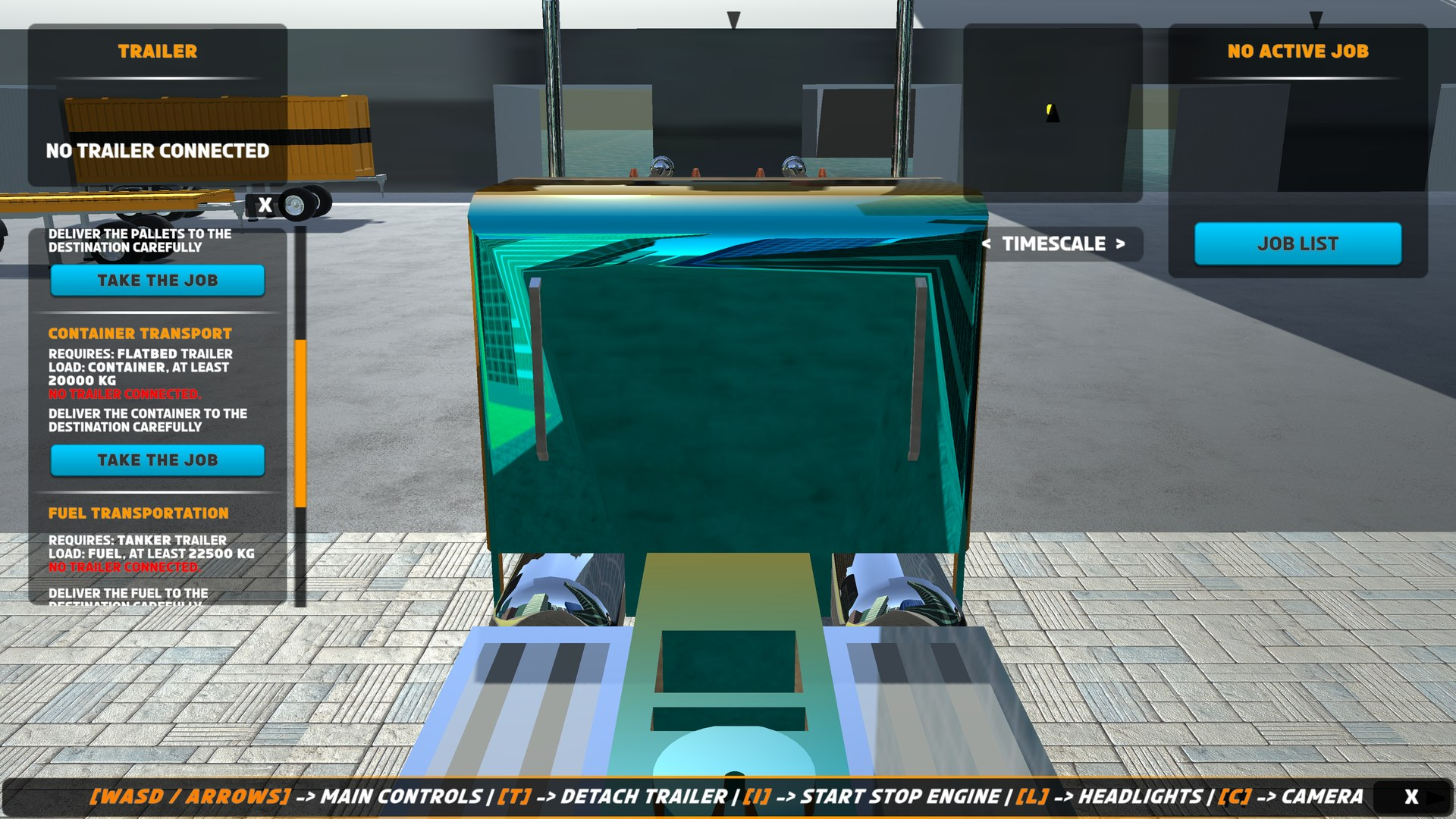
In the demo, the player picks jobs from the job list panel — the same list your code reads through GetAvailableJobs().
Example — start the first job the player's trailer qualifies for:
using System.Collections.Generic;
using UnityEngine;

public class AutoJobExample : MonoBehaviour {

    public void StartFirstAvailableJob() {

        if (RTS_API.InJob())
            return;     //  Only one job at a time.

        List<RTS_Job> jobs = RTS_API.GetAvailableJobs();

        if (jobs != null && jobs.Count > 0)
            RTS_API.StartJob(jobs[0]);

    }

}
UI and Guide Navigation
public static void ToggleJobsListPanel(bool state)
public static void SetNavigationTargetForGuide(Transform target)
ToggleJobsListPanel(true) shows the job list panel; false hides it. It drives the same RTS_UI_JobListPanel documented in UI System.
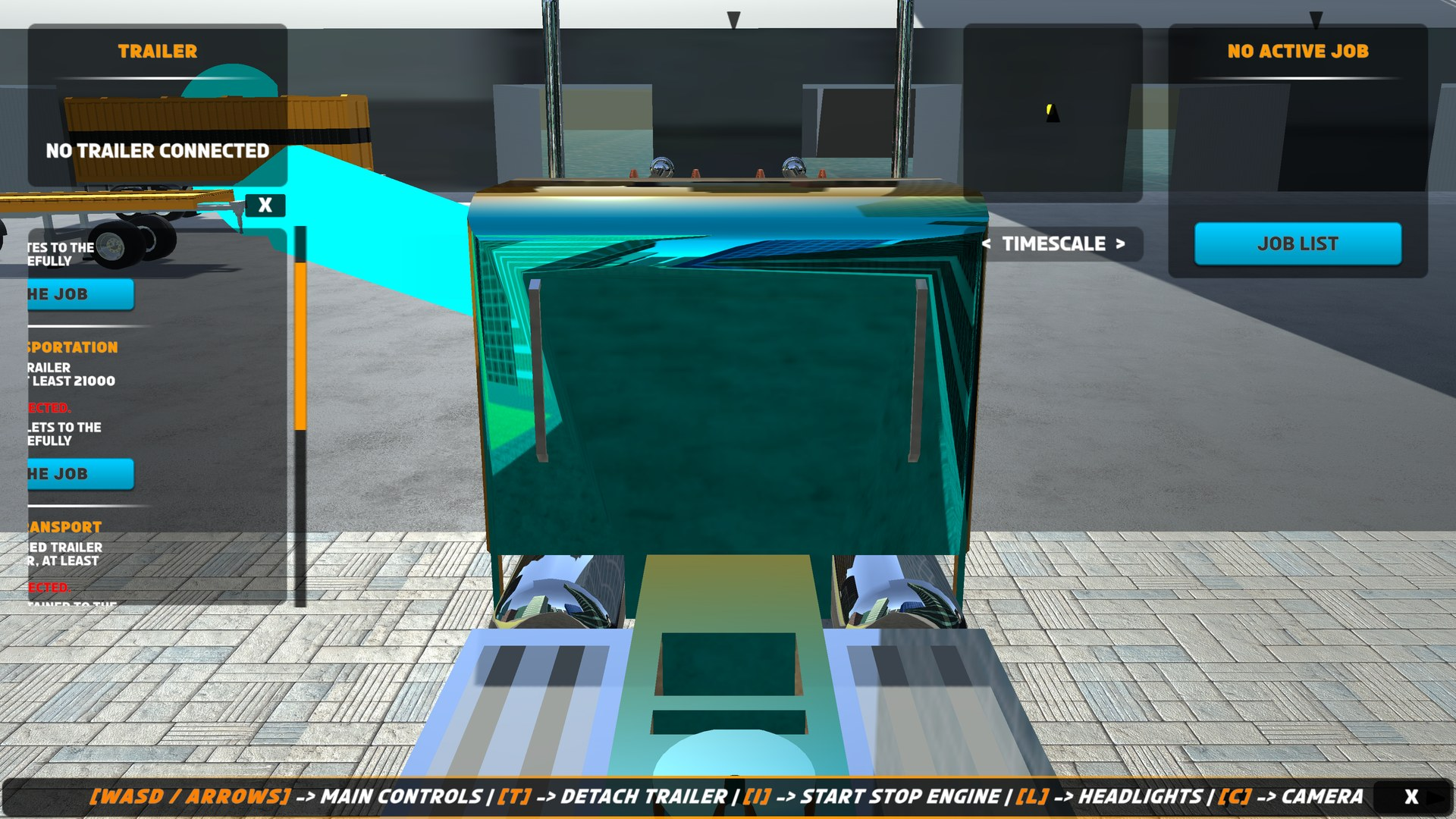
SetNavigationTargetForGuide points the NavMesh guide ribbon at any Transform you like — pass null to clear the path. The job system uses this internally to guide players to trailers, load stations, and delivery zones, but you can hijack it for your own waypoints. If the scene has no RTS_GuideSystem, the call logs the error [RTS_GuideSystem] couldn't find in the scene! and does nothing.
Example:
using UnityEngine;

public class CustomWaypointExample : MonoBehaviour {

    public Transform secretDepot;

    public void GuideToSecretDepot() {

        RTS_API.SetNavigationTargetForGuide(secretDepot);

    }

    public void ClearGuide() {

        RTS_API.SetNavigationTargetForGuide(null);

    }

}
RTS_Events — Reacting to the Simulation
RTS_Events exposes ten static events across four categories. You subscribe your own method to an event with += and unsubscribe with -=. RTS then calls your method — with the relevant truck, trailer, or job as a parameter — every time the event fires.
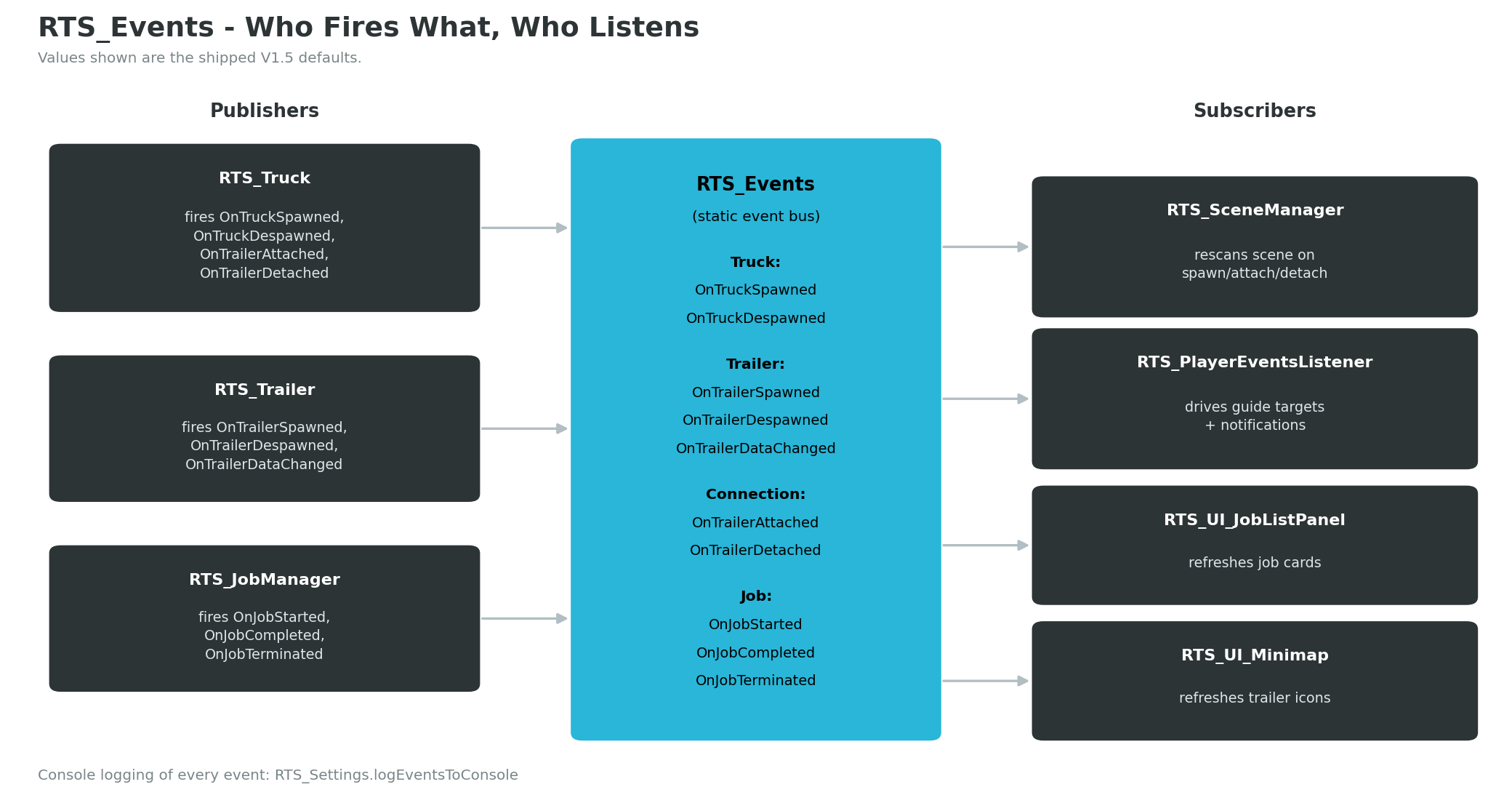
The Ten Events
Each event uses one of four delegates (a delegate defines the exact shape — parameters and return type — a subscribed method must have):
public delegate void TruckEvent(RTS_Truck truck);
public delegate void TrailerEvent(RTS_Trailer trailer);
public delegate void ConnectionEvent(RTS_Truck truck, RTS_Trailer trailer);
public delegate void JobEvent(RTS_Job job);
| Event | Delegate | Fires when |
|---|---|---|
OnTruckSpawned |
TruckEvent |
A truck becomes active in the scene (fired from the truck's OnEnable). |
OnTruckDespawned |
TruckEvent |
A truck is disabled or destroyed (fired from OnDisable). |
OnTrailerSpawned |
TrailerEvent |
A trailer becomes active in the scene. |
OnTrailerDespawned |
TrailerEvent |
A trailer is disabled or destroyed. |
OnTrailerDataChanged |
TrailerEvent |
Trailer data changes — for example, a load is added or removed. |
OnTrailerAttached |
ConnectionEvent |
A trailer is hitched to a truck. Detected by the truck polling its RCCP connection every frame. |
OnTrailerDetached |
ConnectionEvent |
A trailer is unhitched from a truck. |
OnJobStarted |
JobEvent |
A job passes validation and starts. |
OnJobCompleted |
JobEvent |
The current job completes successfully. |
OnJobTerminated |
JobEvent |
The current job is abandoned. |
The class also contains matching Event_OnXXX(...) wrapper methods — these are what RTS calls internally to fire each event (and to log it). You only need them if you build a custom system that should raise RTS events itself; for listening, subscribe to the events directly.
Subscribing and Unsubscribing
Always subscribe in OnEnable and unsubscribe in OnDisable. Because the events are static, they outlive your objects — a destroyed listener that never unsubscribed leaves a dead reference behind, which causes errors the next time the event fires. The pattern below is safe to copy for any combination of events:
using UnityEngine;

public class RTSEventListenerExample : MonoBehaviour {

    private void OnEnable() {

        RTS_Events.OnTruckSpawned += HandleTruckSpawned;
        RTS_Events.OnTrailerAttached += HandleTrailerAttached;
        RTS_Events.OnTrailerDetached += HandleTrailerDetached;
        RTS_Events.OnTrailerDataChanged += HandleTrailerDataChanged;
        RTS_Events.OnJobStarted += HandleJobStarted;
        RTS_Events.OnJobCompleted += HandleJobCompleted;

    }

    private void OnDisable() {

        RTS_Events.OnTruckSpawned -= HandleTruckSpawned;
        RTS_Events.OnTrailerAttached -= HandleTrailerAttached;
        RTS_Events.OnTrailerDetached -= HandleTrailerDetached;
        RTS_Events.OnTrailerDataChanged -= HandleTrailerDataChanged;
        RTS_Events.OnJobStarted -= HandleJobStarted;
        RTS_Events.OnJobCompleted -= HandleJobCompleted;

    }

    private void HandleTruckSpawned(RTS_Truck truck) {
        Debug.Log("Truck spawned: " + truck.name);
    }

    private void HandleTrailerAttached(RTS_Truck truck, RTS_Trailer trailer) {
        Debug.Log(trailer.name + " attached to " + truck.name);
    }

    private void HandleTrailerDetached(RTS_Truck truck, RTS_Trailer trailer) {
        Debug.Log(trailer.name + " detached from " + truck.name);
    }

    private void HandleTrailerDataChanged(RTS_Trailer trailer) {
        Debug.Log("Load changed on " + trailer.name);
    }

    private void HandleJobStarted(RTS_Job job) {
        Debug.Log("Job started: " + job.jobName);
    }

    private void HandleJobCompleted(RTS_Job job) {
        Debug.Log("Job completed: " + job.jobName);
    }

}
Example: Paying the Player on Delivery
Every RTS_Job asset has a reward field (an int, default 1000 — all five demo jobs pay 1000). Important: the shipped system fires OnJobCompleted but never spends the reward — there is no built-in money counter. The reward is a deliberate integration point: your code decides what money means in your game. Here is a minimal wallet:
using UnityEngine;

public class PlayerWallet : MonoBehaviour {

    public int money = 0;

    private void OnEnable() {

        RTS_Events.OnJobCompleted += HandleJobCompleted;

    }

    private void OnDisable() {

        RTS_Events.OnJobCompleted -= HandleJobCompleted;

    }

    private void HandleJobCompleted(RTS_Job job) {

        money += job.reward;
        Debug.Log("Delivery paid " + job.reward + ". Balance: " + money);

    }

}
Drop this component on any always-active GameObject in your scene (the same object that holds your game manager is a good home). From here you can extend it: save money with PlayerPrefs, show it on your HUD, or subtract a penalty in an OnJobTerminated handler.
Event Logging
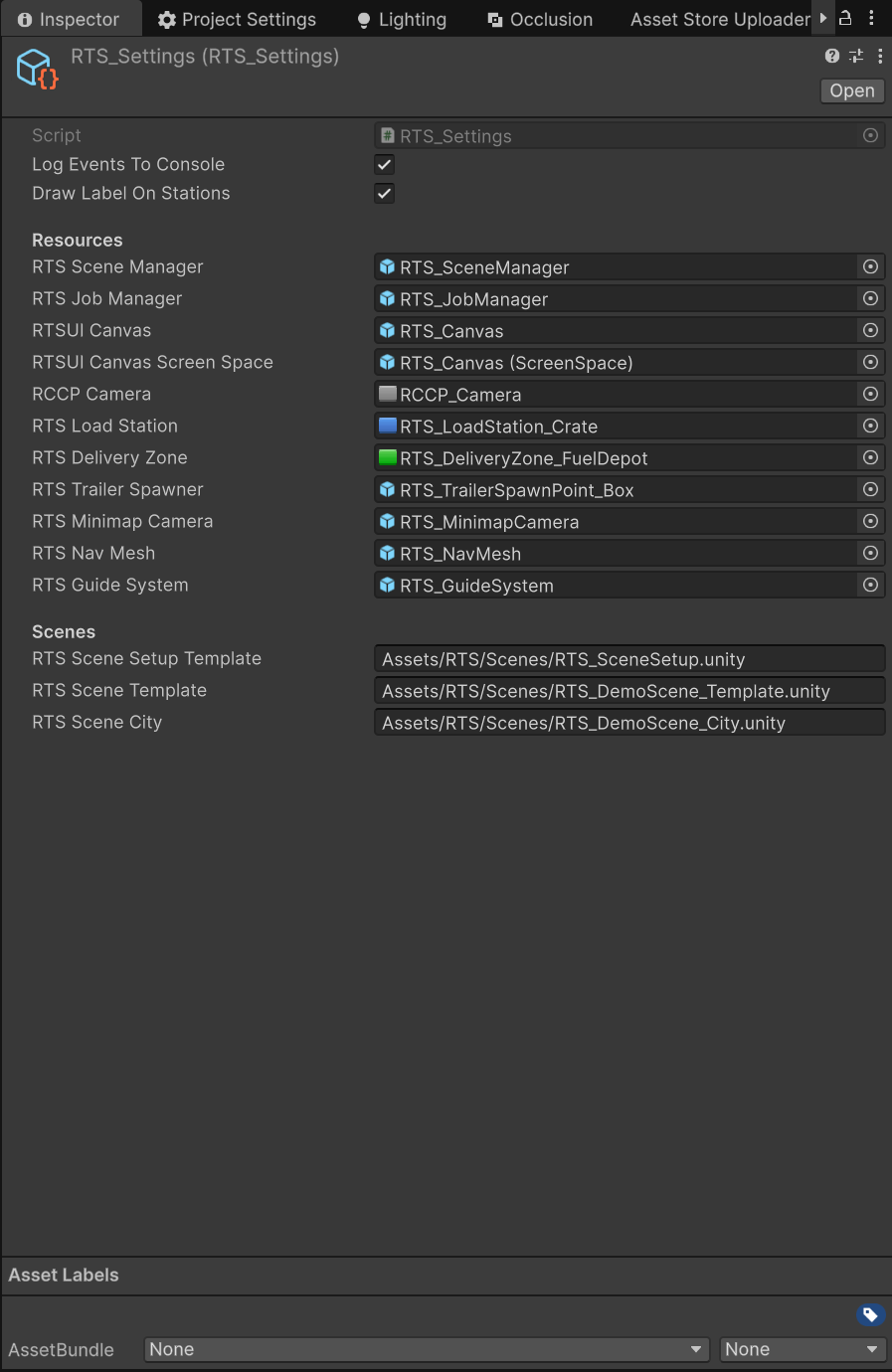
Every event fire can also be logged to the Console with the prefix [RTS EVENT] — for example [RTS EVENT] Job Completed → Crate Transportation. This is controlled by the logEventsToConsole flag in the settings asset and is enabled in the shipped asset. It is the fastest way to confirm your subscriptions are firing when you expect. See Settings Reference to turn it off for release builds.
Reading Settings at Runtime
Your scripts can read the global settings ScriptableObject (a Unity asset that stores data, not scene objects) through RTS_SettingsProvider:
RTS_Settings settings = RTS_SettingsProvider.Settings;

if (settings != null && settings.logEventsToConsole)
    Debug.Log("RTS event logging is currently on.");
RTS_SettingsProvider.Settings lazy-loads the asset from Resources/RTS_Settings on first access and caches it — calling it repeatedly is free. Besides the debug flags (logEventsToConsole, drawLabelOnStations), the asset holds the prefab references RTS uses when creating scene systems.
Going Deeper
This document covers the full public surface of RTS_API and RTS_Events — for most games, that is all the scripting you will ever need. When you do want per-class detail (every field, property, and helper on RTS_Truck, RTS_Trailer, RTS_JobManager, and the rest), open the source files under Assets/RTS/Scripts/ — every class, method, and field carries XML documentation comments, and your IDE will surface them as tooltips and IntelliSense as you type.
See Also
- How It Works — the runtime data flow these APIs plug into
- Jobs and Loads — authoring the
RTS_Jobassets you start viaStartJob - Creating Trucks and Creating Trailers — building the prefabs you pass to the spawn methods
- UI System — the panels behind
ToggleJobsListPanel - Settings Reference — every field on the
RTS_Settingsasset - Common Mistakes and Troubleshooting — when a call does not do what you expected