Settings Reference
Every field in CCDS_Settings, with its type, range and the value actually shipped.
Asset: Assets/CCDS/Resources/CCDS_Settings.asset
Open with: Tools → BoneCracker Games → CCDS → Edit Settings
Loaded at runtime by: Resources.Load("CCDS_Settings") via CCDS_Settings.Instance
Two columns appear throughout: Shipped is the value in the asset you received; Code default is the value in CCDS_Settings.cs, which applies only to a newly created asset. Where they differ, the shipped value is what your project does.
Finding a setting
The inspector is split into eight tabs. This page groups fields the same way, so a heading here maps to a tab there.
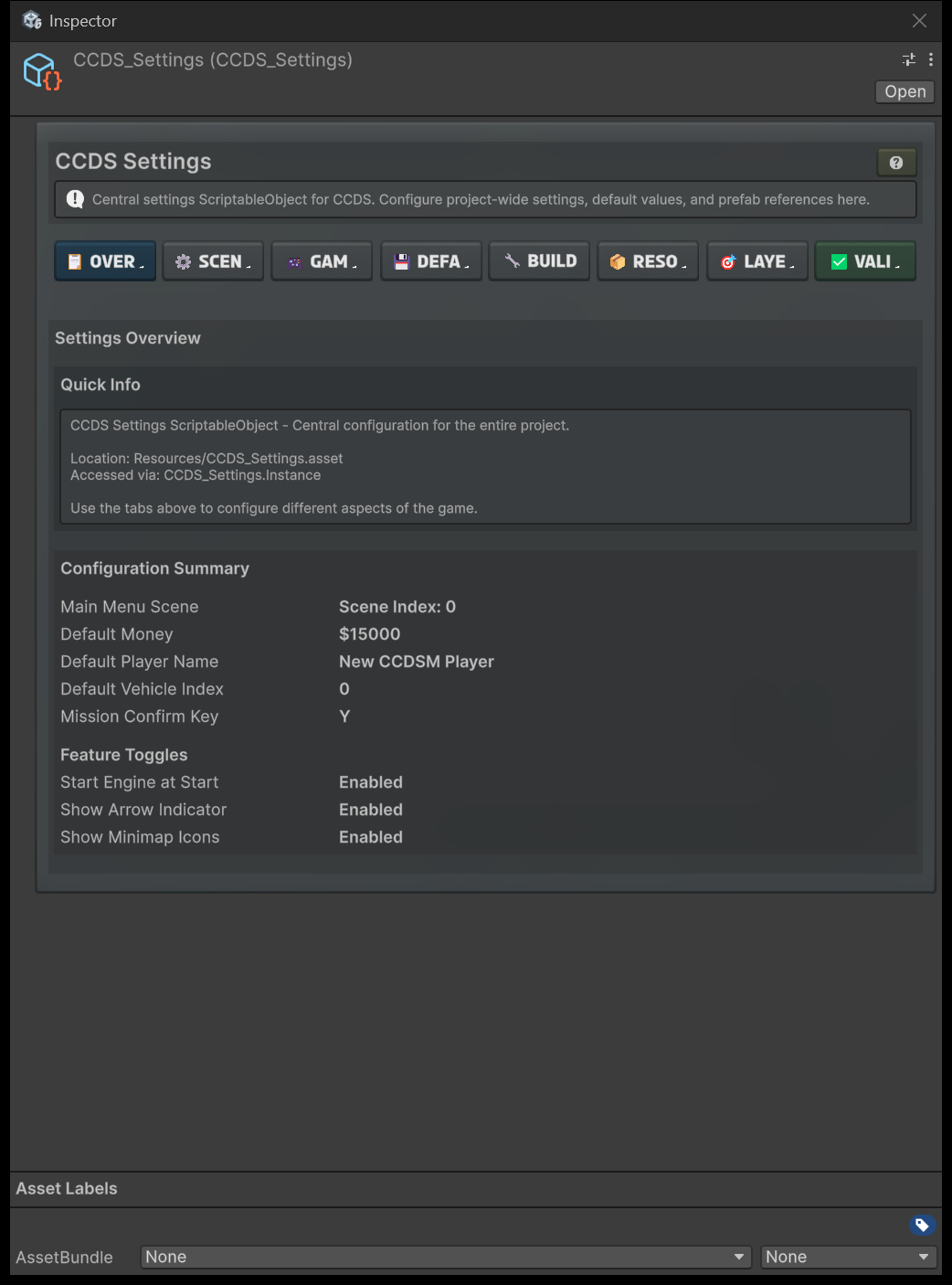
| Tab | Holds |
|---|---|
| Overview | Read-only summary and active-warning banners |
| Scene & Defaults | Scene indices, money, name, volumes |
| Gameplay | Feature toggles, mission confirm key, network rates |
| Default Save Data | Graphics and gameplay values seeded into a new save |
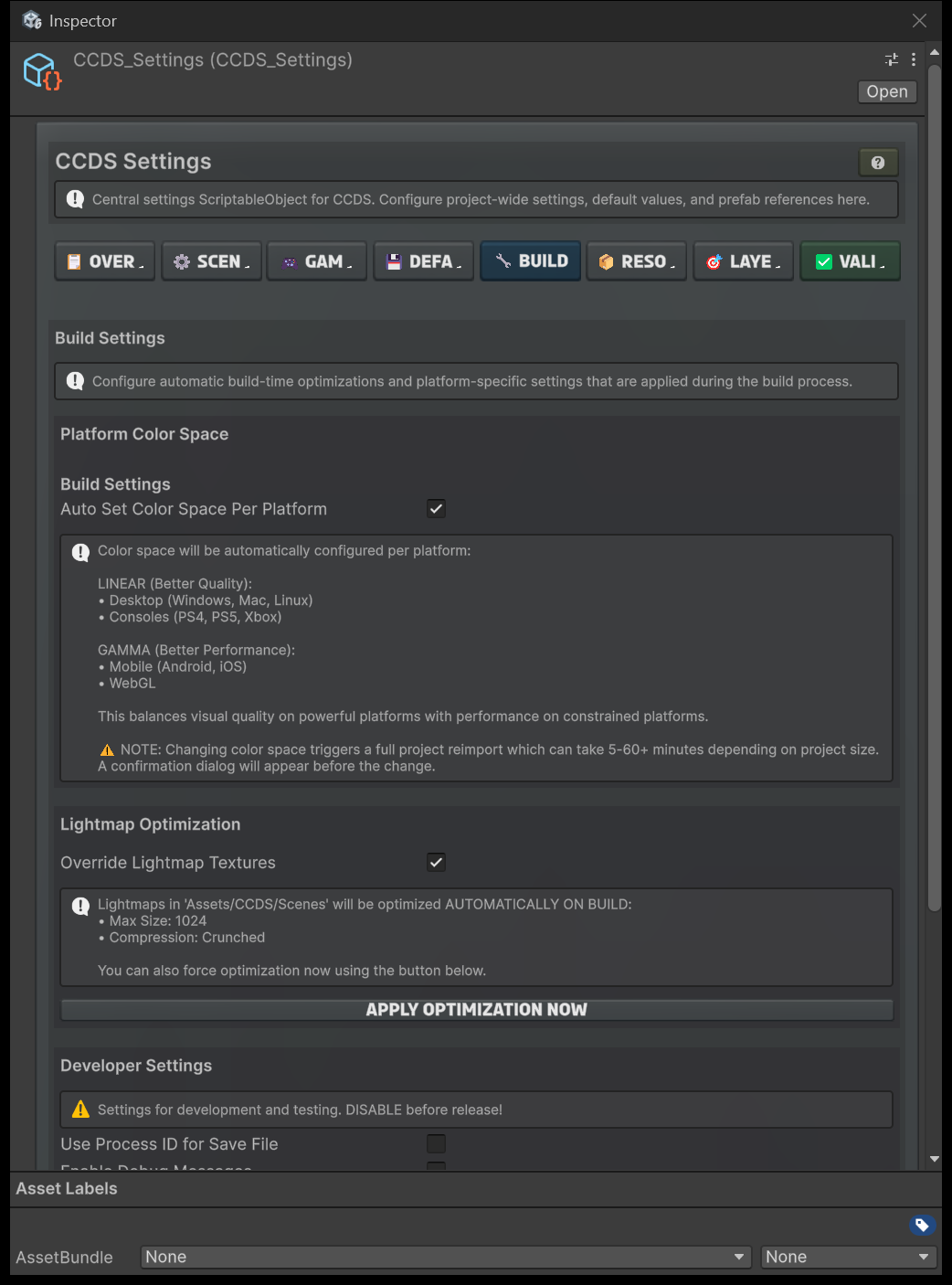
| Build | Colour space, lightmaps, developer settings |
| Resources | Prefab and asset references |
| Layers | Layer management and names |
| Validation | Configuration problems |
The Overview tab is worth checking first on any project: it summarises the key values and raises a banner for every development setting that is still switched on.
Development settings
Three fields exist for development and are shipped off. The inspector groups them under Developer Settings on the Build tab, behind a "DISABLE before release!" warning, and raises a Developer Settings Active banner on the Overview tab whenever any is on.
| Field | Shipped | Turn on when | Cost if left on in a release build |
|---|---|---|---|
useProcessIdForSaveFile |
false |
Running two clients on one PC to test multiplayer | Each launch can resolve a different save file, so players appear to lose progress |
enableDebugMessages |
false |
Diagnosing a problem and you need CCDS.DebugLog output |
Console spam and avoidable string work every frame |
enableDebugPanel |
false |
You want the F12 panel in a build |
Players can open the developer panel with F12 |
Turn them on freely while building your game — just check the Overview banner is clear before you ship. That banner is the fastest release check CCDS gives you.
Scene and defaults
Inspector tab: Scene & Defaults.
| Field | Type | Range | Shipped | Code default | Purpose |
|---|---|---|---|---|---|
mainMenuSceneIndex |
int |
≥ 0 | 0 |
0 |
Build index of the main menu scene |
defaultMoney |
int |
≥ 0 | 15000 |
10000 |
Starting money for a new player |
defaultPlayerName |
string |
— | New CCDSM Player |
New Player |
Name given to a new player |
defaultSelectedVehicleIndex |
int |
≥ 0 | 0 |
0 |
Vehicle selected for a new player |
defaultAudioVolume |
float |
0–1 | 0.6 |
1.0 |
Starting SFX volume |
defaultMusicVolume |
float |
0–1 | 0.5 |
0.65 |
Starting music volume |
defaultSelectedSceneIndex |
int |
≥ 0 | 1 |
1 |
Gameplay scene a new player starts in |
defaultPlayerName is only a seed. CCDS.SetPlayerName() enforces a three character minimum.
Graphics defaults
Inspector tab: Default Save Data.
These seed a new save. Changing them does not affect an existing player — that requires CCDS.ResetGame() or Delete Save Data.
| Field | Type | Range | Shipped | Code default | Purpose |
|---|---|---|---|---|---|
defaultImageEffects |
bool |
— | false |
false |
Post-processing on |
defaultShadows |
bool |
— | false |
false |
Shadows on |
defaultDrawDistance |
float |
500–5000 | 700 |
1000 |
Camera far plane, metres |
defaultShadowResolution |
int |
0–3 | 0 |
2 |
0 = Low, 1 = Medium, 2 = High, 3 = Very High |
defaultMaxRealtimeLights |
int |
0–16 | 0 |
4 |
Realtime lights per frame |
defaultAntialiasingMode |
int |
0–2 | 0 |
0 |
0 = None, 1 = FXAA, 2 = SMAA |
defaultSoftShadows |
bool |
— | false |
true |
Soft shadow edges |
The shipped set is deliberately conservative — no shadows, no realtime lights, 700 m draw distance — so the demo runs on low-end hardware. Raise it for a desktop-only title.
Gameplay defaults
Inspector tab: Default Save Data.
| Field | Type | Range | Shipped | Code default | Purpose |
|---|---|---|---|---|---|
defaultAutoHandbrakeEnabled |
bool |
— | true |
false |
Arcade auto-handbrake while drifting |
defaultTrafficDensity |
float |
0–2 | 1.0 |
1.0 |
Traffic multiplier, 1.0 = 100% |
defaultMultiplayerLevel |
int |
≥ 1 | 1 |
1 |
Starting multiplayer level |
Layer management
Inspector tab: Layers.
| Field | Type | Shipped | Purpose |
|---|---|---|---|
enableAutoLayerManagement |
bool |
true |
Create and assign CCDS layers automatically |
layerCCDSMap |
string |
CCDS_Map |
Drivable map geometry — raycasting and minimap |
layerCCDSMinimapItem |
string |
CCDS_MinimapItem |
Minimap icons, no physics |
layerCCDSTrailblazerObstacle |
string |
CCDS_TrailblazerObstacle |
Trailblazer obstacles |
layerCCDSCheckpoint |
string |
CCDS_Checkpoint |
Checkpoint triggers |
layerCCDSMarker |
string |
CCDS_Marker |
Mission markers |
layerCCDSProp |
string |
CCDS_Prop |
Props and collectibles |
Rename a layer here only if it clashes with one of your own. With auto management on, CCDS creates any that are missing.
Gameplay behaviour
Inspector tab: Gameplay.
| Field | Type | Shipped | Code default | Purpose |
|---|---|---|---|---|
startEngineAtStart |
bool |
true |
true |
Engine running when gameplay begins |
showArrowIndicator |
bool |
true |
true |
Arrow above the player pointing at the objective |
showMinimapIcons |
bool |
true |
true |
Player and opponent icons on the minimap |
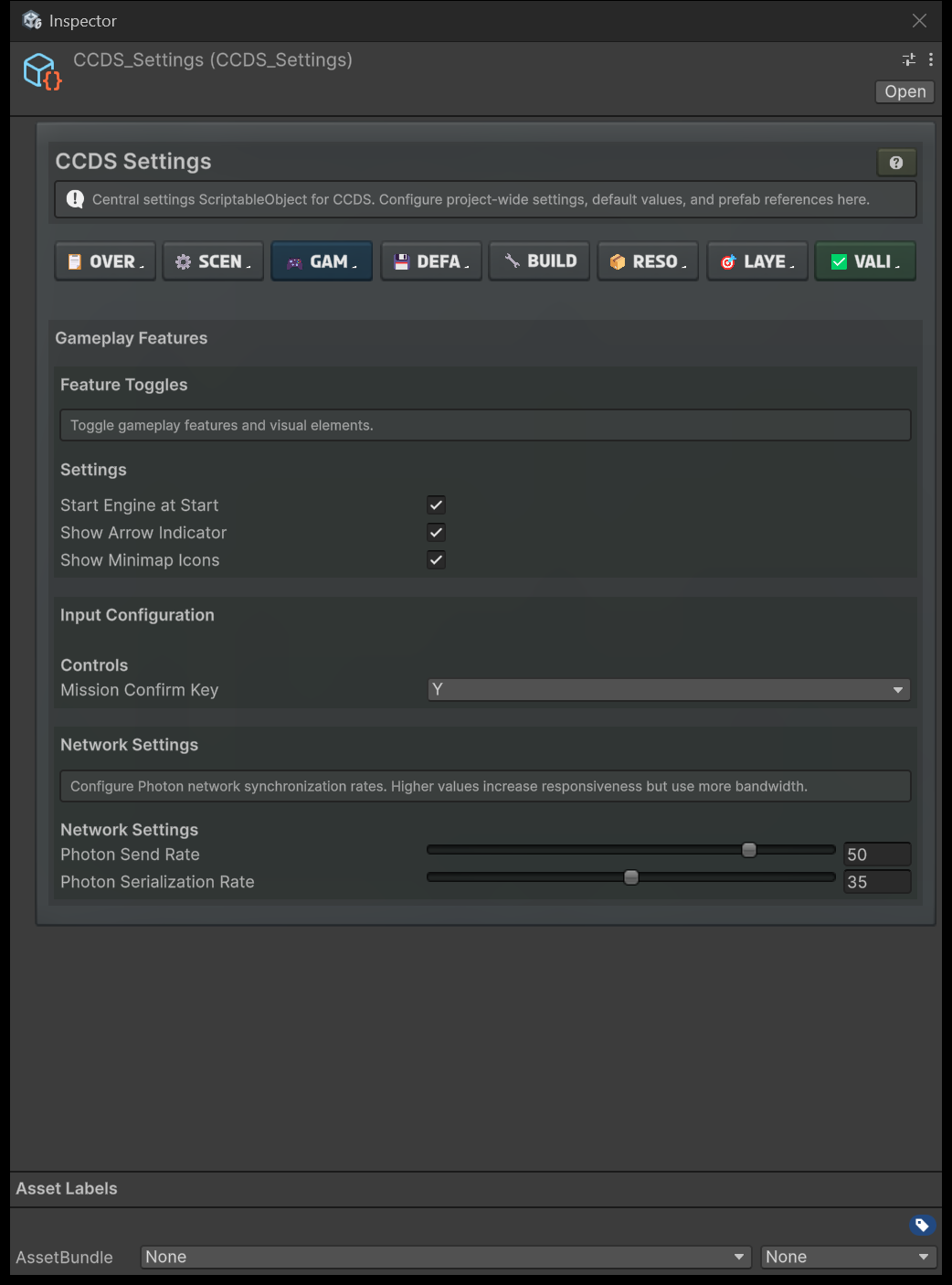
The Gameplay tab also carries the mission confirm key and the two Photon rates, documented under Controls and Network below.
Build settings
Inspector tab: Build.
| Field | Type | Shipped | Code default | Purpose |
|---|---|---|---|---|
autoSetColorSpacePerPlatform |
bool |
true |
false |
Linear for desktop and console, Gamma for mobile and WebGL |
overrideLightmapTextures |
bool |
true |
false |
Cap lightmaps at 1024 with crunch compression |
overrideLightmapTextures is applied by CCDS_BuildProcessor, and only when enabled.
Developer settings
Also on the Build tab, under a Developer Settings header the inspector itself marks "DISABLE before release!". All three ship off — see Development settings.
| Field | Type | Shipped | Code default | Purpose |
|---|---|---|---|---|
useProcessIdForSaveFile |
bool |
false |
false |
Per-process save files for multi-instance testing |
enableDebugMessages |
bool |
false |
false |
CCDS.DebugLog output |
enableDebugPanel |
bool |
false |
false |
F12 debug panel in builds |
enableDebugMessages gates informational logs only. CCDS.DebugLogWarning and CCDS.DebugLogError always emit.
The Build tab also has an Apply Optimization Now button, which runs the lightmap pass immediately instead of waiting for the next build.
Editor visualization
| Field | Type | Purpose |
|---|---|---|
hierarchyHighlightBackgroundTexture |
Texture2D |
Background for hierarchy highlighting. Empty gives solid colours. |
Controls
Inspector tab: Gameplay.
| Field | Type | Shipped | Code default | Purpose |
|---|---|---|---|---|
missionConfirmKey |
KeyCode |
Y |
Y |
Confirm and start a mission inside a marker |
Read live by CCDS_MissionMarkerInputHandler, and the marker's prompt text follows it — no UI edit needed when you change it.
Network
Inspector tab: Gameplay.
| Field | Type | Range | Shipped | Code default | Tooltip recommends |
|---|---|---|---|---|---|
photonSendRate |
int |
10–60 | 50 |
30 |
20–30 |
photonSerializationRate |
int |
10–60 | 35 |
20 |
15–20 |
The shipped pair is well above the recommendation. It buys smoother remote vehicles at a real bandwidth cost — relevant on Photon's free tier, where message volume is capped. Lower both if you hit limits; keep serialization below send rate either way.
Resource references
Inspector tab: Resources.
Prefabs and assets CCDS instantiates at runtime. All are assigned in the shipped asset. A missing reference produces a null error at the moment the feature is first used, not at startup.
| Field | Type | Used for |
|---|---|---|
vehicleCamera |
RCCP_Camera |
Gameplay vehicle camera |
arrowForPlayer |
CCDS_ArrowIndicator |
Objective arrow above the player |
minimapCamera |
CCDS_Minimap_Camera |
Minimap camera |
minimapIconForPlayerVehicle |
CCDS_MinimapItem |
Player icon |
minimapIconForOpponentVehicle |
CCDS_MinimapItem |
Opponent icon |
minimapIconForPoliceVehicle |
CCDS_MinimapItem |
Police icon |
healthBar |
CCDS_HealthBar |
Health bar over opponents |
engineSmoke |
CCDS_EngineSmoke |
Damage smoke |
mainmenuUIManager |
CCDS_UI_MainMenuManager |
Main menu UI |
gameplayUIManager |
CCDS_UI_Manager |
Gameplay HUD |
nametagPrefab |
GameObject |
Multiplayer nametag — needs TextMeshProUGUI + CanvasGroup |
tutorialPopupPrefab |
CCDS_TutorialPopup |
Tutorial popups |
mobileInteractionButtonPrefab |
GameObject |
Mobile "Enter Mission" button |
missionMarker |
CCDS_Marker_MultiplayerMission |
Mission markers |
policeSiren |
RCCP_PoliceLights |
Police lights |
policeSirenAudio |
AudioClip |
Siren sound |
copVehicle |
ACCDS_Vehicle |
Police vehicle |
pursuitVehicle |
ACCDS_Vehicle |
Pursuit target |
racerVehicle |
ACCDS_Vehicle |
Race opponent |
raceFinisher |
CCDS_MissionObjective_Race_Finisher_MP |
Race finish line |
defaultMission |
ACCDS_Mission |
Mission active at the start of gameplay |
Deprecated references
Present for compatibility, single-player only. Do not build new content on them.
| Field | Use instead |
|---|---|
marker |
missionMarker |
trailBlazerObstacle |
CCDS_MissionObjective_TrailblazerItem_MP |
checkpoint |
CCDS_MissionObjective_CheckpointItem_MP |
Changing settings at runtime
Graphics and audio settings are player-facing and persisted. Go through the CCDS API rather than writing the asset:
CCDS.SetShadows(true);
CCDS.SetDrawDistance(2000f);
CCDS.SetAntialiasingMode(2);     // SMAA
CCDS.SetAudioVolume(0.8f);
CCDS.SetTrafficDensity(0.5f);
Each setter writes to the save data and raises the matching event. Writing CCDS_Settings fields at runtime changes the defaults for the next new save, not the current player.
Full list: Scripting API.