Troubleshooting & FAQ
Solutions to the issues users actually hit, grouped by symptom. If your problem is not here, the diagnostic tools section shows how to gather the information support will ask for.
Opening the Garage
The garage won't open at all
Causes and solutions, most common first:
- The vehicle has no
RCCP_Customizer. The console says so:'<vehicle>' has no RCCP_Customizer - the garage cannot open.Add one via the vehicle'sRCCP_CarControllerinspector (Customizer button), then add the upgrade managers (paint, wheels, spoilers...) for the categories you want to offer - see Scene Setup. - No vehicle was found. Console:
No vehicle found to open the garage on.The scene needs anRCCP_CarController(or assign one to the controller'sExplicit Vehiclefield). - There is no
RCCPT_TunerControllerin the scene. Run Tools > BoneCracker Games > RCCP Tuner > Setup > Create Tuner Canvas again - it creates one when missing.
Check the inspector before you hunt through the scene. Select the
RCCPT_TunerControllerand read the Setup Health block at the top of its inspector. It shows which content asset each slot actually resolves to, and how the vehicle will be picked - your explicit target if you set one, otherwise "resolved at open: active player vehicle then first vehicle in the scene". It also flags a missing catalog set or a duplicate controller with a one-click fix. See Editor Tools.
The T key does nothing
- The scene needs the
RCCPT_OpenCloseHotkeycomponent (the setup menu adds it to the controller object). Check it exists and check itsKeyfield - maybe it was rebound. - The hotkey is deliberately ignored while a text input field has keyboard focus (so typing never toggles the garage).
- The hotkey requires Unity's Input System package (always present alongside RCCP). Without it the component is silently inert - open the garage from code instead.
The garage opens but is completely empty
No catalog set is assigned. The console warns: No catalog set assigned - the garage will open empty. Assign one on the controller (Catalog Set Override) or as the project default on RCCPT_Settings. The shipped demo set at Assets/RCCP Tuner/Demo/Catalogs/RCCPT_DemoCatalogSet.asset works for testing. See Scene Setup.
The controller inspector says the same thing and fixes it for you: the notice "Without a catalog set the garage opens with nothing to buy. Assign one here or as the project default - the demo set works for testing." carries a Locate Catalog Set button that searches your project and assigns the best match (Editor Tools).
The garage uses catalogs or settings I never assigned
You have more than one RCCPT_TunerController loaded. RCCPT_TunerController.Instance is a soft singleton - it resolves itself with FindAnyObjectByType, which searches every loaded scene. With two controllers the runtime binds to an arbitrary one and their two configurations compete: the wrong catalog set, the wrong theme, the wrong overrides. Nothing is logged, which is exactly why it reads as random behavior.
Keep exactly one controller per scene, and watch for a second one arriving with an additively loaded scene. The controller inspector detects the situation and reports "N tuner controllers are loaded - the runtime binds to an arbitrary one, so their configurations compete. Keep exactly one.", with a Select All button that selects every offender so you can delete the extras (Editor Tools).
Content and Categories
A category is missing from the rail
A category has to clear three independent gates before it shows up. Failing any one of them hides the category, and none of the three is an error.
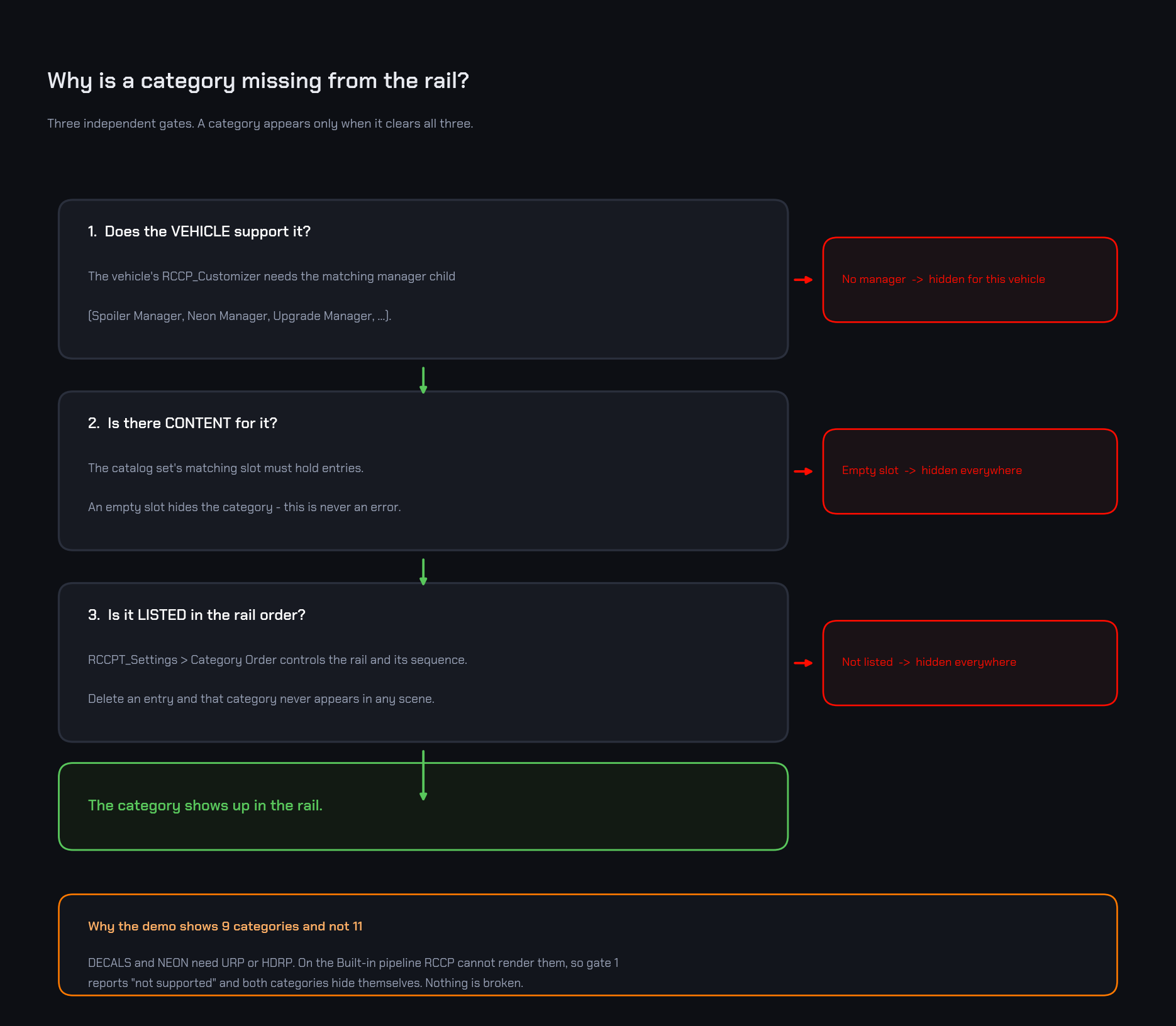
| Gate | What it checks | Where to look |
|---|---|---|
| Vehicle capability | The vehicle's RCCP_Customizer carries the matching manager child (Spoiler Manager, Neon Manager, Upgrade Manager...) |
The category-to-manager table in Scene Setup |
| Catalog content | The catalog set's matching slot holds entries | The Coverage block on the catalog set inspector, which summarizes every slot at a glance (Editor Tools) |
| Rail order | The category is listed in RCCPT_Settings > Category Order |
Editor Tools - deleting an entry there removes that category from every scene |
Run Tools > BoneCracker Games > RCCP Tuner > Tools > Validate Catalogs to check the first two gates: its warnings name exactly which side is missing. The rail order is not part of the validator's job - check that list yourself if a category is authored, supported, and still absent.
Decal / Neon categories don't appear
Your project runs the Built-in render pipeline. RCCP's decal and neon components render only under URP/HDRP (they are compile-time no-ops on Built-in), so the Tuner hides those categories rather than selling invisible content. This is by design.
The CUSTOM paint tab is missing
Enable Custom Color is off on your Paint Catalog, or the whole paint-mode row hides because neither custom color nor finishes are authored. See Creating Items.
The FINISH paint tab is missing
Either no finishes are authored on the Paint Catalog, or this vehicle's body materials expose no metallic/smoothness properties (the tab auto-hides per vehicle; the validator warns about this combination).
A stat bar row is missing on the upgrade categories
The vehicle lacks that stat's upgrade component (for example no Speed component under its Upgrade Manager). Rows hide individually rather than showing a dead bar.
The stat rows say TORQUE, NM and a percentage
That is the shipped labeling, not a bug. The row that used to read ACCELERATION is now TORQUE, because that is what it actually measures. Engine and Braking print NM, Top Speed prints KM/H, and Handling prints a percent of stock - it rides on RCCP's traction-helper strength, a 0 to 1 number that is meaningless on screen, so 100 % is the unmodified car. In a hover comparison the left side drops the unit so the delta reads 358 > 371 NM. Full walkthrough in Using the Garage.
My item cards have no icon
An entry with no Icon sprite renders no icon at all. Only paint colors and finishes draw a procedural swatch instead; wheel, spoiler, siren, decal and neon cards simply show the name.
You do not have to draw them. Select a vehicle that has an RCCP_Customizer and run Tools > BoneCracker Games > RCCP Tuner > Tools > Generate Catalog Thumbnails From Selected Vehicle - it renders 256 px icons from the real 3D models, in Edit Mode, through your project's own render pipeline, and assigns them to the entries. It asks first, so hand-picked icons are never clobbered.
⚠ Wheels come from RCCP's project-global changeable-wheels list, but spoilers and sirens are the selected vehicle's own child objects - those icons are only as universal as that one car. Full procedure and caveats in Editor Tools.
My edits to the demo catalogs disappeared
Setup > Build Demo Scene overwrites the shipped showroom scene, the demo catalog assets under Demo/Catalogs/, and the demo sky and floor materials. Asset writes are not covered by Undo, so anything you hand-authored in those assets is gone. It asks first and lists exactly what it replaces, but the confirmation is easy to click past when you are only trying to get the demo scene back.
This is why every recipe tells you to author content in your own catalog assets rather than editing the demo ones. See Editor Tools.
"Entry has no price" validator errors
Author the price, or mark the entry Is Free. The two halves of the system treat a missing price differently, and it matters:
| Where | What an unpriced, non-free entry does |
|---|---|
| The validator (editor) | Reports it as an Error: "has no price and is not marked free - unpriced entries are not purchasable" |
| Upgrade ladder rungs (runtime) | The whole ladder price becomes invalid: the item refuses to enter the cart and the console says Upgrade price ladder for <kind> has missing rungs - item not added (author the prices). |
| Cosmetic entries (runtime) | The card renders as owned and the item equips instantly the moment it is clicked - the entry is silently given away |
So the validator error is not cosmetic: leave a cosmetic entry at price 0 without ticking Is Free and your players get it for nothing, which is almost never what you meant. Fix every one the validator names. See Prices & Economy.
Validator: "entry id(s) EMPTY ON DISK"
Ids auto-fill in the editor, but that fill never ran in a saved state - and a player build cannot fill them, so those entries would be unpurchasable in a build. To fix it:
- Select the flagged catalog asset in the Project window.
- Change any field - re-typing a Display Name is enough - so Unity marks the asset dirty.
- File > Save Project. The auto-filled ids now persist.
Re-run the validator to confirm. The validator also offers rebuilding the demo catalogs via Setup > Build Demo Scene as an alternative, but that only applies to the shipped demo assets and it destroys any hand edits in them - see "My edits to the demo catalogs disappeared" above. Details in Creating Items and Editor Tools.
Purchases, Ownership, and Saves
Players lost ownership after I renamed catalog entries
Entry Ids are the ownership keys. Renaming a Display Name is safe; changing an Id after release orphans every purchase recorded under it. There is no safe way to rename ids post-release - treat them as permanent.
Two cars share paint / upgrades / saves
Both vehicles had the same save key - typically two same-named cars without Vehicle Ids, or a vehicle duplicated after its GUID was baked. Add RCCPT_VehicleId to each (Scene Setup); a duplicated vehicle detects the collision at runtime and regenerates automatically (console warning tells you).
Wheels look slightly different after buying
RCCP recomputes the wheel-collider radius from the new wheel model, and it never stores a stock radius to go back to. The Tuner works around that by snapshotting every collider radius when the garage opens, so a wheel you only previewed snaps back when you revert or close.
A wheel you actually bought keeps its new radius. The snapshot is re-baselined on every wheel purchase, so the committed wheels become the new restore point - closing the garage no longer undoes them, and you do not have to respawn the vehicle to see the purchase take effect.
My matte/chrome finish doesn't survive into gameplay scenes
The finish lives in the Tuner save (RCCP has no finish field), so RCCP alone cannot re-apply it on spawn. Add RCCPT_PaintFinishApplier next to RCCPT_VehicleId on the vehicle prefab - details in Scripting API.
My matte finish still looks glossy
The finish entry's Clearcoat is too high - the clearcoat layer keeps the body shiny regardless of smoothness. Matte presets need clearcoat near 0 (Creating Items).
Progress reset on WebGL
The opt-in JSON-file save backend is not WebGL-safe. Keep Use Json File Backend off on RCCPT_Settings for WebGL builds - the default PlayerPrefs backend works there, and off is the shipped default.
The settings asset warns you itself: with the JSON backend on and the active build target set to WebGL, its inspector shows "The JSON file backend is not WebGL-safe and the active build target is WebGL. Saves will not persist." with a Switch To PlayerPrefs button. The notice is deliberately build-target-aware, so do not expect to see it while you are still building for desktop (Editor Tools).
RCCPT_Settingshas no menu item of its own. The quickest way to it is the Project Settings button at the bottom of theRCCPT_TunerControllerinspector; the other route isAssets/RCCP Tuner/Resources/RCCPT_Settings.assetin the Project window.
I changed Starting Balance but the player still has the old amount
The starting balance seeds once, into a fresh save. Existing saves keep their earned balance, which is what you want in a shipped game and confusing while you are testing.
To see the new seed, wipe the save. No code needed: enter Play Mode, select the RCCPT_TunerController, and press Reset Progress in its Live Session panel - it confirms first, then wipes balance, ownership and unlocks and reseeds the starting balance (Editor Tools). From script the same thing is ResetProgress(); by hand, clear the RCCPT_Save_v1 PlayerPrefs key. See Prices & Economy.
UI and Audio
My own game UI overlaps the garage
The Tuner hides RCCP's dashboard and mobile controls automatically, but it cannot know about your UI. Add your UI roots to the controller's Additional Hud Roots To Hide list - they hide with the garage and restore to their exact prior state on close.
⚠ The whole HUD pass is gated on one switch.
RCCPT_Settings > Hide RCCP Hud While Open(on by default) controls RCCP's dashboard, RCCP's mobile controls and your Additional Hud Roots list. Turn that switch off and the list stops doing anything at all - silently, with no warning. If your roots are not hiding, check that switch before you check the list.
Why can I click an item I cannot afford?
That is deliberate. An item you cannot afford dims to 55 % opacity but stays clickable, so you can stage it in the cart and see exactly how short you are. Every other Unity UI dims a control to mean "disabled", which is why this one looks like a bug the first time.
The cart is where the answer lands. With items staged it prints a balance line under the total: REMAINING and the amount left over when the wallet covers the cart, or MISSING in the error color with the exact shortfall when it does not. CHECKOUT is the control that actually locks - it stays disabled until the wallet can cover the total.
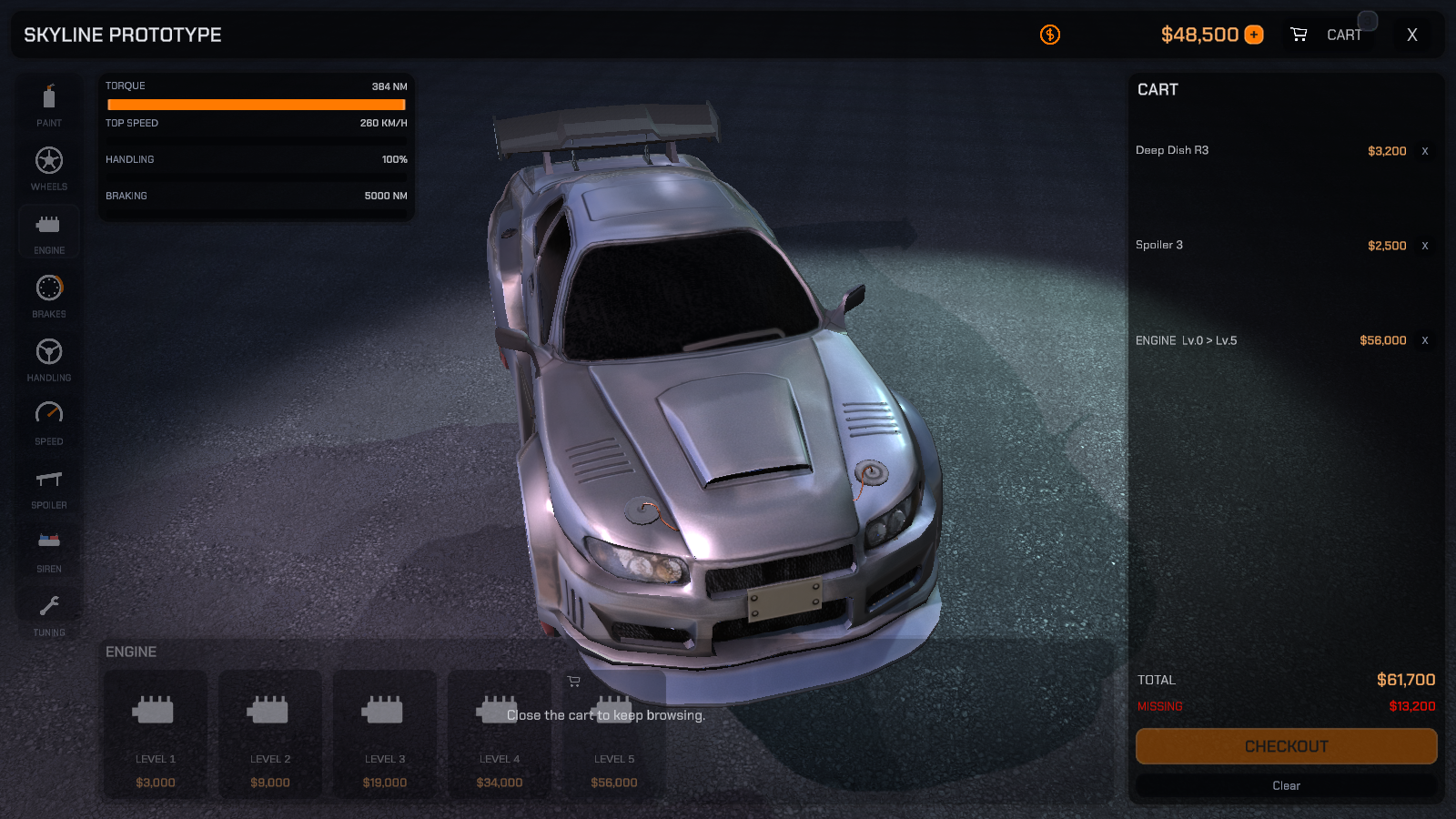
Two more states in the same strip that are easy to misread:
| What you see | What it means |
|---|---|
| A PREVIEW chip on the item panel | The car is currently wearing a hover try-on you have not bought. It appears when the hover delay expires, not the instant the pointer moves, and the card being previewed is outlined. |
| A bright badge vs a faded badge | Bright = the item is equipped right now. Faded = you own it but something else is equipped. They used to be identical green checks. |
The dimmed can't-afford state is also not silent - item cards are not standard uGUI buttons, so they play their hover and click sounds either way. See UI Audio & Music.
"There can be only one active Event System" errors
Two EventSystems ended up active - usually a scene EventSystem plus one nested in another canvas. The Tuner both avoids creating duplicates (it only creates an EventSystem when the scene has none) and parks a duplicate it detects when re-enabling the gameplay canvas on exit. If you still see the error, keep exactly one EventSystem at scene root and delete the others.
The + button next to the balance - what is it, and how do I remove it?
A test-only free-credits button, controlled by Debug Add Cash Button on RCCPT_Settings. It ships enabled so you can experiment; turn it off before releasing your game.
You do not have to remember: while it is on, the RCCPT_Settings inspector shows the notice "The debug "Add Cash" button is enabled - players can grant themselves credits. Turn it off before you ship your game." with a Turn Off Debug Cash button (Editor Tools).
No sound / I want different sounds
All audio lives on the canvas prefab's Audio node - replace clips per slot, adjust Music Volume / Sfx Volume, or disable the node to mute everything. Canvases built before audio existed need the one-time Upgrade Tuner Canvas (UI Audio) menu. Full details in UI Audio & Music.
Camera
The camera doesn't move / the garage shows the wrong view
Something else is fighting the camera. Work through it in this order:
- Check
Suppress Other Camerason theRCCPT_CameraDirector. It is on by default, and while it is on the director disables every other screen-rendering camera and every foreignAudioListenerin the scene for the session, restoring them all on close. (AnAudioListeneris Unity's "ears" component - two live ones make Unity warn and the audio undefined, which is the other symptom this fixes.) Cameras that render into a Render Texture - mirrors, minimaps, render-to-UI - are deliberately left alone, because they never fight the garage view. Turn the switch off only if your scene intentionally draws another camera on top of the garage. - If it is on and the view is still wrong, the culprit is a script, not a camera. Suppression switches cameras off; it cannot stop a foreign script that moves a transform. Disable that script when the garage opens and re-enable it when it closes:
RCCPT_TunerController.Instance.OnGarageOpened += () => myCameraScript.enabled = false;
RCCPT_TunerController.Instance.OnGarageClosed += () => myCameraScript.enabled = true;
See the events table in Scripting API.
I want a different default framing / FOV
Tick Override Field Of View on the director for a global FOV, or author a Shot Library for full control - both in The Cinematic Camera.
Diagnostic Tools
The controller inspector
Start here. Select the RCCPT_TunerController in your scene:
- In Edit Mode its Setup Health block resolves every content slot for you (catalogs, economy, theme, shots) with a Ping button per row, and adds a fifth row for how the vehicle gets picked. Below it, notices flag the two hard misconfigurations - a duplicate controller and an unresolved catalog set - each with a one-click fix.
- In Play Mode the same inspector becomes a live readout (state, bound vehicle, open category, cart, balance) plus buttons for Open / Close Garage, granting the debug reward, Reset To Stock and Reset Progress. Everything the FAQ used to answer with a C# call is a button here.
Both are documented field by field in Editor Tools.
The catalog validator
Tools > BoneCracker Games > RCCP Tuner > Tools > Validate Catalogs - run it with your garage scene open whenever content behaves unexpectedly. Errors are purchase-breaking; warnings explain auto-hidden content. Interpretations in Creating Items and the full rule set in Editor Tools.
⚠ Run it with a vehicle in the scene. Without one, every vehicle-dependent check - indices, decal and neon materials, category support - is skipped, and the validator still reports Errors: 0. A green result from an empty scene proves nothing.
The Welcome Window never comes back
The Welcome Window opens by itself once for the lifetime of the install on that machine. Unity stores the "already shown" flag per editor installation rather than per project, so importing the Tuner into a second project will not pop it again. That is not a failed install.
Re-open it any time from Tools > BoneCracker Games > RCCP Tuner > Welcome Window - it is also the fastest install check, since its three status rows tell you whether RCCP was detected, whether the BCG_RCCP_TUNER scripting define registered, and whether the settings asset was found (Editor Tools).
Console messages
Every message the Tuner writes is prefixed [RCCP Tuner], so filtering the Console on that string shows you its side of the story and nothing else. Warnings and errors are always written.
RCCPT_Settings > Verbose Logging is reserved for extra informational logging and no runtime code reads it today - turning it on produces no additional lines. Leave it off; the settings inspector flags it as a ship-readiness warning if you turn it on and forget.
The verification probe
For deep verification (or a support-ready report), run the play-mode probe described in Scripting API - it produces a JSON pass/fail report covering the entire purchase/persistence contract. Remember it wipes saves.
Getting Support
- Email: [email protected]
- Website: www.bonecrackergames.com
Please include: Unity version, RCCP version, RCCP Tuner version (1.0.0), render pipeline (Built-in / URP / HDRP), platform, any [RCCP Tuner] console messages, and - if content-related - a screenshot of the Validate Catalogs result.