Frequently Asked Questions
This page answers the questions buyers ask most often about Realistic Helicopter Controller Pro (RHCP) v2.0.0 — what it is, where it runs, how its input and flight model work, and how to extend it. Each answer is intentionally short; where a topic deserves a full walkthrough, it links to the relevant chapter of this manual. If your question is about a specific error or unexpected behavior, start with Troubleshooting instead.
General
What is RHCP, and what does it actually give me?
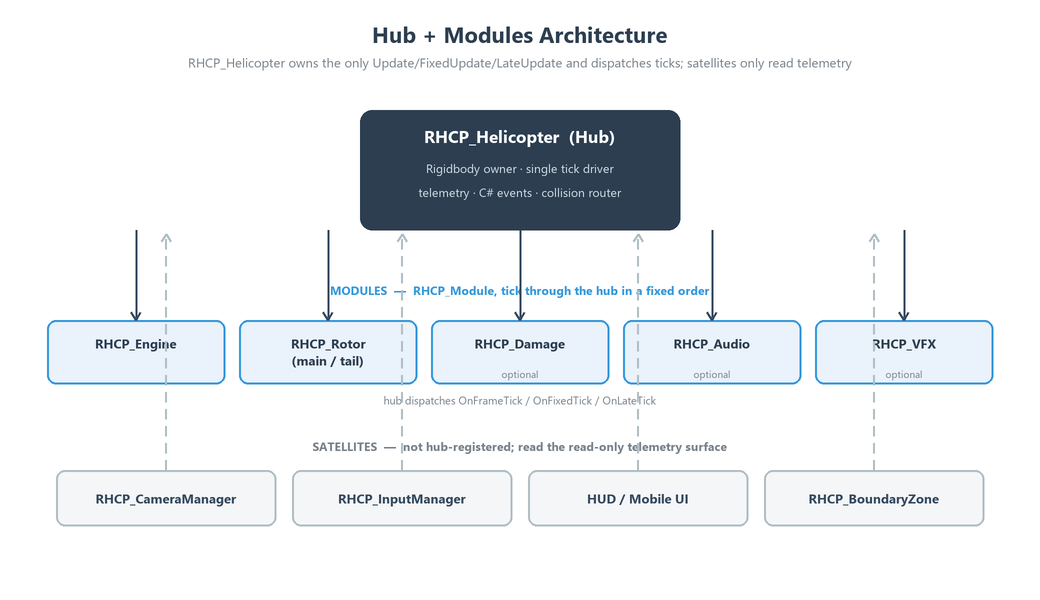
RHCP is a complete helicopter flight controller for Unity: drop a helicopter model into your scene, run the Setup Wizard, and fly. It ships a physically-grounded flight model (a tilting main-rotor thrust vector, an engine spool-up state machine, anti-torque, ground effect, and translational lift), a New Input System layer with keyboard/mouse, gamepad, and touch support, chase, cockpit, and orbit cameras, a uGUI/TextMeshPro HUD, mobile on-screen controls, and a damage/audio/VFX stack. The architecture is a central hub component (RHCP_Helicopter) with bolt-on modules (RHCP_Rotor, RHCP_Engine, RHCP_Damage, RHCP_Audio, RHCP_VFX), so you only add what you need.
What makes RHCP different from other helicopter assets?
The headline feature is the editor tooling suite, not just the flight model. A Setup Wizard takes a bare FBX to a flyable, validated helicopter with zero manual component wiring; a Validator catches every common misconfiguration and offers one-click fixes; a Project Doctor verifies your project settings (input handler, render pipeline, color space, TextMeshPro); and scene gizmos let you place the center of mass and rotor axes by hand. Most competing assets give you a flight model and leave setup to you — RHCP is built so a non-pilot, no-code designer can get a custom airframe flying in minutes. See Setup Wizard and Editor Tools.
Do I need to know how helicopters fly to use this?
No. The controls map to four intuitive inputs — collective (up/down lift), cyclic (tilt for forward/back and left/right), pedals (turn left/right), and engine start — and the Arcade end of the flight profile adds auto-leveling and automatic anti-torque so the aircraft mostly flies itself. The aviation terms are explained the first time they appear throughout this manual, and the bundled demo scene lets you fly immediately without configuring anything. When you want to dig deeper, Flight Tuning explains every handling parameter in plain language.
Is this the same as the 2018 asset of the same name?
RHCP v2.0 is a full ground-up rebuild for a fresh Asset Store listing, not an update to the deprecated 2018 release. None of the v2.0 code is API-compatible with the original; the 2018 single-component design, OnGUI dashboard, and legacy input were all replaced. If you owned the 2018 asset, treat v2.0 as a new product — there is no automatic project migration path from the old scripts.
Render Pipelines and Platforms
Which render pipelines are supported?
RHCP supports the Built-in Render Pipeline and the Universal Render Pipeline (URP). The asset ships material sets for both, and the included Project Doctor detects your active pipeline so you can confirm the correct materials are in use. URP is intentionally not declared as a hard package dependency, because the pipeline is your project's choice; if you are on URP, follow the conversion notes in Installation.
Why is HDRP not supported?
The High Definition Render Pipeline is out of scope for v2.0 by design — supporting it would require a third authored material set and a separate validation pass that we chose not to take on for this release. The flight model, input, cameras, and HUD are all pipeline-agnostic C# and physics, so they would run under HDRP, but the shipped materials would appear incorrect and the asset is not tested or warranted there. HDRP support is a candidate for a future point release rather than a launch feature.
Does RHCP run on mobile?
Yes. Mobile touch is a launch feature: the asset includes on-screen collective, cyclic, and pedal controls plus a resolution-independent uGUI HUD that doubles as the mobile UI. The flight model uses delta-time-correct forces and reads gravity from Physics.gravity, so behavior stays consistent across the different fixed-timesteps mobile devices may use. See HUD and Mobile for the on-screen control prefabs and activation rules.
What Unity version do I need?
RHCP is developed and verified on Unity 6000.3.6f1 (Unity 6.3), and that is the minimum supported version — the package imports only into Unity 6000.3 or newer. Earlier Unity releases are not supported for this version. Each Asset Store update is re-verified against the current 6000.x patch cycle; see Installation for the up-to-date requirements list.
Input and Controls
Does RHCP work with the old (legacy) Input Manager?
No. RHCP is built on the New Input System only, which is a hard requirement (com.unity.inputsystem, auto-prompted on import). A project set to legacy-Input-Manager-only will not run RHCP correctly; the included Project Doctor detects this and offers a one-click fix to switch Active Input Handling to the Input System (an editor restart is required afterward, as with any input-handler change). The input layer is built behind a provider interface (IRHCP_InputProvider), so an alternative backend could be added later without changing the rest of the asset.
What are the default controls?
All bindings live in one RHCP_InputActions.inputactions asset, organized into Flight, Camera, and Demo action maps. The defaults are:
| Control | Keyboard/Mouse | Gamepad |
|---|---|---|
| Collective (up/down) | W / S |
Left stick Y |
| Pedals (yaw left/right) | A / D |
Left stick X |
| Cyclic (pitch & roll) | Arrow keys (+ mouse) | Right stick |
| Engine toggle | E |
West button |
| Camera switch | C |
North button |
| Free-look modifier | Right mouse (hold) | Left shoulder |
| Camera orbit | Mouse | Right stick |
| Restart demo | R |
— (no default) |
| Toggle HUD | H |
D-Pad left |
| Open settings | Esc |
Start |
See Controls and Input for the full action/binding reference.
Why does my mouse cursor disappear when I fly?
That is by design: while flight input is live, RHCP locks and hides the OS cursor so mouse motion drives the cyclic and camera instead of the pointer wandering off-screen. This is controlled by lockCursorDuringFlight on the RHCP_InputConfig asset (on by default). It auto-releases when a menu locks the camera channel, when the app loses focus, and on the editor's Esc, and it recaptures when you click back into the view — turn it off for gamepad-only or touch builds.
Can I rebind the controls?
You can rebind freely at edit time by opening the RHCP_InputActions.inputactions asset and changing bindings in Unity's Input Actions editor — this is the standard New Input System workflow and fully supported. Runtime (in-game) rebinding UI is not included in v2.0; it is on the post-launch roadmap. If you need players to remap keys at runtime today, you can drive the standard InputActionRebindingExtensions API against the included actions asset yourself.
Is gamepad support included?
Yes. Every Flight, Camera, and Demo action has gamepad bindings out of the box (see the table above), with provider-side response shaping such as an expo curve on the gamepad cyclic, configurable on the RHCP_InputConfig asset. The same provider also powers the mobile on-screen controls, which present themselves to the system as a virtual gamepad rather than a separate touch scheme — so touch input flows through the exact same flight code path as a real controller.
Flight and Tuning
What is the "arcade vs realistic" slider?
Each helicopter's handling is defined by a RHCP_FlightConfig asset, and the single most important control on it is profileBlend — a 0..1 slider where 0 = Arcade (auto-anti-torque, auto-level attitude hold, steady rotor RPM, soft landings) and 1 = Realistic (you manage the pedals, raw cyclic disc tilt, RPM droop under load). The default is 0.25, biased toward the forgiving end. This one value drives a family of assist sub-parameters, so you can move the whole feel from beginner-friendly to demanding by dragging a single slider. See Flight Tuning.
Do I have to be a physics expert to tune a helicopter?
No. RHCP includes a Basic / Expert mode toggle on the flight-config inspector: Expert exposes every detail field, while Basic lets you set outcomes directly — climb power, top speed, roll/pitch/yaw rates, bank limit, and responsiveness — and the asset solves the underlying physics fields for you. There is also a Calibrate to targets button that flies the real airframe in Play Mode and iterates the values until the measured rates hit your targets. This means a designer can configure a believable helicopter without ever touching a torque or drag coefficient.
Can I have more than one helicopter, each flying differently?
Yes. Each helicopter is an independent RHCP_Helicopter hub with its own RHCP_FlightConfig asset, so you can run many airframes in one scene, each with completely separate handling — a nimble scout, a heavy transport, an arcade trainer — by assigning different config assets. Configs are plain ScriptableObjects, so they are easy to duplicate, version, and share between projects. The asset ships one ready-made configuration — the Maverick preset — as a starting point; duplicate it to create as many distinct airframes as you like, each with its own handling.
Can an AI or networked player fly a helicopter instead of a local input device?
Yes. The flight model never reads raw input directly — it consumes a normalized control seam on the hub (collective, cyclic, pedal), so anything that writes those channels can fly the aircraft. RHCP includes RHCP_ScriptedInput, a non-device control source you can drive from AI logic, network state, or a cutscene timeline by setting its CommandCollective, CommandPedal, and CommandCyclic properties. The same component powers the editor's "Calibrate to targets" auto-flight (Basic-mode tuning) and the internal QA harness, which proves the seam is solid.
Why does my helicopter tumble or fly away after I scale or resize it?
Don't resize a configured helicopter by scaling its Transform. The airframe's mass, collider, and center of mass are tuned together for the imported mesh — the COM in particular is placed under the rotor hub so hover lift passes through it, and a scaled root skews mass, inertia, and collider sizing (the Validator flags a non-(1,1,1) root with VAL-006). If you need a different size, change the scale factor on the model's import settings (the FBX importer) and re-run the Setup Wizard's Physics and COM steps, instead of scaling the GameObject in the scene. Likewise, don't poke the child mesh Transforms: the visible body sits on a Main_Body child whose very small local scale is part of the import, so scale the prefab root only, never Main_Body.
Mobile
How do I enable the on-screen touch controls?
Two steps: (1) add the mobile controls prefab (RHCP_MobileControls) to your scene — it provides on-screen collective, cyclic, and pedal sticks plus engine and camera buttons; and (2) turn on Tools ▸ BoneCracker Games ▸ RHCP ▸ Enable Mobile Controls, a checkmarked toggle that is off by default. The controls then appear in that build. RHCP opts you in per build rather than auto-detecting the platform (an auto-guess would wrongly show the sticks on a desktop WebGL browser, where Touchscreen.current is non-null even with no touch hardware). They present as a virtual gamepad, so no separate input scheme or extra wiring is needed — the flight code receives them identically to a hardware controller. To preview them in the editor without setting the build flag, tick forceShow on the component. See HUD and Mobile for placement, fade, and scale options.
Will the HUD scale correctly on phones and tablets?
Yes. The HUD is a uGUI/TextMeshPro canvas authored at 1920×1080 with match-height scaling and a safe-area handler, and it has been audited across 16:9, 16:10, and 21:9 aspect ratios to confirm no clipping, overlap, or off-screen widgets. Because the HUD doubles as the mobile UI base, the same layout serves desktop and device. If a widget lands under a notch or rounded corner on a specific device, the safe-area component keeps it inside the usable region.
Is mobile physics identical to desktop?
The flight model is written to be frame-rate and timestep independent: forces are scaled by delta time and gravity is read from Physics.gravity, so a helicopter behaves the same whether your fixed timestep matches the desktop default or a device runs at a different rate. This was a deliberate design invariant because mobile timesteps commonly differ from desktop. You should still profile on target hardware, but the handling itself will not drift between platforms.
Extending and Scripting
Where is the scripting/API documentation?
Every public type and member ships with XML documentation comments in the runtime source. This user manual deliberately stays at the configuration-and-usage level; for class-by-class details — method signatures, events, and properties — read those XML doc comments, which your IDE's IntelliSense surfaces as tooltips and autocomplete summaries while you script against the API. Start from the hub type RHCP_Helicopter, which exposes the telemetry, control seam, and module registry that everything else is built on.
How do I read live flight data (speed, altitude, RPM) for my own UI or logic?
Read it from the hub. RHCP_Helicopter exposes telemetry as read-only properties, and the shipped HUD widgets are themselves examples of consumers that poll that telemetry every frame — you can mirror their pattern for your own gauges, audio cues, or gameplay triggers. Because telemetry is exposed as properties (never hidden serialized fields), it is safe to read at runtime without touching internal state. The XML doc comments on RHCP_Helicopter (surfaced by IntelliSense) list the exact property names.
Can I add my own modules or replace a subsystem?
Yes — the hub-and-modules architecture is the extension point. Modules derive from a common base (RHCP_Module), register with the hub, and tick in a defined order, so you can add a new behavior (for example a winch, weapon, or custom effect) as a sibling module without modifying the core. Likewise, because input flows through the IRHCP_InputProvider interface, you can supply an alternative input source. Keep new runtime code free of mutable static state to preserve compatibility with Unity's disabled-domain-reload Play Mode, which RHCP relies on.
Licensing and Support
What is the license, and can I ship games made with it?
RHCP is distributed under the standard Unity Asset Store End User License Agreement (EULA); purchasing it grants you the right to use it in your own Unity games and applications, including commercial ones. You may not redistribute the asset's source or content as a standalone asset or competing template. For the authoritative terms, refer to the Unity Asset Store EULA that governs your purchase; third-party content notices are listed in ThirdPartyNotices.
Are there any third-party or hidden dependencies?
The only required package dependency is the New Input System (com.unity.inputsystem), which the package prompts to install on import; TextMeshPro is used by the HUD and is a standard Unity module. RHCP adds no custom tags, layers, or input axes to your project, so it leaves no project-settings footprint — boundary detection ships as a component (RHCP_BoundaryZone) rather than a tag. Any non-original art or audio is documented in ThirdPartyNotices.
How do I get support, and how do I report a bug?
Use the support contact listed on the asset's Asset Store page and the BoneCracker Games website; updates ship with human-readable release notes (see CHANGELOG) so you can see exactly what changed. Before contacting support, run the Project Doctor and the Validator — they resolve the large majority of setup issues automatically — and check Troubleshooting. When you do file a bug, include your Unity version, render pipeline, and platform so it can be reproduced quickly.
How often is RHCP updated?
RHCP is actively maintained: the asset is re-verified on each new Unity 6000.x LTS patch cycle, and feature point releases follow a published roadmap. Maintenance and a current "last updated" date are deliberate priorities for this asset, since a stale controller is a poor foundation for your game. Each update bumps the version across all surfaces and ships notes describing the changes.