Realistic Truck Simulator — Overview
This page introduces Realistic Truck Simulator (RTS) V1.5: what it is, what ships in the package, and how its systems fit together. Read it first if you are new to the asset — it ends with pointers to the exact documents to open next for installation, the demo scenes, and building your first own scene.
What Is Realistic Truck Simulator?
Realistic Truck Simulator is a Unity toolkit for building truck and cargo simulation games. It combines a complete cargo gameplay layer — trucks, trailers, loads, jobs, load stations, delivery zones, route guidance, and a ready-made UI — with the vehicle physics of Realistic Car Controller Pro (RCCP), which is included in the package under Assets/RTS/Realistic Car Controller Pro/. You do not need to buy or install RCCP separately.
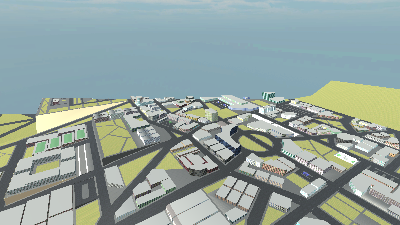
Out of the box you get a playable game loop: pick a job from a list, attach a matching trailer, fill it with cargo at a load station, follow the guide path across the city, and drop the cargo at the correct delivery zone. Every part of that loop is a separate, reusable system, so you can keep the whole package as-is, swap in your own trucks and cities, or lift individual pieces (just the job system, just the minimap) into an existing project.
The asset supports Unity 2022.3.51 and newer, up to and including Unity 6.3. Full C# source code is included, and controls are bound through Unity's Input System — keyboard, gamepad, Logitech G920 wheel, and Oculus Touch bindings ship pre-configured.
Key Features
Trucks and Trailers
A truck in RTS is any RCCP-powered vehicle with the RTS_Truck component added on top; the package ships one ready truck prefab at Assets/RTS/Prefabs/Trucks/RTS_Truck.prefab. (A prefab is a pre-configured GameObject saved as a reusable asset in your project.) RTS_Truck watches the RCCP trailer coupling every frame and fires attach/detach events the rest of the toolkit reacts to.
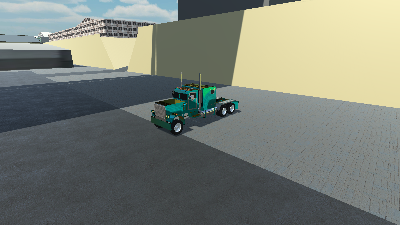
Trailers use the RTS_Trailer component and come in four types. Each type accepts only certain kinds of cargo — there are five usable load types (Pallet, Fuel, Vehicle, Crate, Container; a sixth enum value, None, represents "empty"). The compatibility rules are:
| Trailer type | Accepts | Ships as a ready prefab? |
|---|---|---|
| Flatbed | Any load type | Yes — RTS_Trailer_Flatbed |
| Box | Pallet, Container, Crate | Yes — RTS_Trailer_Box |
| Tanker | Fuel only | Yes — RTS_Trailer_Tanker |
| LowLoader | Vehicle, Container, Crate | No — available as a type for trailers you build yourself |
Trailers track their empty weight, maximum load capacity, and current cargo, and place load prefabs on the trailer bed in a configurable grid. RTS_TrailerSpawnPoint components mark positions in your scene where trailers appear, with an optional spawn delay.
Jobs and Deliveries
Jobs are ScriptableObjects — data assets saved in your project that you edit in the Inspector like any other file. Each job defines a name, description, required trailer type, required load type and amount in kilograms, target delivery zone, and a reward value. Five sample jobs ship in Assets/RTS/Resources/Jobs, covering crate, pallet, container, fuel, and vehicle transportation.
RTS_JobManager runs the job lifecycle: it validates that your connected trailer matches the job, guides you to a matching trailer if you have none, then to a load station, then to the delivery zone, and completes the job when enough of the right cargo arrives. Only one job can be active at a time. Full details are in Jobs and Loads.
Load Stations and Delivery Zones
Both locations are trigger zones — invisible collider volumes that detect when your trailer enters them. A load station fills the player's trailer with its configured load type in timed cycles, but only during an active job and only if the trailer type is compatible. A delivery zone checks its zoneID against the active job and completes the delivery when the cargo requirement is met.
The package ships five load station prefabs and five delivery zone prefabs (one per load type: Crate, Pallet, Container, Fuel, Vehicle). Both draw scene-view gizmos and labels so they are easy to place and spot while editing. See Locations for setup.
Route Guidance
RTS_GuideSystem draws a visible path line from your truck to the current target — a trailer to pick up, a load station, or a delivery zone. The path is calculated on the scene's NavMesh (a walkable-surface map Unity bakes for pathfinding) and recalculates automatically as you drive. The job system drives it for you, and you can also set targets yourself through RTS_API.SetNavigationTargetForGuide().
Ready-Made UI
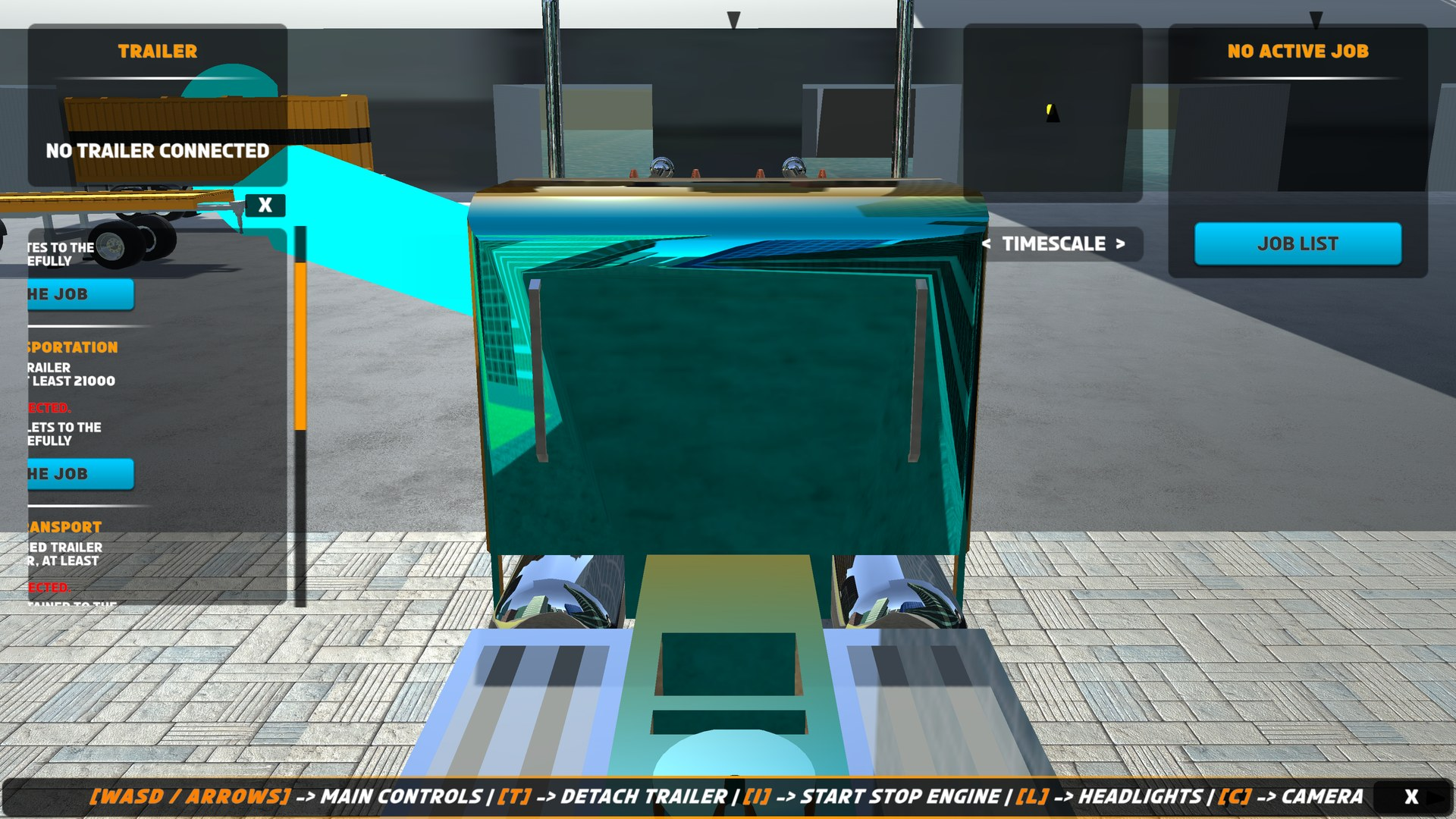
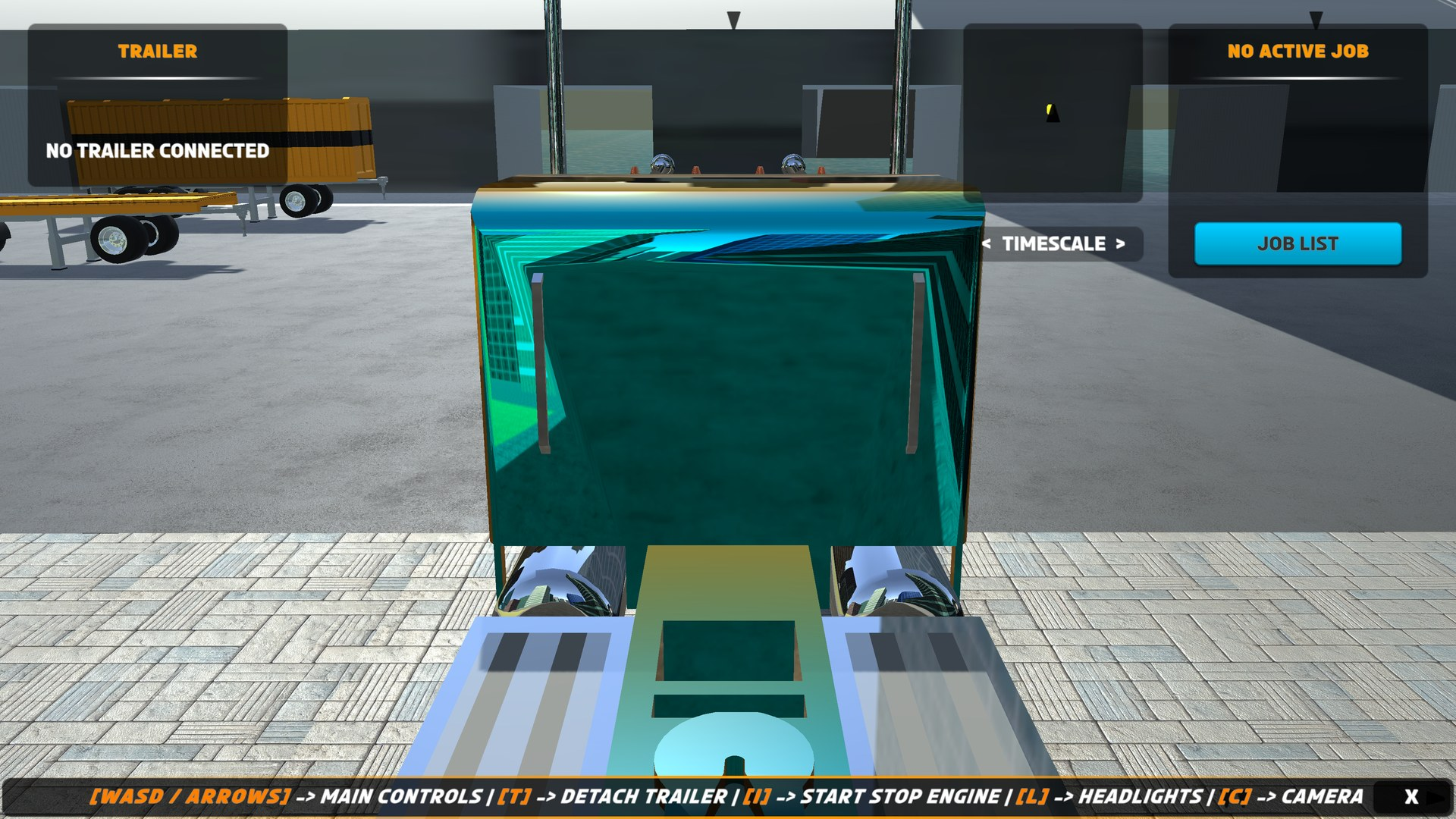
The play-mode interface ships across three prefabs. The main RTS_Canvas prefab provides an RCCP dashboard HUD (speed, RPM, gear, lights), a job list panel with one card per available job, a floating notification system for load and job messages, an active-job panel, a trailer info panel, a minimap display panel, a keyboard controls bar, and mobile touch controls including a trailer detach button. The companion RTS_Canvas (ScreenSpace) prefab adds the world-space name tags that fade with distance and the off-screen indicator arrows pointing to targets, and the RTS_MinimapCamera prefab renders the minimap and spawns its icons for trailers, load stations, and delivery zones. Everything is standard uGUI + TextMeshPro, restylable to your game. See UI System.
Demo Content
RTS_DemoScene_City is a full playable city with five delivery zones, five load stations, and three trailer spawn points (Box, Flatbed, Tanker), plus all managers and UI wired up. Two more scenes ship alongside it: RTS_DemoScene_Template, a minimal starting point, and RTS_SceneSetup, the template used by the one-click scene setup menu item. All three live in Assets/RTS/Scenes/. See Demo Scenes for a guided tour.
How It Works
Under the hood, RTS is organized into three layers, shown in the diagram below. At the top sits RTS_API, a static facade class — every public operation (spawning trucks and trailers, starting and completing jobs, controlling vehicles, setting guide targets) goes through its static methods, so your own scripts never need to touch the managers directly. In the middle is RTS_Events, a static event bus that broadcasts everything that happens: truck and trailer spawn/despawn, trailer attach/detach, trailer data changes, and job started/completed/terminated. At the bottom are the scene singletons — RTS_SceneManager (tracks all trucks and trailers and the player truck), RTS_JobManager (runs the job lifecycle), and RTS_PlayerEventsListener (subscribes to the events and coordinates the guide system and UI responses).
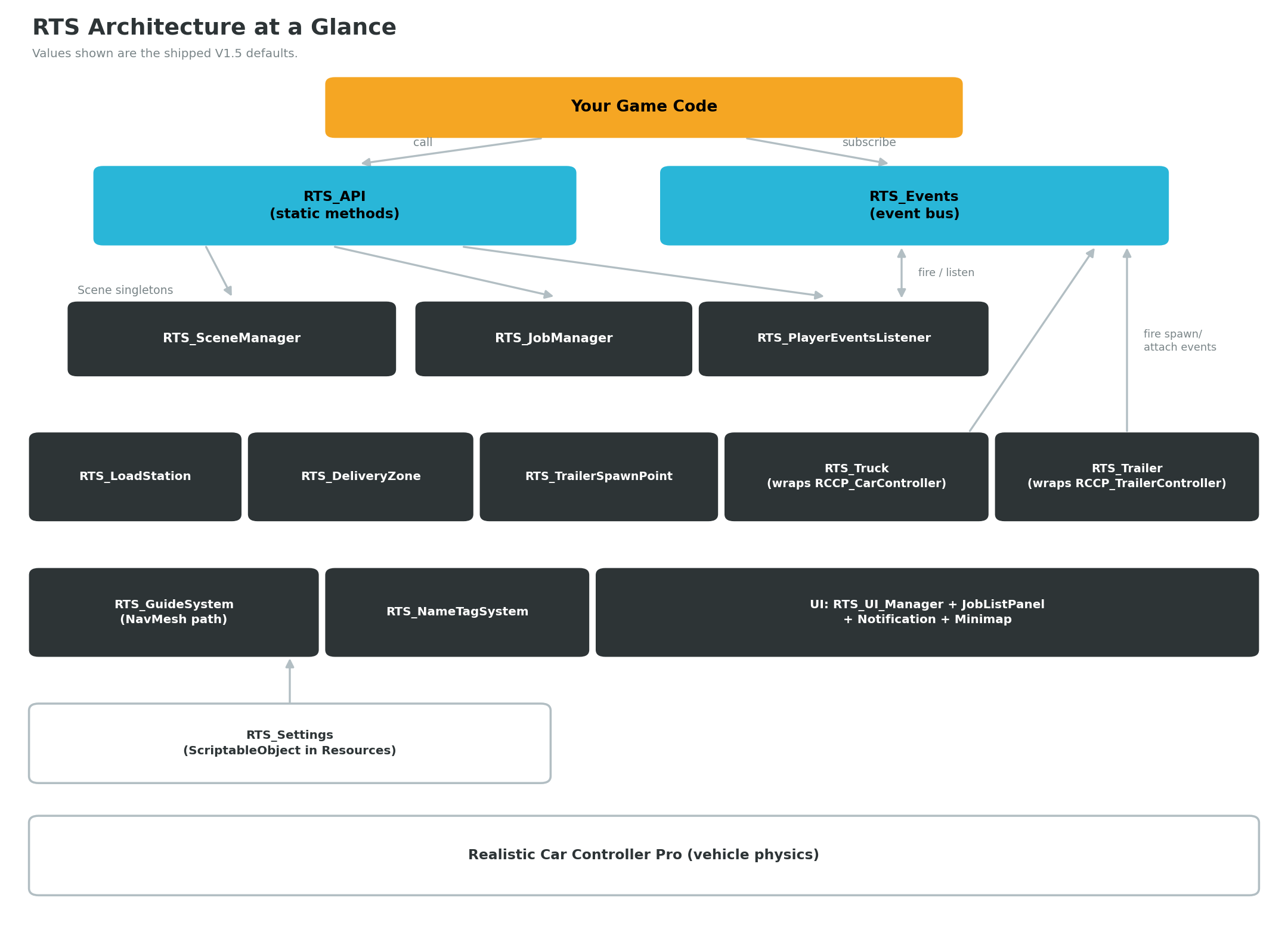
Because the systems talk through events rather than hard references, they stay loosely coupled: the UI refreshes when a trailer attaches, the guide system re-targets when a job starts, and your own code can subscribe to the same events to add money, progression, or statistics. A deeper walkthrough of the runtime flow is in How It Works, and the complete method list is in the Scripting API.
Who Is It For?
Beginners building their first truck game
If you know how to open Unity and click around, you can have a playable delivery game running in minutes: import the package, open the demo city, and press Play. From there, the menu item Tools → BoneCracker Games → Realistic Truck Simulator → Scene Setup → Create and Configure All The Systems drops every required system into your own scene in one step. The documentation set walks you through each system in order, assuming no prior experience.
Developers with an existing RCCP project
If you already build with Realistic Car Controller Pro, RTS adds a delivery layer on top of vehicles you already have: add the RTS_Truck component to your vehicle, drop in the managers, and drive everything through RTS_API and RTS_Events. The trailer, job, and zone systems are additive — they do not modify RCCP's vehicle physics.
What You Can Build
A delivery career game
Use the job system as the spine of a career mode: author jobs as ScriptableObject assets, spread load stations and delivery zones across your map, and hook RTS_Events.OnJobCompleted to pay out the job's reward value into your own money and progression system. RTS deliberately does not spend the reward itself — the field is left for your code to consume, so a career layer plugs in without disabling anything.
Driving-school style hauling missions
Because each job specifies an exact trailer type, load type, and cargo amount, you can design a graded sequence of hauling exercises — start with an empty flatbed, move up to a full tanker — and use the guide path to keep new players on route. The job system even handles the setup phase: if the player takes a job without the right trailer connected, it guides them to the closest matching trailer before the exercise begins.
Cargo mini-games inside an open world
The systems also work as a side activity in a larger game: place a few zones and spawn points in your open world, keep the job list panel hidden until the player enters a depot, and let deliveries run alongside your main gameplay through the same event bus. RTS_API.ToggleJobsListPanel() shows or hides the job list from code, and the scene manager automatically deactivates trailers beyond a configurable distance (800 m by default), so far-away depots cost nothing while the player is elsewhere.
Version and Links
| Item | Value |
|---|---|
| Current version | V1.5 |
| Unity support | 2022.3.51 and newer, through Unity 6.3 |
| Asset Store page | https://u3d.as/3w5p |
| Video tutorials | YouTube playlist |
| Support | Contact form — include your invoice number |
| More BoneCracker Games assets | Publisher page |
Getting Started
To go from a fresh download to your own working scene:
- Install the package — follow Installation to import RTS and complete the first-run setup.
- Play the demo — open the city scene and drive a full delivery loop with Demo Scenes.
- Learn the essentials — read Essentials to understand the handful of components you will use every day.
See Also
- Documentation Index — the full map of this documentation set.
- How It Works — the runtime architecture and data flow in depth.
- Scripting API — every public method on
RTS_APIand every event onRTS_Events.