Common Mistakes (and How to Avoid Them)
This page collects the fifteen most common mistakes people make when setting up Realistic Truck Simulator, from silent job failures to missing guide lines. Each entry lists the exact symptom you will see on screen or in the Console, explains why it happens, and gives the fix. Read it whenever something "does nothing" — almost every dead end in RTS traces back to one of these.
Quick Symptom Lookup
If you already have a message on screen, find it here first. Messages appear either as in-game notifications (the floating message panel) or as warnings in Unity's Console window.
| What you see | Likely cause | Mistake # |
|---|---|---|
| Clicking a job card does nothing — no message at all | No player truck registered | 1 |
| Guide line never appears | No NavMesh in the scene | 2 |
| Driving into a zone does nothing at all | Collider missing or not set as trigger | 3 |
Console: Layer "RTS_MinimapIcons" not found. Make sure the layer name is correct. |
Minimap layer missing | 4 |
| A zone added during Play Mode has no name tag or minimap icon | Location placed at runtime | 5 |
| "Trailer type does not match job requirements" | Wrong trailer for the job | 6 |
| "Trailer type Box is not compatible with this Fuel load station" (types vary) | Wrong station for the trailer | 6 |
| "You're not permitted to load this trailer unless you take the job" | Loading before starting the job | 7 |
| "Can't start a new job, you already have one" | A job is still active | 8 |
| "Trailer is loaded" / "Trailer is full" | Station reached the job cap or trailer cap | 9 |
| "Not enough cargo of the required load type to complete the job" | Station amount does not divide the job amount | 9 |
| Job completes but no money appears | Reward is an integration point, not a wallet | 10 |
| "This delivery zone is not compatible for your cargo" | zoneID mismatch |
11 |
Console: ... is missing RCCP_TrailerController! RTS_TrailerManager requires it. |
Trailer prefab missing its controller | 12 |
Console: repeated NullReferenceException while sitting inside a load station; no cargo appears |
Load prefab name does not contain its load type | 13 |
| Browser window says "No RTS_Job assets found in Resources/Jobs (or no matches for your search)." | Asset saved outside the Resources folders | 14 |
| "Trailer must be connected to your truck to start the job" | No trailer of the required type exists in the scene | 15 |
Scene Setup Mistakes
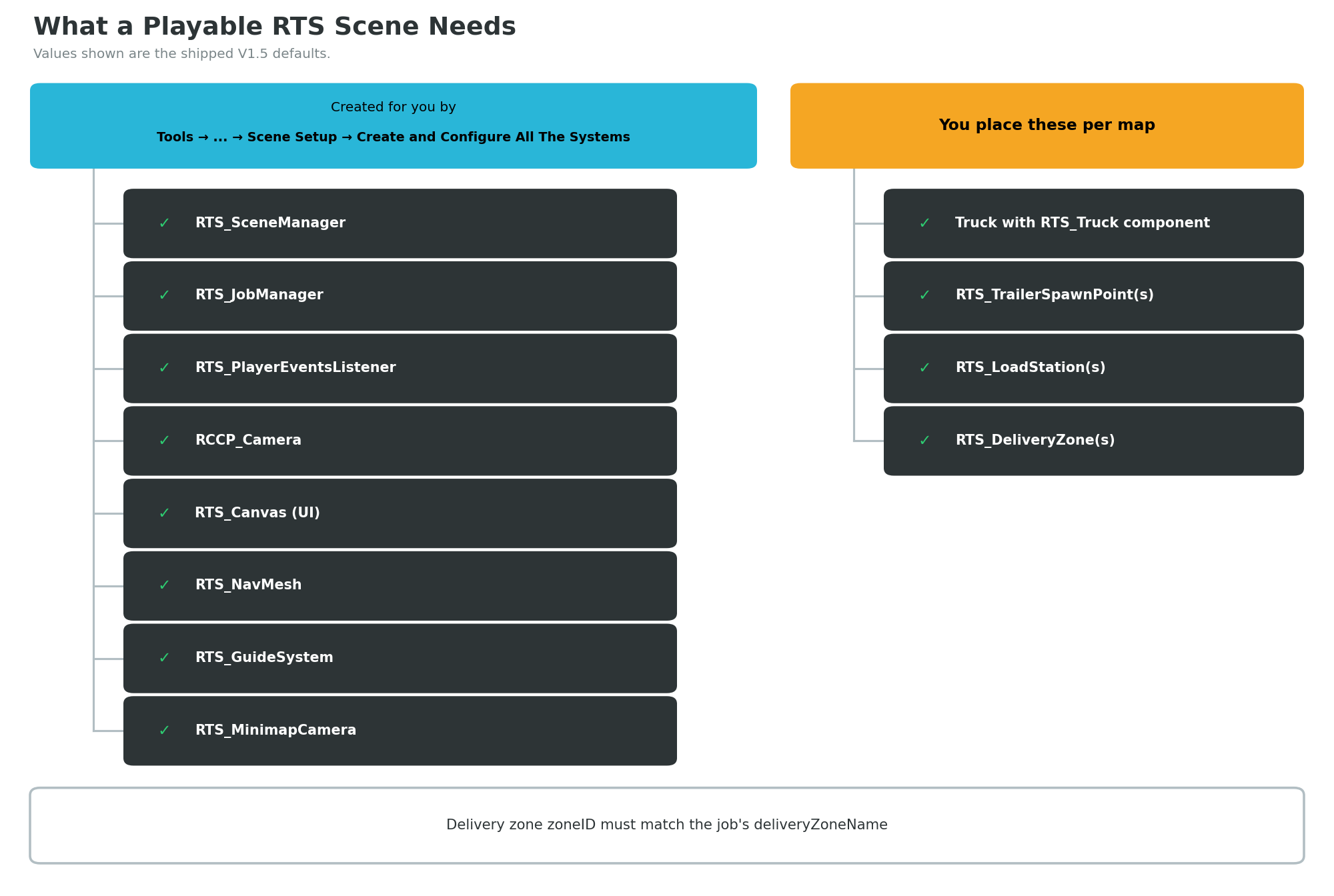
A working RTS scene needs its managers, UI, navigation, and location objects present and configured. The easiest way to get all of them at once is Tools → BoneCracker Games → Realistic Truck Simulator → Scene Setup → Create and Configure All The Systems — see Scene Setup.
1. No player truck is registered
What you see: You press Play, the job list shows your jobs, but clicking a job card does nothing — no notification, no error. The camera usually does still follow your truck (RCCP registers its player vehicle independently), which is exactly why the missing RTS-side registration is easy to miss.
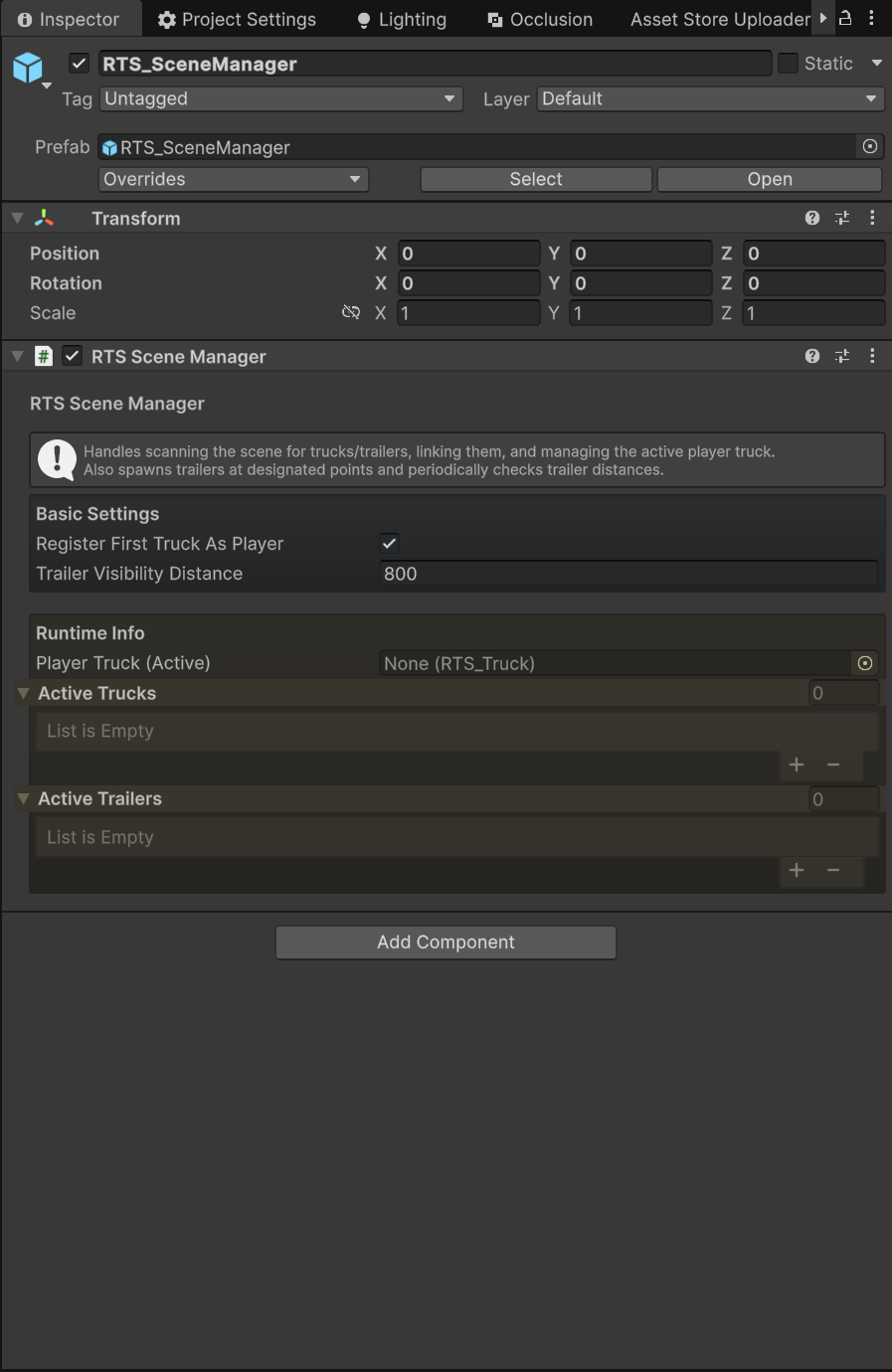
Why it happens: Every gameplay flow starts from RTS_API.GetPlayer(). In RTS_JobManager.StartJob(), if the player truck is null the method simply returns — silently, with no message. And the player truck is null more often than you would expect, because RTS_SceneManager.registerFirstTruckAsPlayer defaults to false: placing a truck in the scene does not automatically make it the player.
The fix: Select the RTS_SceneManager object and enable Register First Truck As Player, which auto-assigns the first truck found in the scene. Alternatively, register explicitly from code with RTS_SceneManager.Instance.RegisterPlayerTruck(truck) (note: RTS_API.RegisterPlayerVehicle registers the truck with RCCP only — it does not set the RTS player), or spawn with RTS_API.SpawnTruck(prefab, position, rotation, true, true, true) — the fourth parameter is registerAsPlayerVehicle. See Scene Setup and Scripting API.
2. No NavMesh, so the guide line never appears
What you see: You start a job and get the start notification, but the glowing guide ribbon that should lead you to the trailer, load station, or delivery zone never shows up.
Why it happens: RTS_GuideSystem draws its path with NavMesh.CalculatePath — Unity's baked navigation data. A NavMesh is a precomputed map of walkable/drivable surfaces; if your scene has none (or the baked data does not cover your roads), no path can be calculated and nothing is drawn. The system also samples positions within a 100 m radius, so a NavMesh that exists but is far from the road will still fail.
The fix: Add the shipped NavMesh object via Tools → BoneCracker Games → Realistic Truck Simulator → Create → Scene → Create RTS NavMesh, then bake the NavMesh surface so it covers your drivable area. See Locations & Navigation.
3. Zone or station has no trigger collider
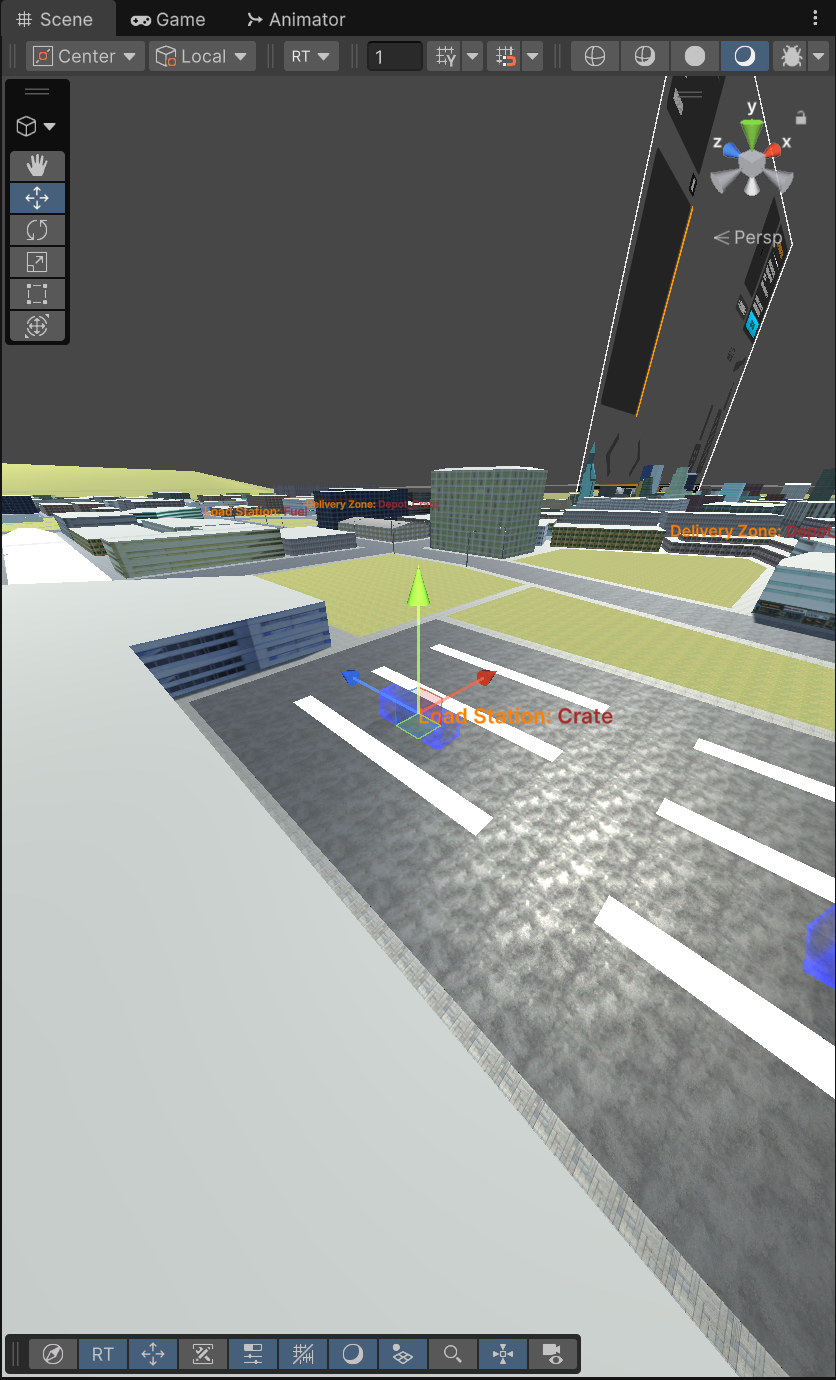
What you see: Driving a trailer into a load station or delivery zone does nothing — no notification of any kind. In the Scene view, the green volume gizmo may also be missing.
Why it happens: Both RTS_LoadStation and RTS_DeliveryZone work entirely through OnTriggerEnter/OnTriggerExit. A trigger collider is a collider with Is Trigger enabled — it detects overlaps without physically blocking objects. If the zone object has no Collider, or the Collider's Is Trigger checkbox is off, Unity never calls the trigger events and the zone is inert. The Scene-view gizmo is drawn from the collider too (box or sphere), so a missing gizmo is a strong hint.
The fix: Add a BoxCollider (or SphereCollider) to the zone object and enable Is Trigger. Compare with the shipped prefabs in Assets/RTS/Prefabs/LoadStations/ and Assets/RTS/Prefabs/DeliveryStations/. See Locations & Navigation.
4. The RTS_MinimapIcons layer is missing
What you see: Console warning: Layer "RTS_MinimapIcons" not found. Make sure the layer name is correct. Minimap icons are either missing from the minimap or visible in the main camera view.
Why it happens: The minimap spawns icon objects 50 m above their targets on a dedicated layer (a Unity tag-like category used for camera filtering) named exactly RTS_MinimapIcons — slot 12 in the shipped project. The main RCCP camera excludes that layer from its culling mask so icons only render on the minimap camera. If you deleted the layer, or imported RTS into a project where slot 12 is already occupied and skipped the setup dialog, the layer lookup fails.
The fix: Open Edit → Project Settings → Tags and Layers and add a layer named exactly RTS_MinimapIcons (spelling and case matter). On first import, RTS offers to do this for you via the "Found Missing Layers For Realistic Truck Simulator" dialog — click Add when it appears. See Installation and UI System.
5. Placing locations at runtime and expecting tags and icons
What you see: A load station or delivery zone spawned from script during Play Mode works as a trigger, but has no floating name tag and no minimap icon.
Why it happens: RTS_NameTagSystem creates all its world-space labels once, in Awake — it scans the scene for delivery zones, load stations, and trailers at startup. Minimap icons are likewise created when the system initializes. Objects added after that moment are simply never scanned.
The fix: Place zones, stations, and spawn points in the scene in Edit Mode, before entering Play Mode. If you must build levels procedurally, treat name tags and minimap icons as startup-time systems and initialize your locations before those systems run. See Locations & Navigation.
Job Workflow Mistakes
6. The trailer type does not match the job
What you see: Notification "Trailer type does not match job requirements" when starting a job, or "Trailer type Box is not compatible with this Fuel load station" (your types will vary) when loading.
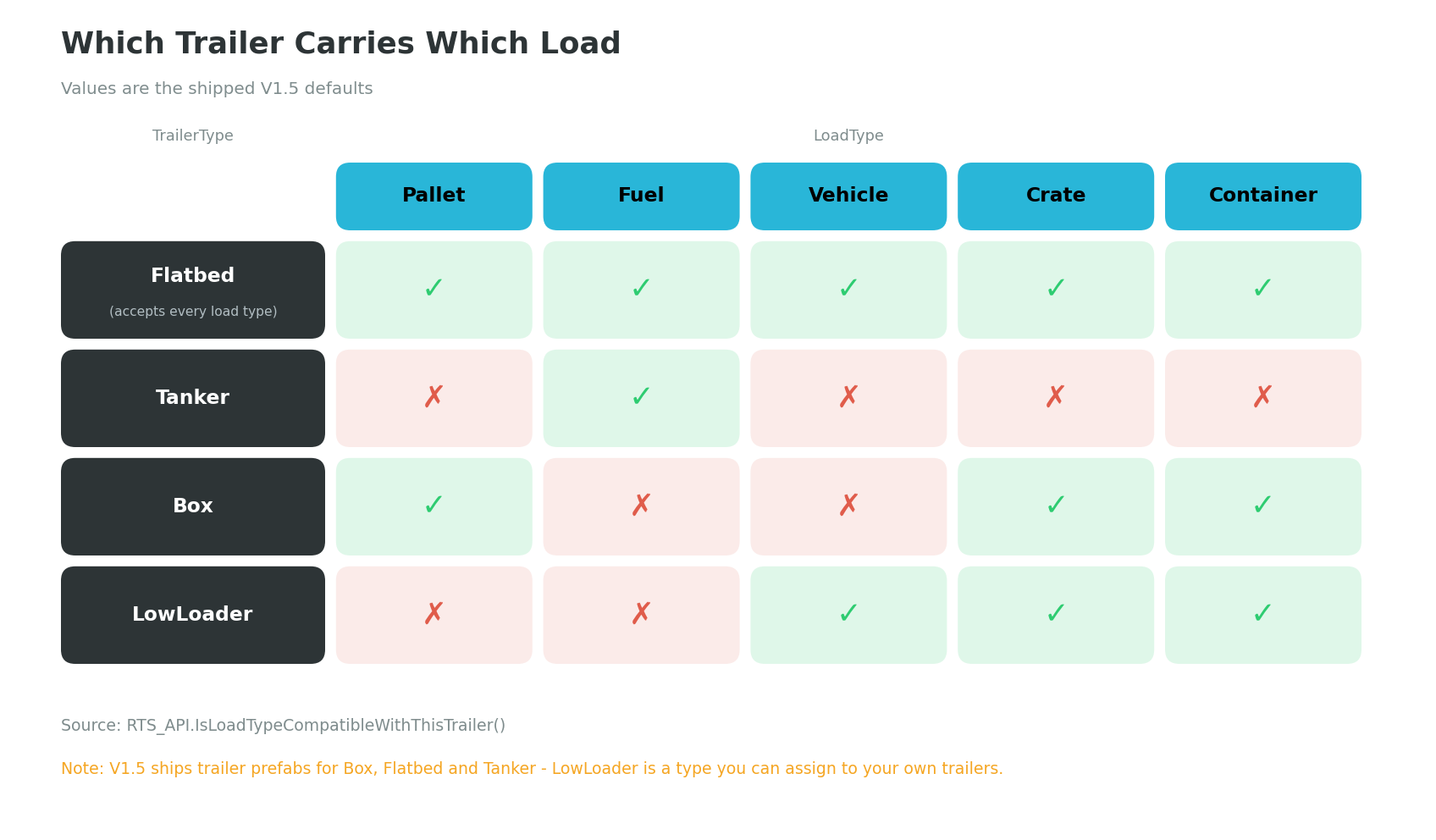
Why it happens: Every job demands a specific requiredTrailerType, and every load station serves one LoadType. Compatibility is enforced by RTS_API.IsLoadTypeCompatibleWithThisTrailer() using fixed rules:
| Trailer type | Accepts |
|---|---|
| Tanker | Fuel only |
| Flatbed | Any load type (except None) |
| Box | Pallet, Container, Crate |
| LowLoader | Vehicle, Container, Crate |
The fix: Check the job card before starting — it tells you "No trailer connected." (red), "Current trailer is incompatible." (orange), or "Trailer compatible. Ready to start." (green). Attach the trailer type the job asks for, and only visit stations whose load type your trailer accepts. See Jobs & Loads.
7. Loading the trailer before taking the job
What you see: Sitting inside a load station repeatedly shows "You're not permitted to load this trailer unless you take the job" (it repeats every load cycle — 1.6 seconds by default).
Why it happens: The load station checks RTS_API.InJob() before every load cycle. Loading is deliberately gated behind an active job, because the station caps loading at the job's required amount (see mistake 9) — without a job, there is no cap to load against.
The fix: Open the job list, start a compatible job first, then drive into the station. The guide system will actually lead you there in the right order: job → load station → delivery zone. See Jobs & Loads.
8. Trying to start a second job
What you see: Notification "Can't start a new job, you already have one".
Why it happens: RTS_JobManager holds exactly one currentJob at a time — the system is single-job by design. Any StartJob call while a job is active is rejected up front.
The fix: Finish the current delivery, or terminate it: the job status button in the HUD turns red while a job is active and calls TerminateJob() when clicked. From code, use RTS_API.TerminateJob(). See UI System and Scripting API.
9. Expecting the station to fill the trailer to capacity
What you see: "Trailer is loaded" long before the trailer reaches its maxLoad — or, worse, the delivery zone later says "Not enough cargo of the required load type to complete the job" even though the station said "Trailer is loaded".
Why it happens: The station stops at the job's requiredLoadAmount, not the trailer's capacity. Two different messages cover the two caps: "Trailer is loaded" means another load cycle would exceed the job requirement; "Trailer is full" means the trailer's own maxLoad is reached. There is a subtlety in the first check — the station refuses a cycle if currentWeight + loadAmount would go over the job amount. So if your station's Load Amount does not divide evenly into the job's Required Load Amount, loading typically stops below the requirement and the delivery cannot complete. Example: a station adding 5000 kg per cycle against an 18000 kg job stops at 15000 kg, because 20000 would overshoot. (One quirk can rescue such a pairing: AddLoad spawns whole prefab instances, so a cycle can add more weight than the station requested — the shipped Fuel pairing relies on this to land exactly on its requirement.)
The fix: When authoring jobs and stations, make the station's loadAmount divide the job's requiredLoadAmount exactly (four of the five shipped City pairings divide evenly; the Fuel pairing relies on whole-prefab quantization instead). Landing exactly on the requirement is allowed. See Jobs & Loads and Locations & Navigation.
10. Expecting the reward to grant money automatically
What you see: The Job Browser (and the job asset's Inspector) show "Reward: 1000 $" (the default), the job completes — and nothing happens to any balance anywhere. The in-game job card does not display the reward at all.
Why it happens: RTS ships no economy system. The reward field exists on RTS_Job as an integration point: it stores the number, and it is up to your game to consume it. Nothing in RTS reads it at completion time.
The fix: Subscribe to the job-completed event and apply the reward to your own money system:
private void OnEnable() {
    RTS_Events.OnJobCompleted += OnJobCompleted;
}

private void OnDisable() {
    RTS_Events.OnJobCompleted -= OnJobCompleted;
}

private void OnJobCompleted(RTS_Job job) {
    myWallet += job.reward;    // your economy, your rules
}
See Scripting API for the full RTS_Events list.
Custom Content Mistakes
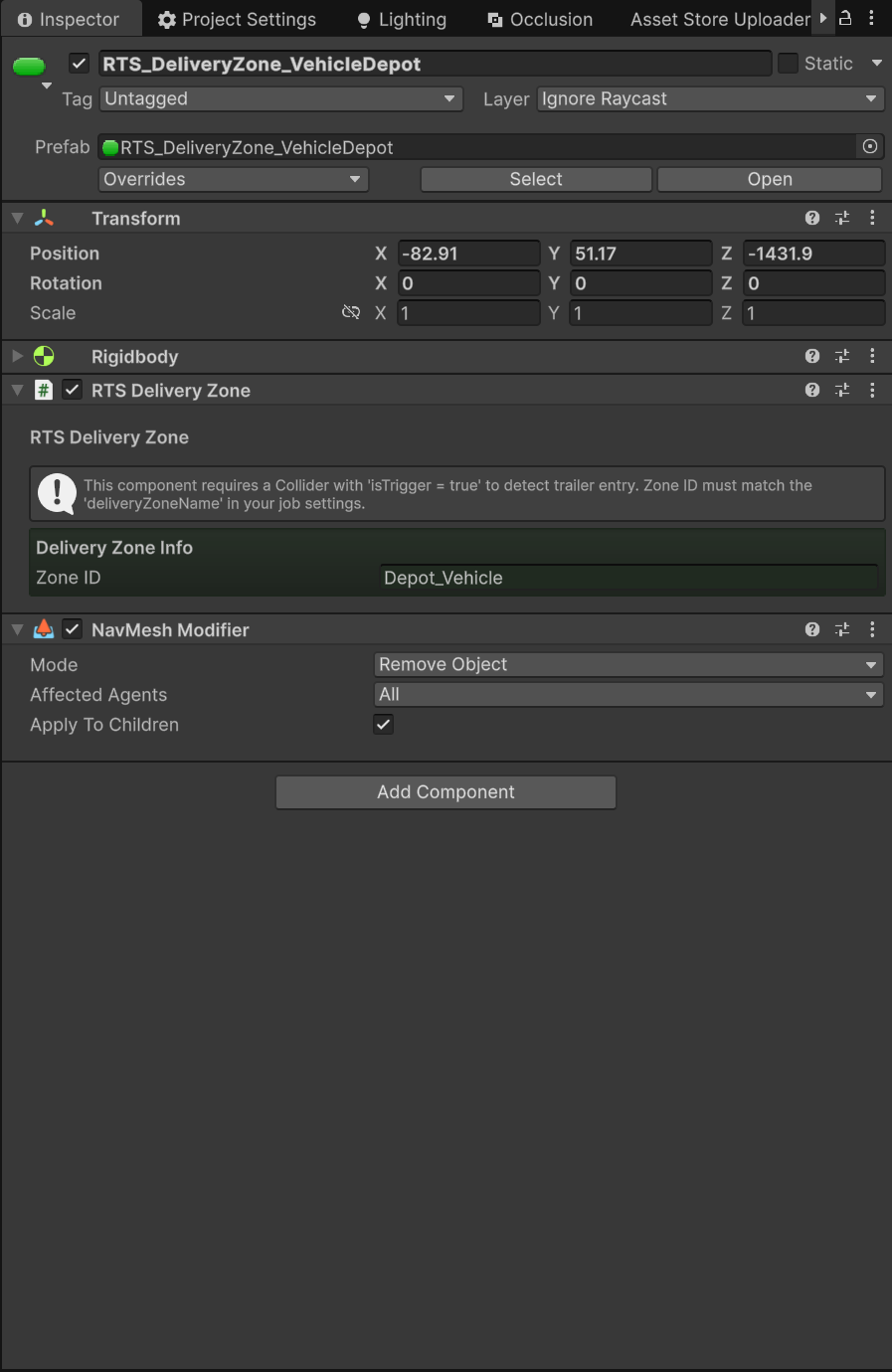
11. zoneID does not exactly match deliveryZoneName
What you see: Driving into your delivery zone with a full trailer shows "This delivery zone is not compatible for your cargo". The guide line may also never point at the zone, and a NullReferenceException can appear in the Console when the system looks the zone up.
Why it happens: The job's deliveryZoneName string and the zone's zoneID string are compared with a plain == — an exact, case-sensitive match. Depot_Crate and depot_crate are different strings; so are Depot_Crate and Depot_Crate (trailing space). If no zone in the scene matches, FindDeliveryZoneByName returns null, and the guide target lookup fails.
The fix: Copy-paste the string between the job asset and the zone rather than retyping it. The shipped jobs use Depot_Crate, Depot_Pallet, Depot_Container, Depot_Fuel, and Depot_Vehicle. See Locations & Navigation.
12. Custom trailer prefab is missing RCCP_TrailerController
What you see: Console warning: [YourTrailerName] is missing RCCP_TrailerController! RTS_TrailerManager requires it. — and the RTS_Trailer component disables itself, so the trailer never attaches, loads, or fires events.
Why it happens: RTS_Trailer is a wrapper around RCCP's RCCP_TrailerController, which handles the actual physics and attachment. A prefab (a saved, reusable GameObject) built from a plain model has no such controller, so the wrapper shuts down in Awake to avoid errors downstream.
The fix: Build trailers on top of a working RCCP trailer setup — the Creating Trailers guide walks through the full stack. When in doubt, duplicate one of the shipped trailers in Assets/RTS/Resources/Trailers/ and replace the visuals.
13. Load prefab name does not contain its LoadType
What you see: A NullReferenceException (thrown from RTS_Trailer.AddLoad) repeats in the Console every frame while you sit inside the station, no cargo objects appear on the trailer bed, and the "Loaded … kg" notification never shows.
Why it happens: RTS_Trailer.AddLoad finds which prefab to spawn by checking that the prefab's name contains the LoadType string. The shipped prefabs follow this: RTS_Load_Crate, RTS_Load_Fuel, RTS_Load_Pallet, RTS_Load_Container, RTS_Load_Vehicle_1, RTS_Load_Vehicle_2. If you name your custom crate prefab MyCargoBox, the lookup for Crate finds nothing and no load object can be instantiated. (If a shipped prefab of the same type still sits in Resources/Loads, it matches instead — cargo appears, just with the shipped model rather than yours.)
The fix: Include the exact enum member name in the prefab's file name — Crate, Fuel, Pallet, Vehicle, or Container (e.g. MyLoad_Crate). See Jobs & Loads.
14. Saving custom assets outside the Resources folders
What you see: The Job Browser reports "No RTS_Job assets found in Resources/Jobs (or no matches for your search)." even though your job asset exists; custom load prefabs are never spawned onto trailers.
Why it happens: RTS looks up content at fixed paths. The Job Browser loads jobs with Resources.LoadAll<RTS_Job>("Jobs"); trailers auto-populate their spawnable load prefabs in Awake from Resources/Loads; the Trailer Browser lists Resources/Trailers. A ScriptableObject (a data asset like RTS_Job) saved to some other folder is invisible to all of these. Note one exception: the Job Manager's Available Jobs list is hand-assigned in the Inspector, so a stray job can appear to work there while every other lookup misses it.
The fix: Keep content in the canonical folders — jobs in Assets/RTS/Resources/Jobs, load prefabs in Assets/RTS/Resources/Loads, trailer prefabs in Assets/RTS/Resources/Trailers. The Create New Job button in the Job Browser saves to the right place automatically. See Jobs & Loads.
15. A LowLoader job with no LowLoader trailer in the scene
What you see: Starting your custom job with no trailer attached shows "Trailer must be connected to your truck to start the job", and no guide line appears to any trailer.
Why it happens: When you start a job without a trailer, the manager searches the scene for the closest trailer of the required type and guides you to it. But RTS ships only Box, Flatbed, and Tanker trailer prefabs — LowLoader is an available type with no shipped trailer. A job requiring a LowLoader finds nothing to guide to, so the start is aborted with the message above.
The fix: Either build your own LowLoader trailer (see Creating Trailers) and place it or a spawn point for it in the scene, or set the job's requiredTrailerType to a shipped type. Remember LowLoader accepts Vehicle, Container, and Crate loads (mistake 6).
Next Steps
- Message on screen that is not in this list? Work through Troubleshooting for deeper diagnosis.
- Rebuilding a broken scene from scratch is often faster than hunting one missing piece — see Scene Setup.
- The full job pipeline, with every string and check in order, is explained in How It Works and Jobs & Loads.
- Component-by-component field reference: Settings Reference.