Assists and behavior presets
Goal: choose how much driving help a car receives and make sure your settings stay in effect when you press Play.
Before you start
Use a car that already drives. Stop Play Mode and select the vehicle root in the Hierarchy.
Two terms used here:
- An assist helps the driver control the car, such as preventing a wheel from locking under braking.
- A behavior preset is a shared set of handling choices. It can apply assists, steering, grip and other settings to several cars.
1. Choose where handling is controlled
Decide whether you want to tune one car directly or apply a shared preset.
| Your aim | What to do |
|---|---|
| Tune this car's own components | On the vehicle root, turn on Ignore behavior presets. |
| Give this car a chosen preset | Leave Ignore behavior presets off, turn on Use a vehicle-specific preset, then choose its preset. |
| Apply the selected global preset | Leave both per-car options off, then enable Apply a behavior preset in RCCP Settings. |
Open the shared settings from Tools > BoneCracker Games > Realistic Car Controller Pro > RCCP Settings.
Check: you know which of these paths the car uses. A valid vehicle-specific preset can apply even when the global preset switch is off.
2. Open the driving assists
- Select the vehicle root.
- In the module cards, open Behavior > Stability. Add it with + if the car has no Stability module.
- For direct per-car tuning, edit the assist switches here. For a preset-controlled car, edit the corresponding choices in Presets in RCCP Settings.
| Assist | What it helps with |
|---|---|
| ABS (anti-lock brakes) | Reduces braking when a wheel is locking |
| ESP (stability control) | Uses wheel braking to correct unwanted rotation |
| TCS (traction control) | Reduces drive when powered wheels spin |
| Steering helper | Adds help toward the steering direction |
| Traction helper | Adjusts front grip while sliding |
| Angular drag helper | Adds resistance to rotation as speed increases |
Threshold means how much slip or error is needed before an assist acts. Strength means how strongly it responds once active.
Check: the required assists are enabled in the place that controls this car.
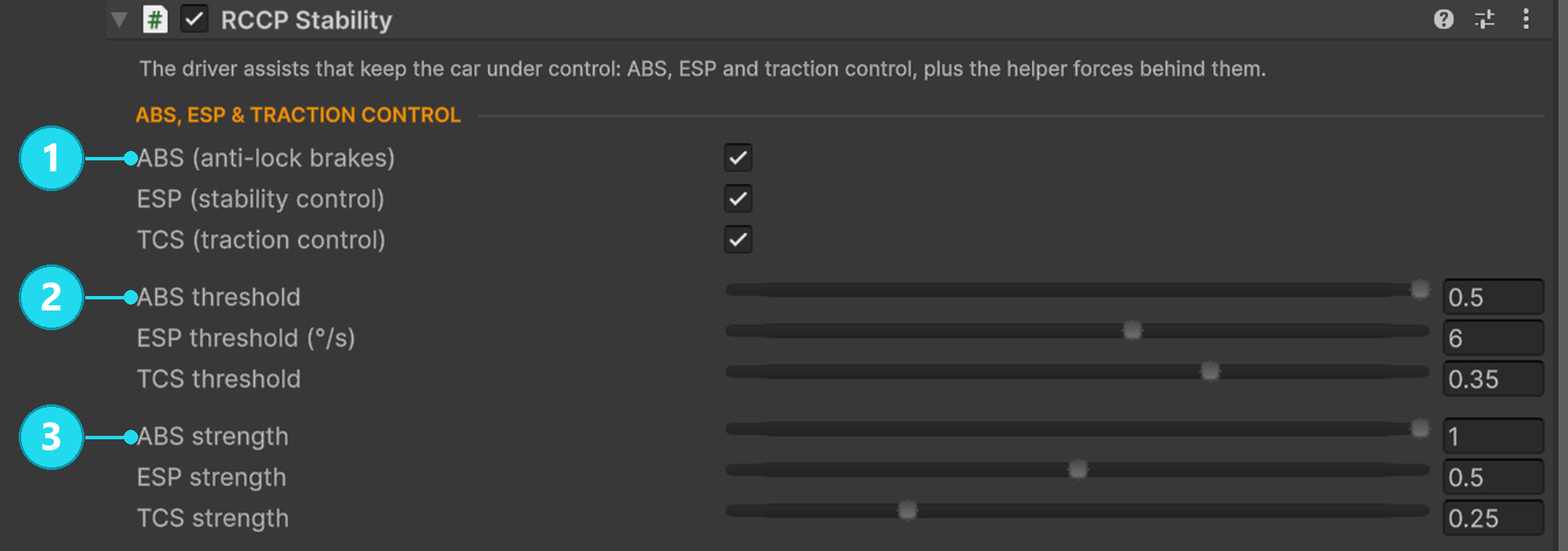
Open the screenshot at full size. 1 Enable the assists you want. 2 Thresholds control when they intervene. 3 Strengths control how strongly they respond. These are example-car values; choose one change and repeat your test. The separate helper controls are farther down the Inspector, and a behavior preset can still replace these settings when the car is enabled.
3. Compare one assist at a time
- Save the current scene and note the setting you will change.
- Drive a repeatable test: straight braking for ABS, a standing start for traction control, or the same corner for ESP.
- Stop Play Mode.
- Change one assist or one strength value.
- Repeat the same test at the same speed.
During Play Mode, the Stability Inspector's Live values include ABS working, ESP working and TCS working.
Check: the readout activates under the conditions you are testing, and the driving change matches your aim. A switch being on does not mean the assist intervenes all the time.
Save the final component changes with Play Mode stopped.
What each assist does
For an easier car, start with the assists enabled and adjust strength gradually.
For a less assisted car, remember that ESP, Steering helper and Traction helper are separate. Turning ESP off leaves the helpers active. Turning all of them off can make the car harder to control; test one change at a time.
The included presets are Balanced, Drift, Race and Arcade. Start with Balanced for your first comparison. Drift enables the drift system and disables ABS, ESP and traction control in the supplied settings; its helpers remain separate choices.
For drift behavior, a preset is a useful starting point because drift involves the differential, steering and tire settings as well as assist switches.
Why the value I changed came back
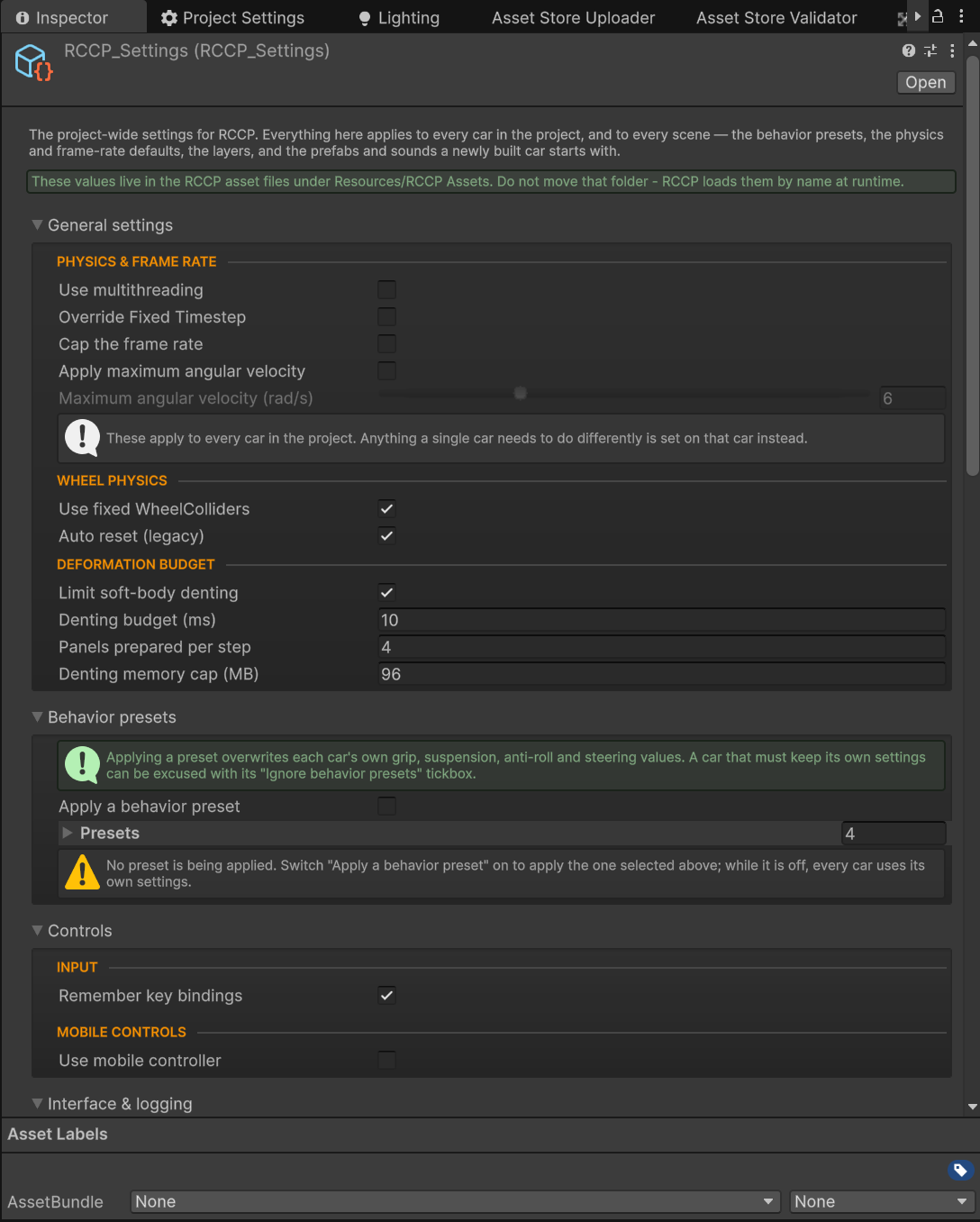
A preset is applied when a car is enabled, including when it spawns or is reused. It can change a setting in several ways:
| Preset action | What happens | Examples |
|---|---|---|
| Replace | Your per-car value is overwritten | Assist switches, steering curve, differential type, wheel friction curves, angular damping |
| Limit to a range | Values outside the preset's range are moved inside it | Helper strengths, steering speed, shift time |
| Enforce a minimum | A lower value is raised | Anti-roll force |
| Multiply a base value | The car's authored value is scaled | Suspension spring and damper |
For example, a preset with a stronger suspension multiplier still uses each vehicle's own base suspension. It does not give a light car and a heavy truck identical springs.
Ignore behavior presets prevents further preset application. It does not restore values a preset already changed during a running session; restart from your saved scene when comparing setups.
Editing a preset
- Open RCCP Settings.
- Enable Apply a behavior preset to access the global preset workflow.
- Under Presets, select the preset you want to edit.
- Change only the fields related to your goal.
- Test each affected vehicle after starting a new run.
Preset edits are shared settings changes. Save a copy of values you want to preserve, and make permanent edits outside Play Mode. Do not assume a scene-object reset also undoes an edit to a shared settings asset.
Stopping ESP fighting the driver
Use these after the basic assist setup works.
| Symptom | Settings to inspect |
|---|---|
| ESP engages and releases repeatedly | ESP threshold and ESP release threshold; release should be below engagement |
| Corrections feel abrupt | Minimum ESP time and ESP brake smoothing |
| ESP rapidly changes which end it thinks is sliding | Slide type hold time |
| ESP expects too much grip on a slippery road | Expected road grip |
| The dashboard light flickers despite small corrections | Dashboard light threshold and Dashboard light hold |
ESP mode selects Sport or Normal behavior. Sport uses wheel braking; Normal can also cut power. Keep speed while ESP brakes controls how much speed is restored during corrections.
Use Field Reference for the detailed timing and correction controls before changing several of them.
If the result is unexpected
| What you see | What to check |
|---|---|
| Only one car keeps reverting | Its vehicle-specific preset and Ignore behavior presets options |
| A change on Stability does not survive Play | Edit the preset or let this car ignore presets. |
| No assists act | The Stability module must exist and be enabled; the tested conditions must trigger an assist. |
| ESP is off but the car still corrects slides | Check the separate helpers, counter steering and drift settings. |
| The car rolls over even with assists | Check model geometry, center of mass and suspension using Tuning Recipes. |
Read next
- How the Car Drives — the power and grip the assists act on.
- Tuning Recipes — repeatable handling comparisons.
- Field Reference — individual assist and preset fields.