Engine audio
Goal: get an engine sound working, then replace or tune its recordings without creating gaps or mismatched notes.
Before you start
Use a car that drives. Stop Play Mode and select its root in the Hierarchy.
An engine sound uses layers: recordings of the engine at different speeds. RCCP changes their pitch and fades between them as the RPM changes.
1. Open the Audio module
- On the vehicle root, find Presentation > Audio.
- Add it with + if it is missing, then click the card to select it.
- Find Engine sounds in the Audio Inspector.
- If you need a fresh starting set, click Create 4 Engine Sounds (Default).
Check: the engine layer cards contain audio clips.
Preset buttons replace the entire layer set. Keep your existing setup if you have already authored custom sounds.
2. Listen before editing
- Press Play and click inside the Game view.
- Listen at idle, during acceleration, during gear changes and after releasing the throttle.
- In the Audio Inspector, open Live values and check Blend running now.
- Stop Play Mode before making permanent edits.
Check: sound remains audible through the engine's RPM range, and lifting off produces a coasting sound rather than an unexpected gap.
If all vehicle sound is missing, check Game-view audio muting, clip assignments, volume and any assigned Mixer group before changing layer tuning.
How layers work
| Card field | Meaning |
|---|---|
| On | Recording used while the engine is pulling |
| Off | Recording used when coasting |
| RPM | The layer's engine-speed window |
| Pitch | Playback-speed range used by Legacy blending |
| Vol | Layer volume |
| Ref | RPM at which the On recording was made |
| Off Ref RPM | RPM of the Off recording, if different |
In the standard four-layer set the cards are Low, Med, High, Idle. Idle is last. Match references to the recording on each card, not to the order of the cards.
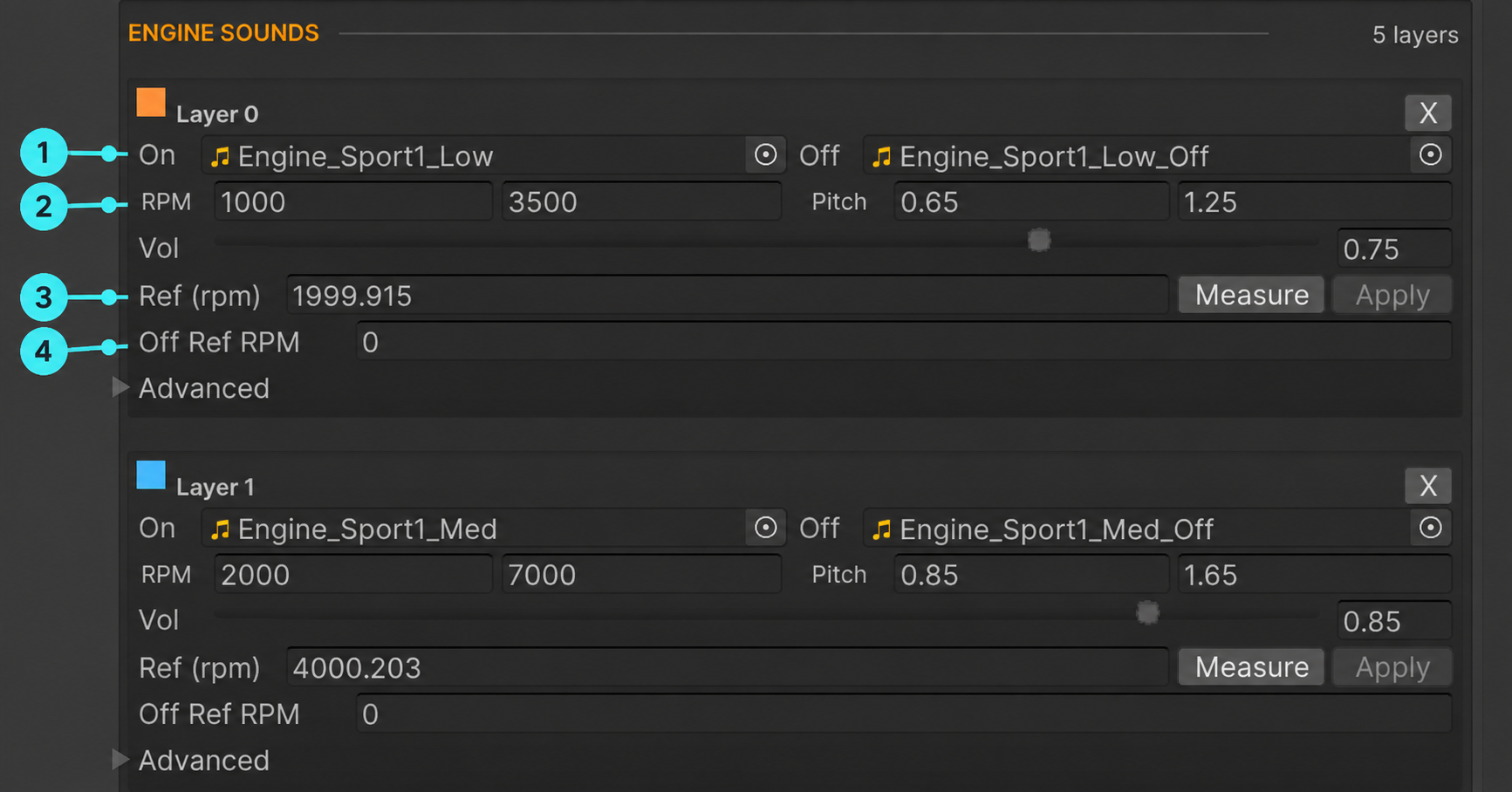
Open the screenshot at full size. On the first card, 1 On / Off holds the recordings, 2 RPM sets the window, 3 Ref identifies the On recording's RPM, and 4 Off Ref RPM can override it for coasting. This crop shows two cards from a five-layer example; its values are not the default four-layer preset or a tuning recipe for your recordings.
Equal Power sorts layers internally by reference RPM. Each usable layer needs an On clip and a distinct Ref above 1. Missing or duplicate references can make it fall back to Legacy, so always inspect Blend running now.
3. Add your own recordings
Start with looping engine recordings made at known, steady RPM.
- Replace On and Off on a layer with the matching powered and coasting clips.
- Enter the recording RPM in Ref.
- If the Off clip was recorded at a different RPM, enter that in Off Ref RPM. Zero means it inherits Ref.
- Repeat for the other layers.
- Set Engine blend to Equal Power.
- Read Engine Layer Validation before testing.
Check: there are no missing On clips, empty layer entries or duplicate references. During Play Mode, Blend running now reports Equal Power.
If you do not know the recording RPM, use the measurement workflow below. A guessed reference can make overlapping recordings sound like two different engines.
4. Check the RPM windows, then listen again
Under Equal Power, the RPM window also limits how far a recording's pitch can follow the engine.
- Compare each layer's reference with its neighbors in RPM order.
- Give its RPM window enough reach to cover the transition to those neighbors.
- Check that the lowest and highest layers cover the engine's operating range.
- Test idle, acceleration through the whole range, and a long coast back down.
- Stop Play Mode and save the settings that worked.
Check: transitions do not produce a fixed wrong note, sudden silence or an unexpected volume jump.
Changing Pitch does not tune Equal Power: that mode derives pitch limits from the RPM window and reference. Pitch remains relevant when using Legacy.
Optional: measure a recording's RPM
On each layer:
- Click Measure. It analyzes both assigned clips.
- Read the confidence result and Details.
- Click Apply if the result is suitable.
- Confirm by listening through the full operating range.
Measure needs an uncompressed .wav source. For other formats, use a known recording RPM or obtain a suitable source recording.
Seed Reference RPMs From Legacy Ranges and Apply Seeds To All Layers provide estimates from an old setup. Treat them as starting values, then measure and listen.
Why the engine sounds like two engines
Two audible recordings can disagree about the RPM they represent. Check:
- Whether each Ref matches its own recording.
- Whether the coasting clip needs a separate Off Ref RPM.
- Whether an RPM window cuts off pitch movement too soon.
- Whether Blend running now has fallen back to Legacy.
Increasing volume or adding more layers does not correct a wrong reference.
Optional: the default four-layer set
The default button creates these reference values and windows for the included recordings. Use them as an example of matching windows to neighboring references, not as references for unrelated clips.
| Layer | RPM window | Ref | Off Ref RPM |
|---|---|---|---|
| Low | 1008–4000 | 2000 | 0 |
| Med | 2000–8731 | 4000 | 0 |
| High | 4000–9000 | 8731 | 8002 |
| Idle | 350–2000 | 1008 | 0 |
The Idle layer uses the same recording for On and Off. The on = off badge identifies this shared clip. The redline badge marks the layer with the highest RPM-window limit.
Smaller preset buttons are available for fewer recordings. They also replace the entire set.
The validator
Engine Layer Validation updates as you edit.
| Message concerns | What to do |
|---|---|
| An empty layer or missing On clip | Fill it or remove the unused layer. |
| A gap where no layer plays | Adjust coverage, then listen through that range. |
| References too close for a useful transition | Use recordings covering different RPM regions; do not falsify a measured reference just to remove the message. |
| A missing Off clip | Supply a coasting recording if the layer should play after lift-off. |
| A reference outside its RPM window | Check the reference and widen the window as needed. |
| Large pitch stretch | Listen for resampling artifacts; recordings closer together in RPM may help. |
Warnings about pitch stretch are guidance about sound quality. They do not replace listening, and a clean validator does not prove the engine sounds right.
Optional: choose how the engine reacts to load
Load source controls the transition between On and Off:
| Choice | Follows |
|---|---|
| Throttle | Pedal input |
| Torque Ratio | Engine output, so the sound can reflect how hard the engine is working |
Torque blend mixes the effect. Compare pulling in gear and coasting before deciding.
Backfires that use the engine-braking signal also need engine braking enabled. See Surfaces and Effects for exhaust effects.
Other sounds and volume
Other sounds contains effect blocks such as starter, gear change, crash, wind and tire sounds. Each uses its own clip assignments and audio settings.
An assigned Mixer group routes the vehicle's audio through a Unity audio mixer so you can control vehicle volume and effects together.
Audio and time scale
RCCP audio follows the game's time scale through the mixer assigned in RCCP Settings: silent at time scale 0 (a paused replay, photo mode, your own pause menu), lower pitch and volume in slow motion, higher pitch when time runs faster than 1x, and muted while a replay rewinds. Audio Follows Time Scale in RCCP Settings turns this off; the pitch range and the slow-motion volume drop sit beside it. A music source that should keep playing through a pause turns on Ignore Listener Pause on its own Audio Source.
Check: open a replay and pause it. The engine falls silent; at 0.5x it plays lower and quieter; exiting the replay restores the mixer's authored values.
For quiet crashes, use Tuning Recipes. Full-volume crash changes meaning when Crash volume by mass changes, so read the Inspector's unit warning before adjusting it.
If the audio still sounds wrong
| What you hear | Start with |
|---|---|
| Engine disappears only after lift-off | Off clips and Off Ref RPM |
| Wrong notes in only part of the rev range | RPM windows and neighboring references |
| Wrong notes across most of the range | Blend running now and recording references |
| Different volume after switching blend mode | Layer volumes and the number of layers blended |
| Only some crashes are silent | Empty entries in the Crash clip list |
Read next
- How the Car Drives — engine RPM and shifting.
- Tuning Recipes — measured audio examples.
- Field Reference — detailed audio settings.